









 Ruby
Ruby
 Golang
 .Net
.Net
 MCP
MCP
 C++
C++

Welcome to the final instalment of our series on explaining what an API is! In this episode, we're going to be exploring a real-world API, this time in the context of the ever-popular roleplaying game: Dungeons & Dragons!
Let's recap what we've seen so far:
In Part 1, we learned how browsers make requests to servers, and how those responses deliver the HTML, CSS (and JavaScript) to allow the browser to build web interfaces for our human eyes to understand data.
In Part 2, we cracked open JSON and learned how to navigate its key/value pairs, arrays, and learned a little about dot notation.
Now, it's time for the grand finale: taking raw JSON from an API and displaying it on a real webpage.
Interlude: The Airport Departure Board
Before we look at any code, picture an airport departure board:

Think about how that board is built:
- The Frame (Static): The giant physical grid mounted on the wall, along with the column headers (Flight, Destination, Time, Gate), never changes. That’s your HTML and CSS.
- The Content (Fluid): The flight numbers, gate assignments, and statuses constantly flip, update, and change. That’s your JSON.
An airport doesn't tear down the physical board when a flight gets delayed; it just swaps out the old data for the new data.
When building web applications, we do the exact same thing. We build a static frame once, and let an API feed fluid data into that frame.
Our Project: The D&D Monster Card Generator
To see this in action, we’re going to build our own "departure board," but instead of flights, we’re displaying monsters from the Dungeons & Dragons universe!
We'll be using the free D&D 5e API (dnd5eapi.co). Why? Ultimately we chose this API for two reasons. Firstly, D&D is awesome - and thanks to "Stranger Things", even more people at least know what it is!
But last, and possibly most importantly, it requires zero authentication. No signups, no secret keys, no hassle.
Getting a Goblin (or two)
For our first example, we're going to ask the API for a regular ol' Goblin.
When requesting a specific resource (Goblin) from an API, you need to use a specific endpoint URL. To truly understand this, let's deconstruct the endpoint url:
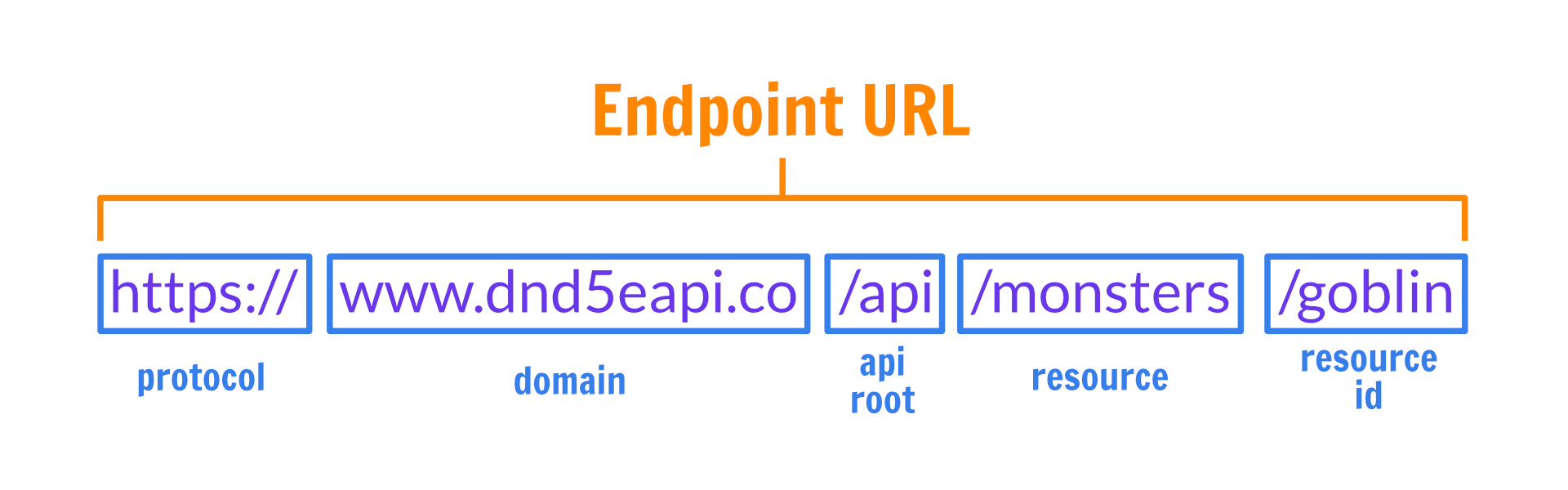
- Protocol: tells the computer how to talk across the internet.
HTTPSmeans the message is encrypted and secure. - Domain: points directly to the server where the API lives. It answers the question: "Which server in the world am I contacting?"
- API Root: many servers host both human-facing websites (HTML) and data endpoints (JSON). Adding
/apitells the server: "Don't send me a webpage for human eyes; route me to the data department." - Resource: specifies the category or group of data you want to look inside. It answers the question: "What kind of items am I looking for?" (e.g.,
/monsters,/spells,/classes). - Resource Identifier: pinpoints the single item inside that collection you want to retrieve. It answers the question: "Which exact monster do you want?" (e.g.,
goblin,red-dragon,mage).
Try it in the browser
When you ask the API for a monster like a Goblin:
https://www.dnd5eapi.co/api/monsters/goblin
it sends back a clean JSON response like this:
{
	"index": "goblin",
	"name": "Goblin",
	"size": "Small",
	"type": "humanoid",
	"subtype": "goblinoid",
	"alignment": "neutral evil",
	...
}
Go ahead and click on the endpoint URL if you haven't already - you should see something like this in your browser (if you have a 'Pretty print' option, I would recommend using it):
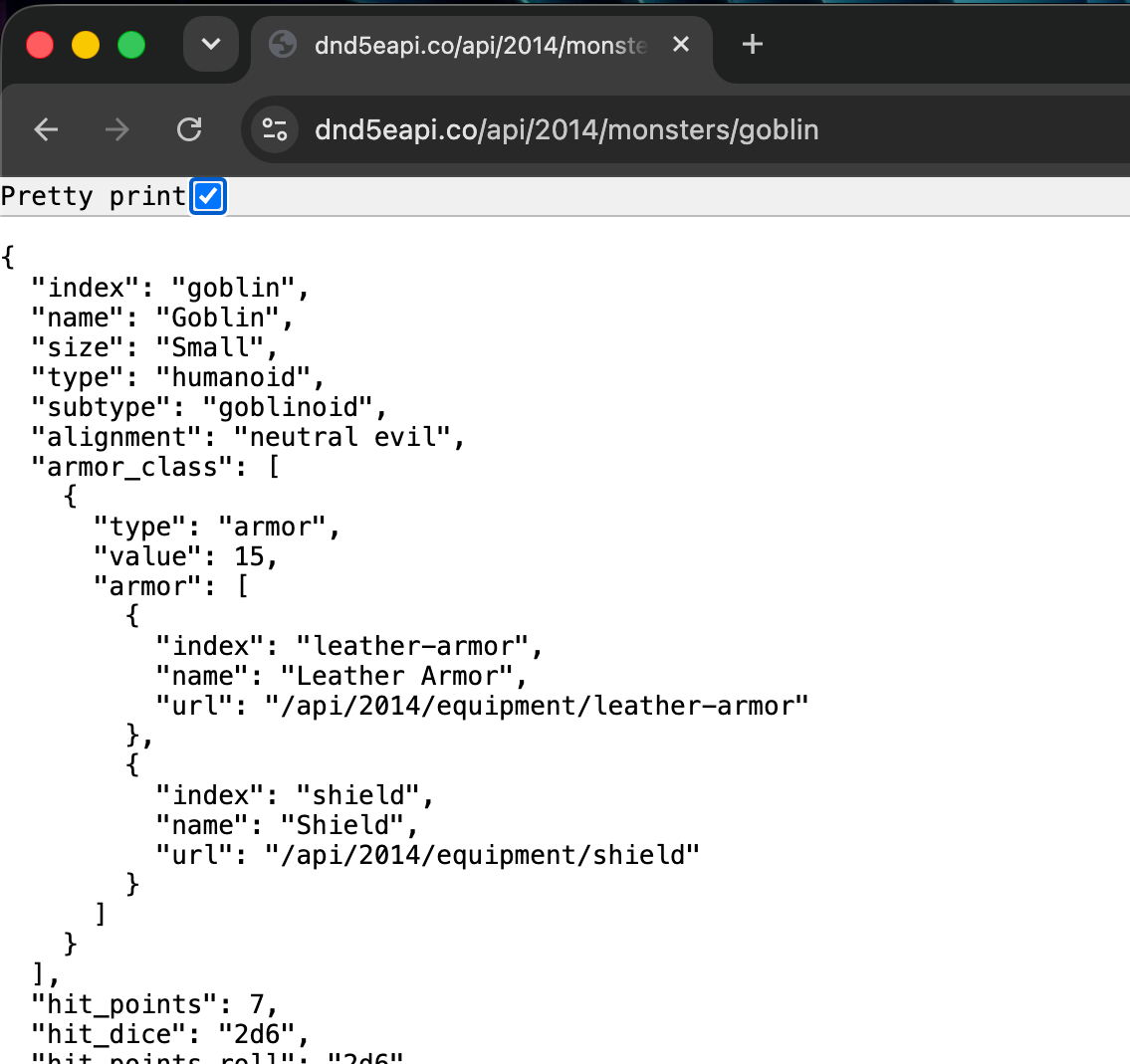
Here we can see quite clearly the information being returned is for a goblin!
But by understanding how the resource identifier works, you can simply change the id for another, and get the information for that type of resource (monster).
So swapping your goblin for a minotaur would be as simple as changing the last part of the url:

You can click on the updated URL, but I would suggest editing it in your browser instead- it's much more fun!
Once you understand that changing that last part of the url will get you a different monster (if it exists in the API's database), you can have all sorts of fun guessing what monsters might be available. A ghost! A ghoul! An awakened-shrub?
Here's a fun challenge: how might you get a list of ALL monsters available from the API? Give it a try!
Using the API in an App
We've seen the JSON displayed in a browser - now we want to know what it might look like for an app to use that data to display the information, similar to the example of the airport departures board.
Naturally, we've already prepared a project for you, so you can get started by grabbing the code from here
You'll need to make sure you have the following 3 files downloaded onto your computer:
- index.html
- app.js
- styles.css
Make sure all 3 files are in the same directory/folder, and then open index.html in your browser. It should look something like this:
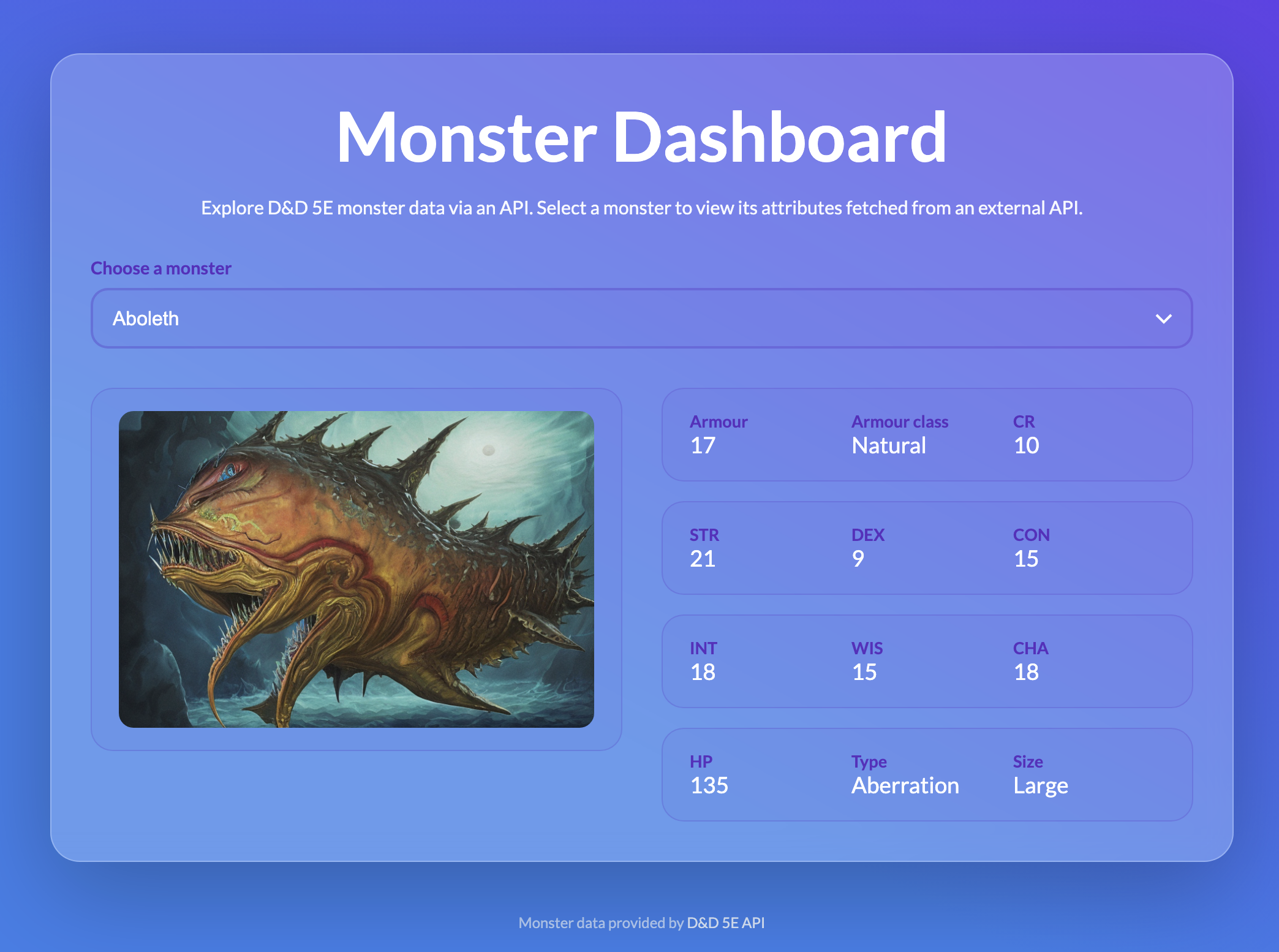
When you open the app, your browser acts like a builder constructing a house, making a few trips over the internet to get materials before the page is fully finished:
- The empty blueprint setup instructions first. The browser reads
index.html(the structural blueprint), appliesstyles.css(the visual design), and readsapp.js(the logic). At this split second, the page only shows empty dashes (—) because no monster data exists locally yet. - Fetch the monster list JavaScript reaches out across the internet to the D&D API asking for a list of monster names. The server sends back a text file formatted as JSON, and JavaScript uses it to populate the dropdown menu ('Choose a monster').
- Fetch the monster's details To fill in the empty dashes, JavaScript immediately makes a second request to the API, this time asking for the complete JSON data of the first monster. Once received, JavaScript swaps the blank dashes on your screen with real stats like HP, Armour, and Strength.
- Download the monster's artwork Inside that monster's JSON data is a web link pointing to a picture. JavaScript attaches that link to the webpage, triggering the browser to download the image file. Because image files are much larger than text data, downloading the picture takes the longest, which is why the image is always the last thing to pop up on the screen.
You can play with the 'Choose a monster' drop-down to see a list of all available monsters, and switch between them.
Note that each time you do this, the app will make a fresh request to the API for the data relating to each monster.
If this were an API where you pay for each request, you would be wise to consider some kind of strategy to store data you have already pulled from the API in something called a 'cache' - but that's outside the scope of this article. Perhaps we'll revisit that topic in depth one day.
However, for now you have a static display board that can dynamically select data from an API, and show it in a consistent way - pretty cool huh?!
Summary of the Series
Over these three guides, you’ve gone from asking "What on earth is an API?" to understanding the entire web pipeline:
- Part 1: Web browsers send requests and receive responses.
- Part 2: JSON is a structured data format using keys, values, and dot notation.
- Part 3: Web apps can use JavaScript's
fetch()function to grab JSON and plug those values directly into an HTML template. You can also go directly to the JSON response by putting the endpoint url into your browser
Whether you're building a D&D app, tracking search engine rankings with SerpApi, or automating workflows in no-code tools, this exact same data cycle is happening under the hood!