









 Ruby
Ruby
 Golang
 .Net
.Net
 MCP
MCP
 C++
C++

Google Maps business listings contain valuable lead data. The challenge is finding the right businesses, qualifying them, and personalizing outreach at scale. What if you could automate the entire process including discovering businesses, generating personalized outreach messages, and sending leads directly to your CRM?
In this tutorial, we'll build a fully automated local lead outreach workflow without using any code with:
Workflow Overview
Example use case we'll work on: Find dentist offices in Miami whom you can sell your monthly subscription based appointment scheduling software to and draft personalized emails to them.
The automation will follow this process:
- Extract businesses from Google Maps using SerpApi
- Format and send information for each business to Claude to generate personalized outreach
- Push lead data along with the personalized message into your CRM (Google Sheets in this example)
The entire workflow uses no code and runs in Make.
Step 1: Setup a Make scenario
If you haven't used SerpApi with Make, I recommend checking this blog post for setup steps:
 Alex Barron
SerpApi's Make App Link
To begin, in Make, we'll create a new scenario. To make requests to SerpApi, we'll use SerpApi's Make integration.
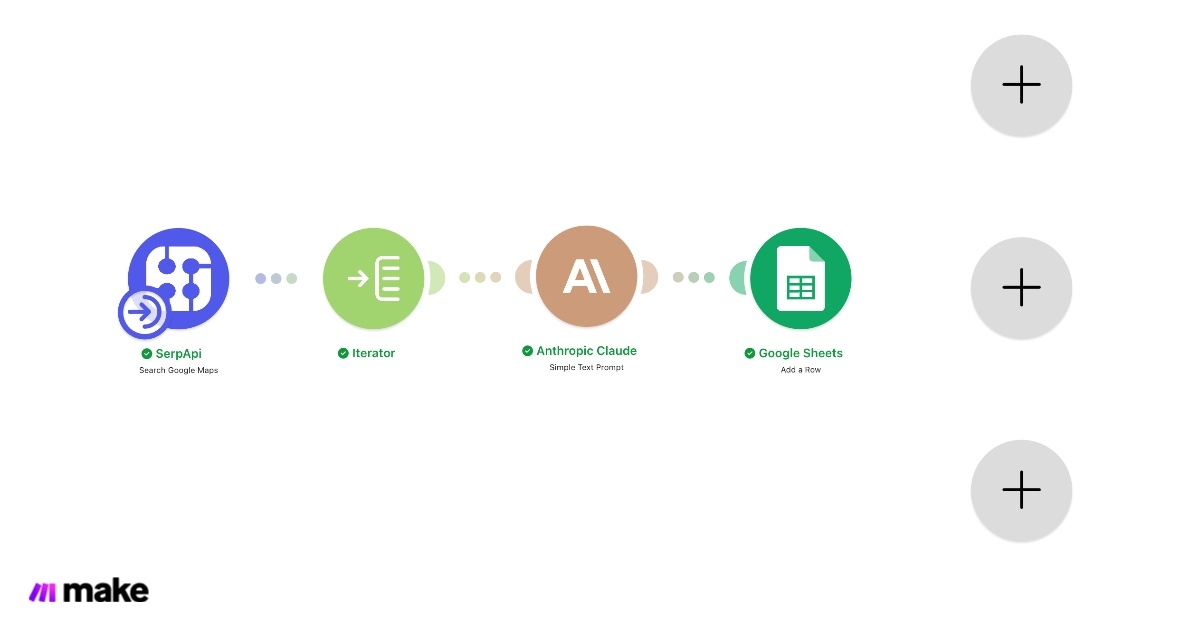
Here's the flow we'll setup:
SerpApi Search Google Maps module (or the Universal Module) -> Iterator module -> Claude Simple Text Prompt module -> Google Sheets Add a Row module
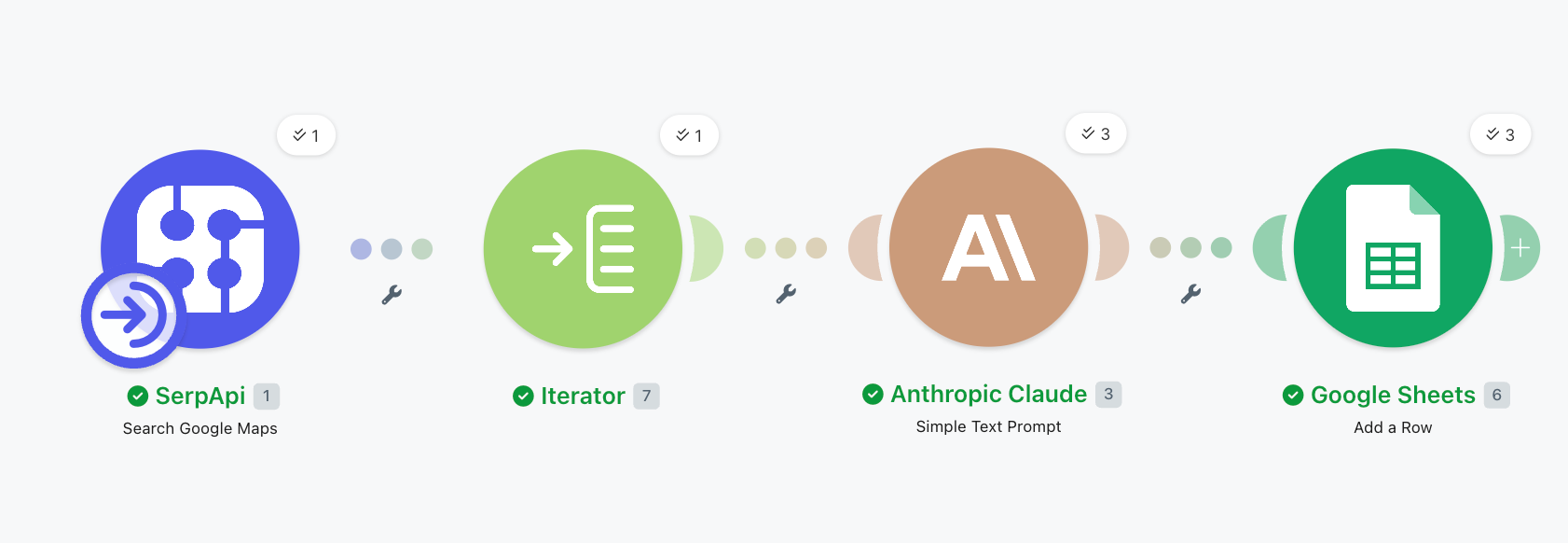
Here's the scenario for this blog post example so you can follow along:

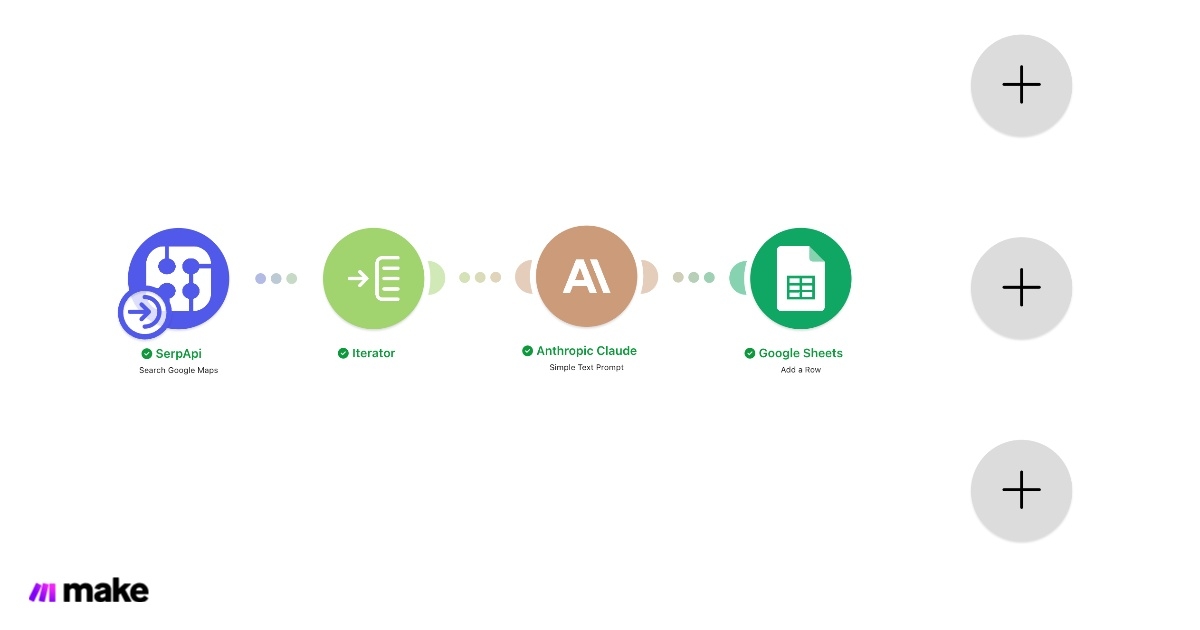
Make Scenario Link
Step 2: Extract Google maps data with SerpApi
If you don't already have a SerpApi account, please register an account. You'll need your API key to set up the SerpApi integration in Make. Once you have an active account, you can find your API key here.
We’ll start by using the SerpApi Google Maps API to search for businesses.
Example query:
- “dentists in Miami”
- “restaurants in Austin”
- “law firms in Chicago”
Example API request:
https://serpapi.com/search.json?engine=google_maps&q=dentists+in+miami&api_key=YOUR_API_KEYThe response includes:
- Business names
- Ratings
- Reviews
- Phone numbers
- Websites
- Coordinates
- Categories
- Hours
- And more
Try out your request in our playground to visualize the result:
 SerpApi
Playground Example
With the Search Google Maps Module in Make, it looks like this:
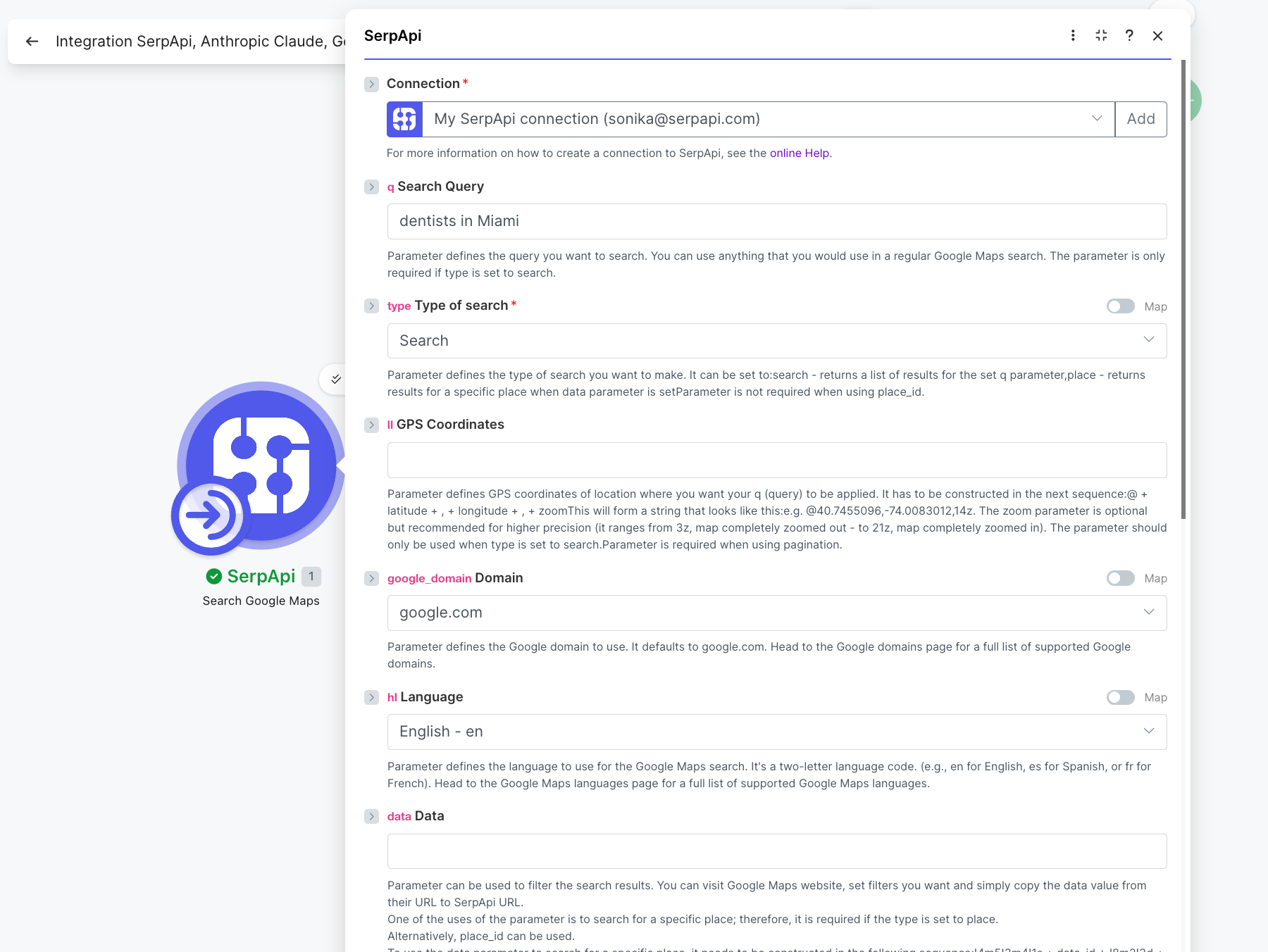
With the Universal Module, it looks like this:
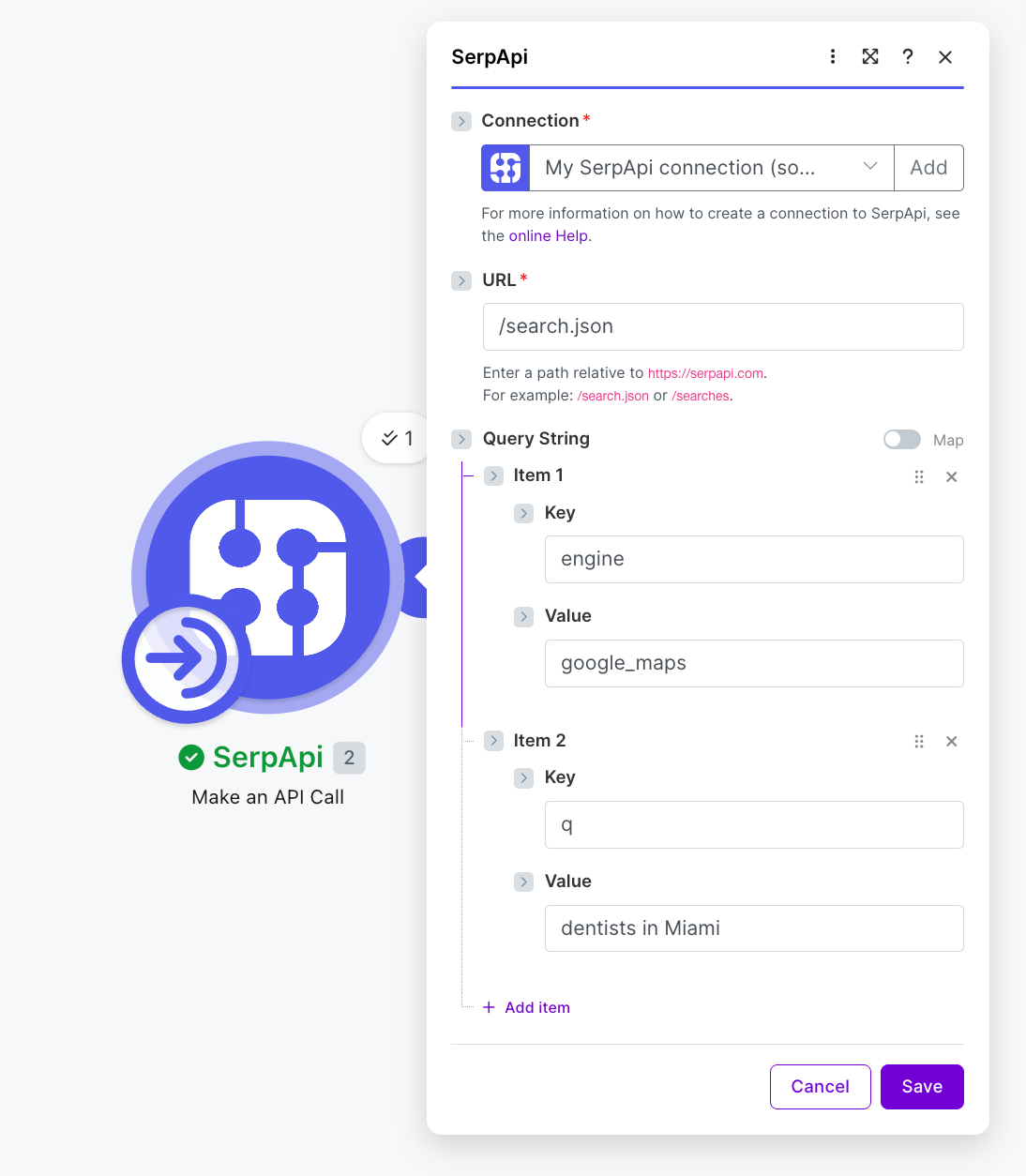
This gives you structured local business JSON data directly from Google Maps.
Step 3: Iterate through businesses
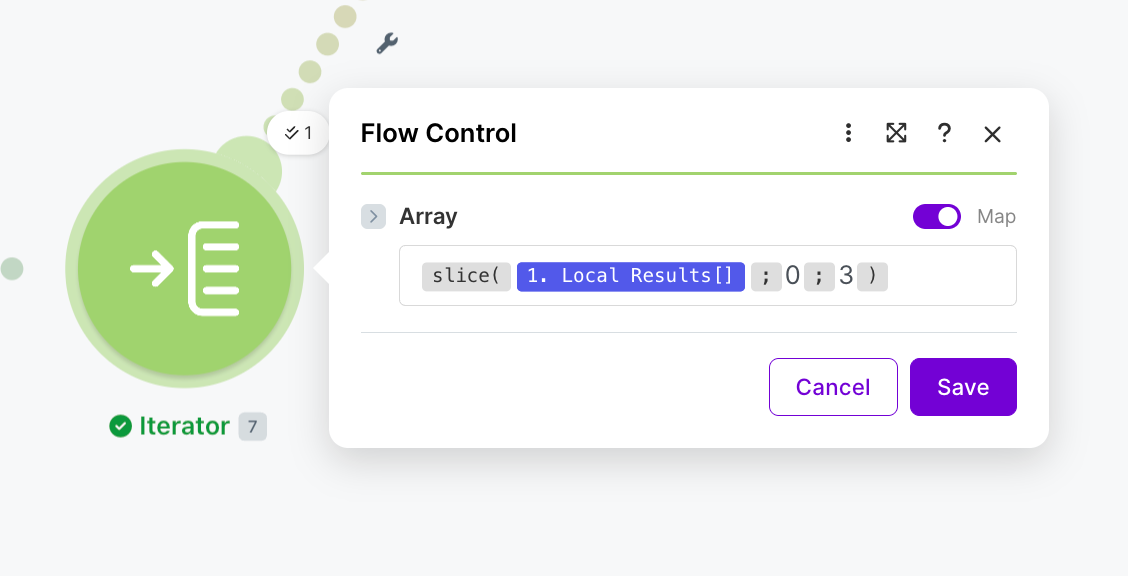
Google Maps results return multiple businesses matching the query. We'll use the Iterator module in Make to process each business individually.
To begin with, we'll focus on a few super useful fields found in the local results array like:
- title
- website
- phone
- rating
- reviews
- address
To extend this solution, you can also filter leads by specific things like:
- Only businesses with ratings below 4.0
- Only businesses without websites
- Only businesses with less than 50 reviews
This is especially useful for targeted prospecting.
Step 4: Generate personalized outreach with Claude
Now we connect Claude in Make. This step transforms raw lead data into personalized and actionable outreach.
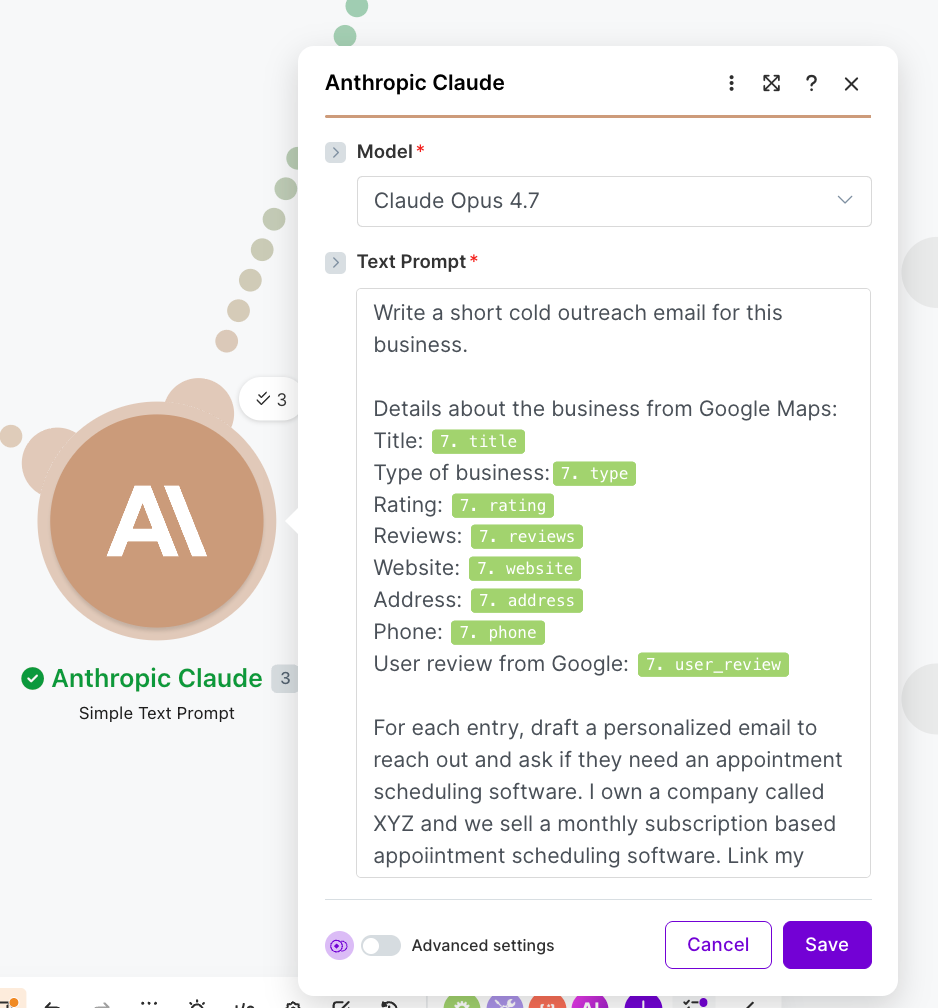
Here's the prompt I used:
Write a short cold outreach email for this business.

Details about the business from Google Maps:
Title: {{title}}
Type of business:{{type}}
Rating: {{rating}}
Reviews: {{reviews}}
Website: {{website}}
Address: {{address}}
Phone: {{phone}}
User review from Google: {{user_review}}

For each entry, draft a personalized email to reach out and ask if they need an appointment scheduling software. I own a company called XYZ and we sell a monthly subscription based appoiintment scheduling software. Link my website called xyz.com.
Sample output for one of the dental offices:
Subject: Helping Relax and Smile Dental Care Save Time on Scheduling
Hi Relax and Smile Dental Care Team,
Congratulations on building such an outstanding reputation in Miami — a 4.9 rating with 883 reviews is no small feat! I noticed patients consistently rave about your efficiency, with one recent review highlighting "no wait time to see the hygienist" and a cleaning done in just 30 minutes. That kind of streamlined experience is exactly what keeps patients coming back.
My name is [Your Name], and I'm the founder of XYZ — a monthly subscription-based appointment scheduling software designed specifically for busy practices like yours. Our platform helps dental offices reduce no-shows, automate reminders, and let patients self-book online 24/7, freeing up your front desk to focus on in-person care.
Given how much your patients value your quick, gentle service, I think XYZ could help you maintain that pace as your practice continues to grow.
Would you be open to a quick 15-minute call this week to see if it's a fit? You can also learn more at xyz.com.
Looking forward to hearing from you,
[Your Name]
Founder, XYZ
xyz.com
Step 5: Push leads into a Google sheet
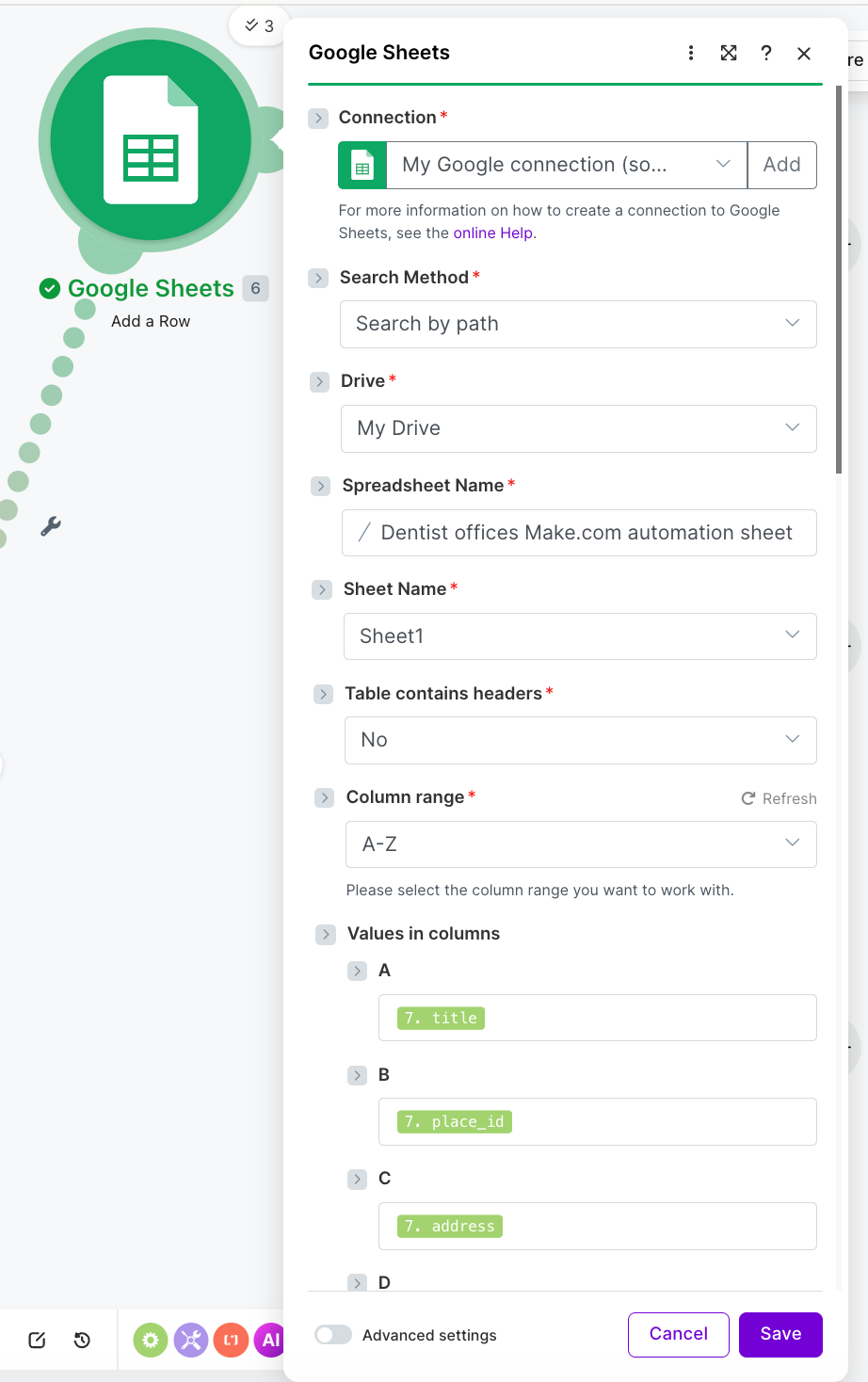
Finally, connect Google Sheets using the Google Sheet Integration in Make.
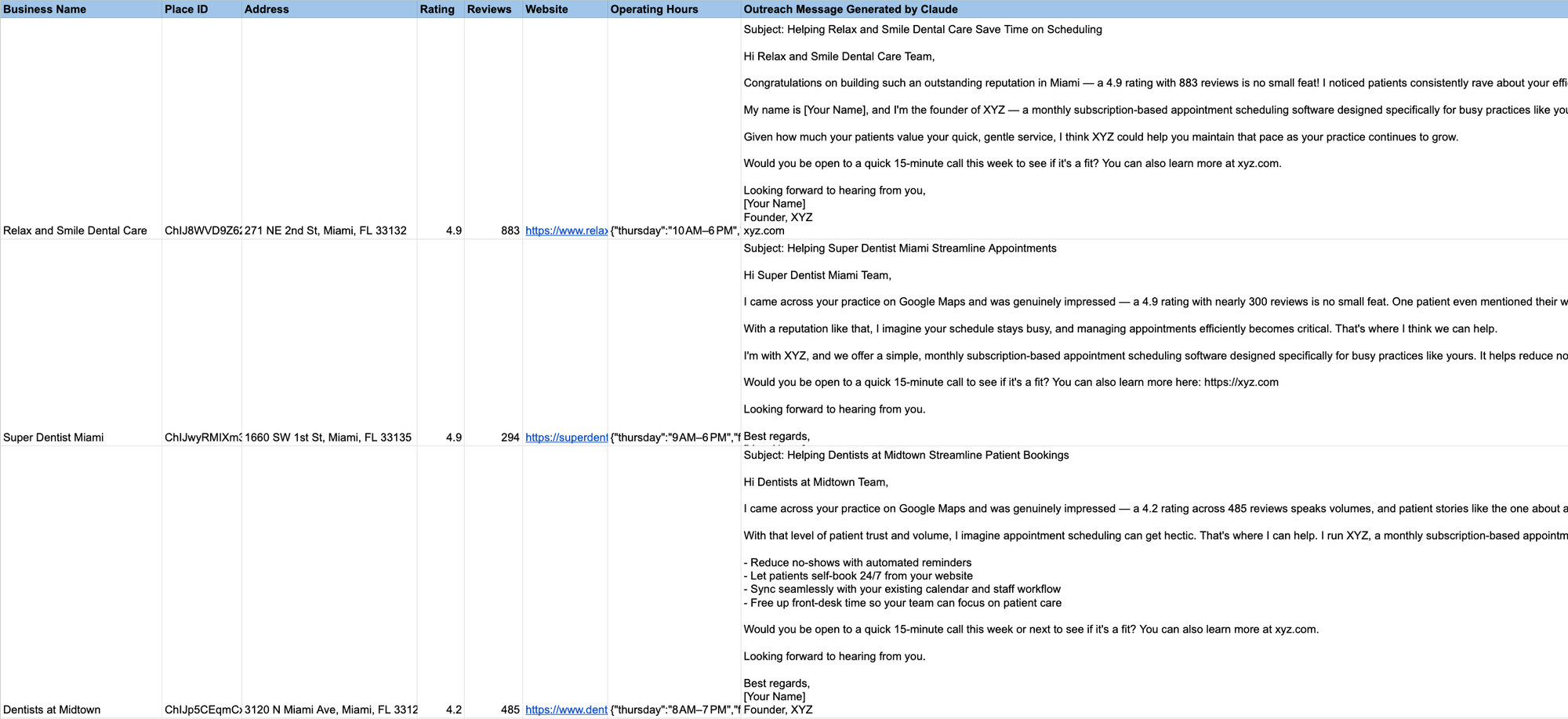
We'll note these fields in this blog post, but feel free to add any more you need to keep track of:
- Business name
- Website
- Phone
- Address
- AI-generated outreach message
Create a sheet named "Dentist offices Make.com automation sheet" and then add the relevant details to the Google Sheets Add a Row module.
You can also do more with the data later like adding lifecycle stages in the sheet and/or triggering email sequences.
At this point, we have a fully automated AI-powered lead generation system.
Here's what the output looks like:
Conclusion
I hope it was useful to see how we can use SerpApi with Make to build a workflow that automatically discovers businesses, gets structured data about them, generates personalized outreach using Claude, and pushes qualified leads directly into your CRM (Google Sheets in this example).
Here's the Make scenario we created in this blog post:

Make Scenario Link
I hope you found this useful. If you have any questions, feel free to reach out at contact@serpapi.com.
Relevant Links
Related Blog Posts
 Alex Barron
 Hilman Ramadhan
 Sonika Arora