









 Ruby
Ruby
 Golang
 .Net
.Net
 MCP
MCP
 C++
C++

Searching Instagram by hashtag or caption text misses the point when the content is visual. A photo of a Samoyed in the snow doesn't always say "Samoyed" in the caption, but you'd still want to find it by typing "a white fluffy dog in the snow." This tutorial builds a pipeline that searches images by what they look like, not what the caption says.
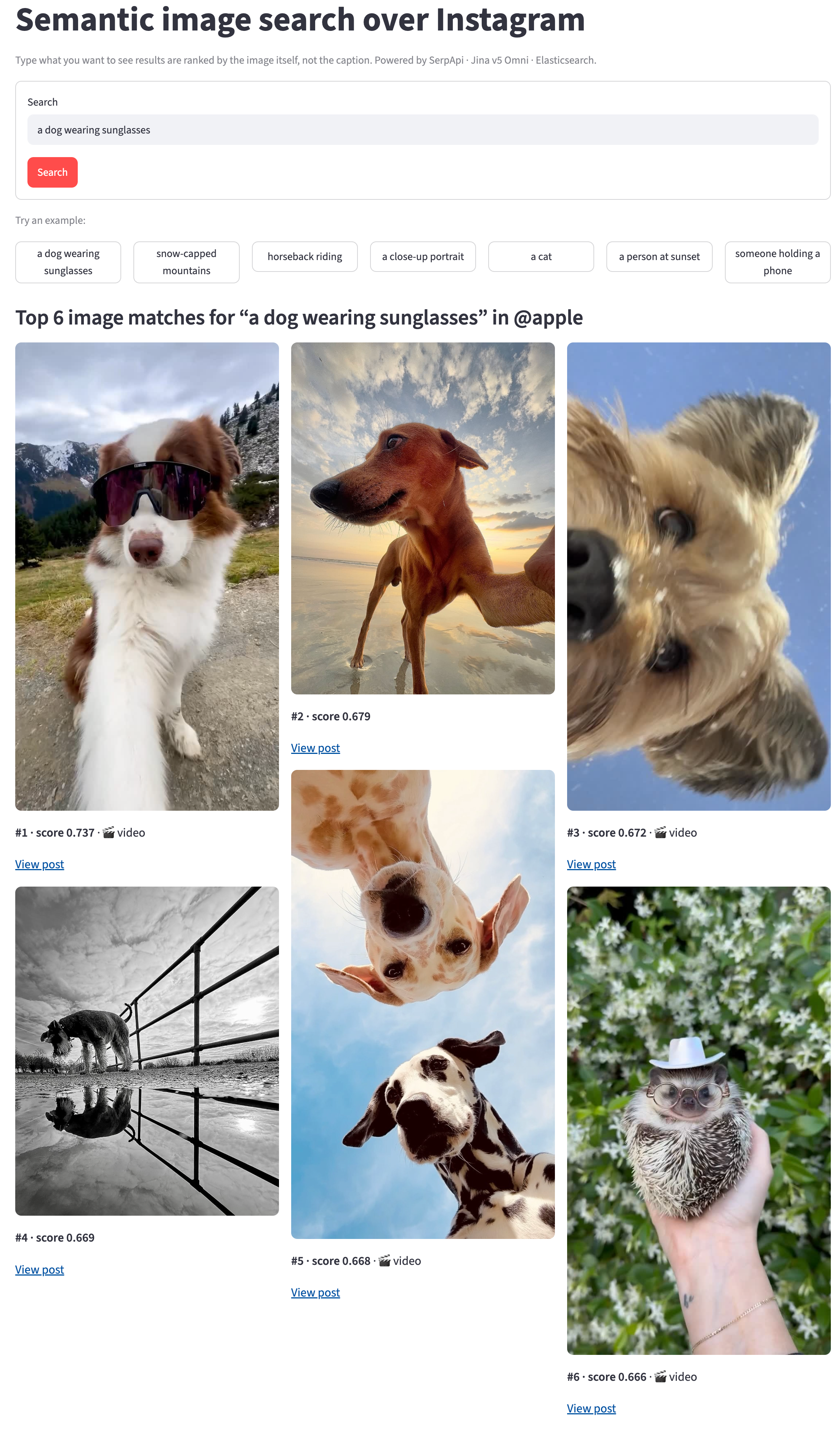
We'll fetch a public profile's feed with SerpApi's Instagram Profile API, embed every cover image into a shared text-image vector space with Jina AI, store those vectors in Elasticsearch, and search with plain language. By the end, you'll have a working search interface where typing "a dog wearing sunglasses" returns the matching image ranked by visual similarity, no caption needed.
The complete project, notebook and Streamlit app, is on GitHub:
 serpapi
Prerequisites
- Python 3.9+
- SerpApi API key (free tier, 250 searches/month)
- Jina AI API key (free tier, 10 million tokens)
- Elasticsearch cluster (9.0 or higher)
- ~2 GB disk space for downloaded images
Structured Image Search at Scale
The hard part of image search has never been the vector math. It's getting the images in the first place. Public Instagram profiles show thousands of posts, but there's no "download all" button and no official bulk API from Instagram.
SerpApi Instagram Profile API solves the access problem. One call with engine="instagram_profile" and a username returns the profile's posts along with captions, like counts, comment counts, and a direct URL to each cover image.
That means a few dozen API calls give us hundreds of high-quality images with their metadata, ready to embed.
We'll use the @apple profile as our example. The feed spans landscapes, portraits, animals, and architectural photos, which gives the search plenty of visual variety to work with.
How It Works
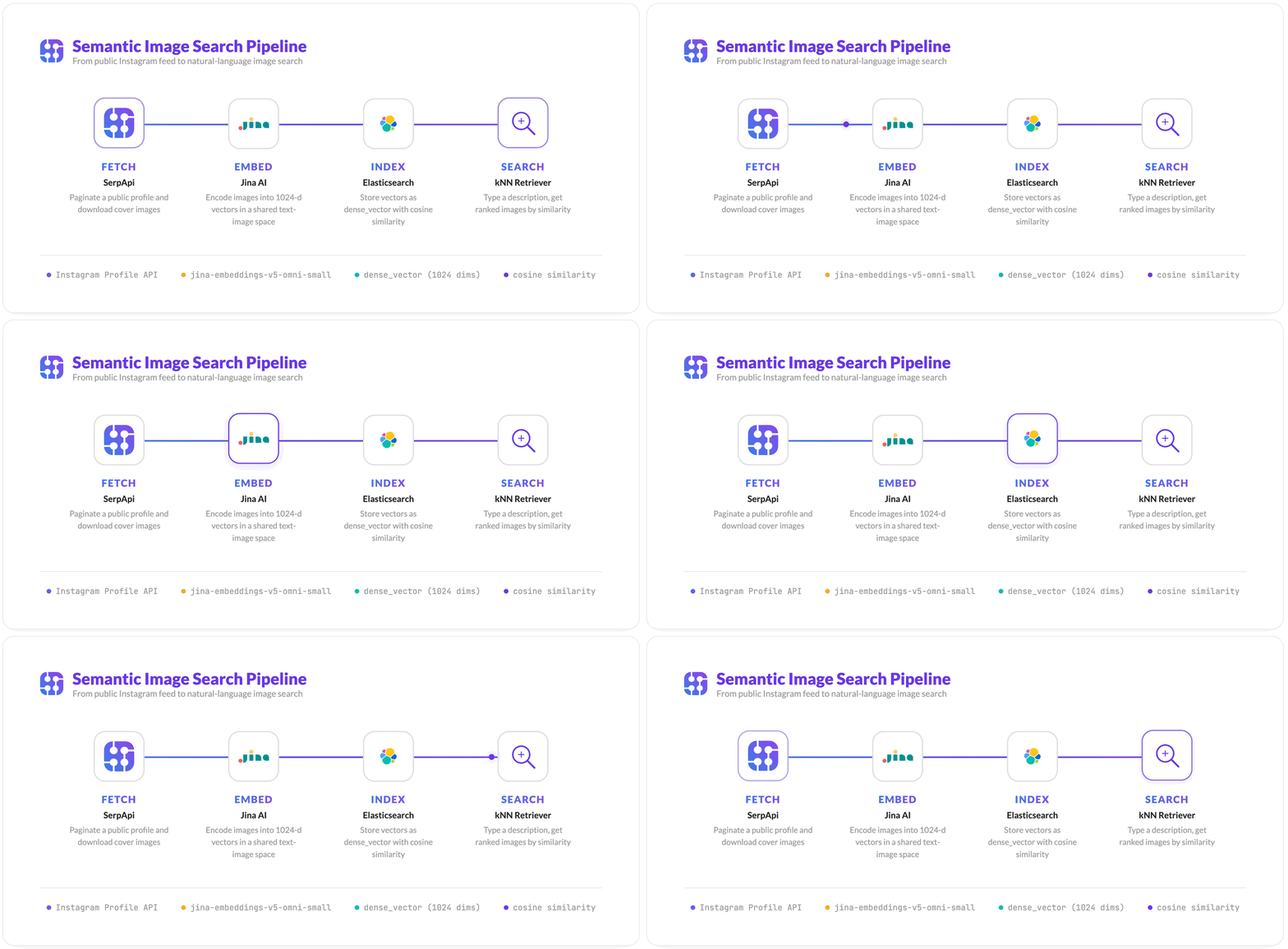
Four steps take us from a username to searchable images.
- Fetch: Page through the profile's feed with SerpApi, collecting cover images (images + video thumbnails).
- Embed: Convert each image into a vector that captures its visual meaning, using Jina AI.
- Index: Store the vector plus the metadata in Elasticsearch
dense_vectorfield. - Search: Type a query and get the ranked images by similarity.
What Are Embeddings?
An embedding is a list of numbers (a vector) that captures what an image means, its visual features, objects, colors, and composition. Similar images produce vectors close together in this high-dimensional space; different images produce vectors far apart.
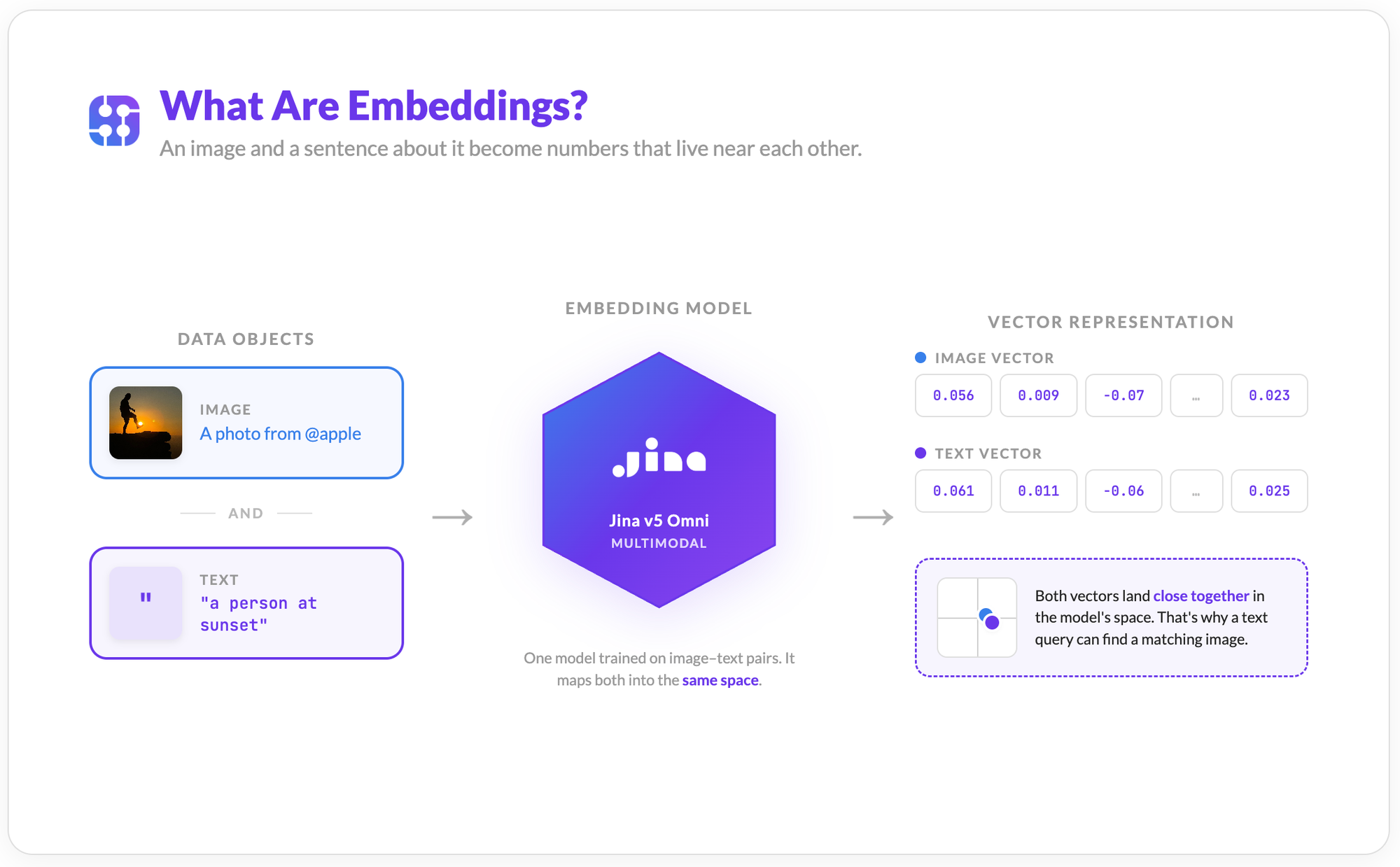
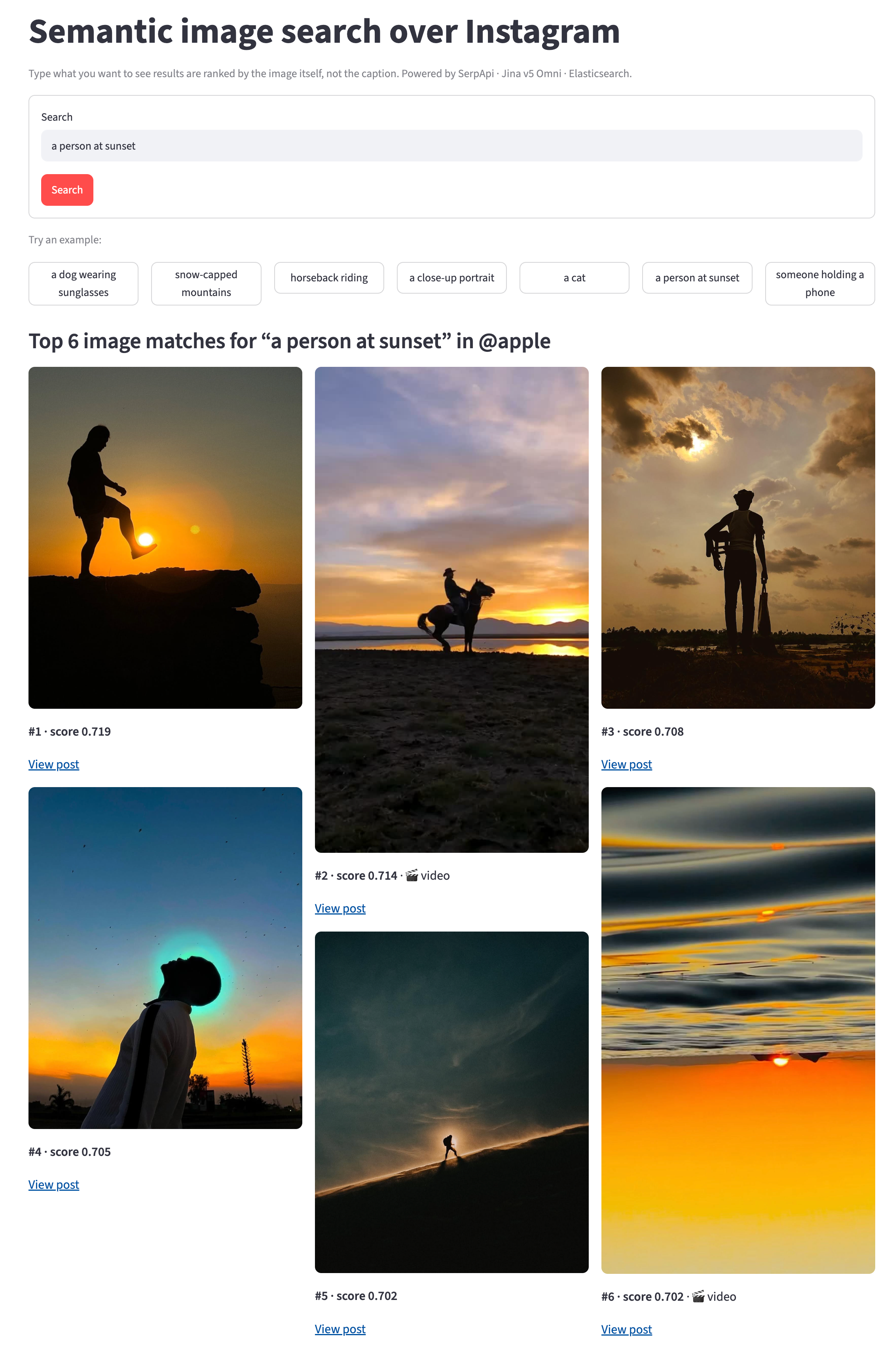
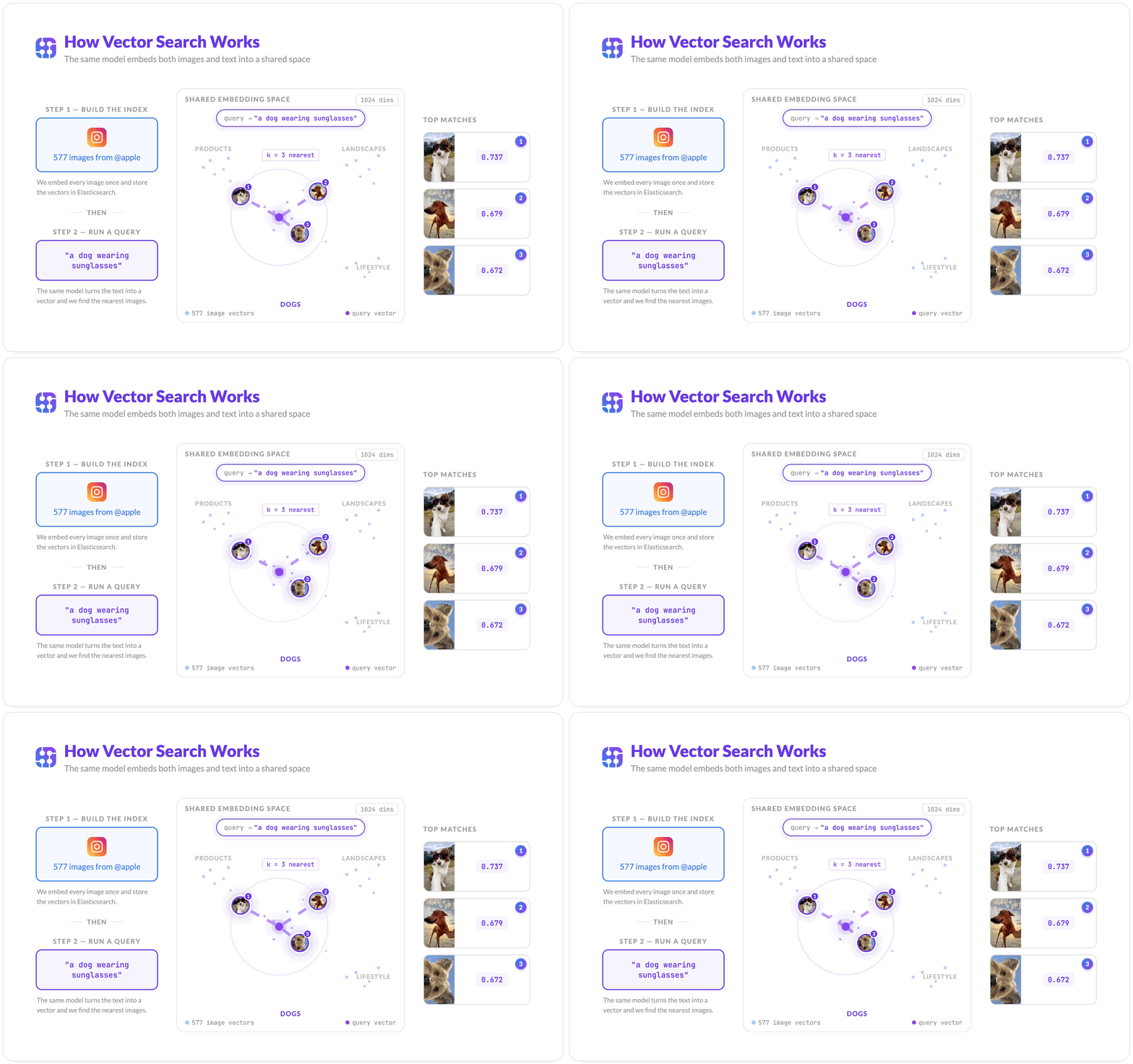
The key that makes text-to-image search possible is that models like Jina V5 Omni are trained on image-text pairs, so they map both images and text into the same space. A photo of a sunset and the sentence "a person at sunset" end up near each other, not because of keywords but because the model learned their meaning is similar.
How Vector Search Works
Once all images are embedded and stored, the search flow is straightforward.
- Jina embeds your text query "a dog wearing sunglasses" into a vector using the same model.
- Elasticsearch compares that query vector against every stored image vector using cosine similarity, a measure of how close two vectors point in the same direction.
- The
knearest neighbors are returned, ranked by similarity score. Scores closer to 1.0 mean more similar; scores closer to 0 mean unrelated.
The query never touches the captions. The ranking is purely visual.
Why These Three Tools?
Each tool handles one stage of the pipeline.
| Component | Role | Why this one |
|---|---|---|
| SerpApi | Data access | Structured JSON from public Instagram profiles, paginated, no scraping infrastructure to maintain |
| Jina v5 Omni | Embedding model | Open-weight, shared text-image space in one model, free API tier |
| Elasticsearch | Vector store + search | Native dense_vector field with built-in kNN, exact and approximate search out of the box, scales from hundreds to millions of vectors |
Two design choices are worth calling out.
- One model for everything: Jina v5 Omni handles both images and text in a single pipeline. If you later want to add semantic search over captions or post metadata, the same model and the same index work. No second model, no separate pipeline.
- No raw images stored in the database: We store only the vector, a local file path, and metadata (caption, post URL, likes). Images live in a local
images/folder, just long enough to embed and display results.
What Is Elasticsearch?
If you haven't used Elasticsearch before, it's a search engine (the same technology behind site search on large websites) that also handles vector search natively. You store documents; each document has fields, and you query against those fields. For our use case, one of those fields is a vector, a long list of numbers that represents the visual content of an image.
The relevant feature is vector search via the knn retriever. Given a query vector, it finds the closest stored vectors and returns them ranked by similarity. That's our image search.
Two Ways to Run It
Two options for the Elasticsearch cluster. The notebook code is identical either way. Only ES_URL and ES_API_KEY in .env change.
Local Docker
We start a local single-node cluster using the Elastic start-local script:
curl -fsSL https://elastic.co/start-local | sh
This prints an ES_LOCAL_API_KEY. Put it in your .env as ES_API_KEY. The endpoint is http://localhost:9200.
Elastic Cloud
Create a free project on Elastic Cloud (14-day free trial). Copy the endpoint URL and API key into .env. Good if your machine is light on RAM or you want persistence without managing Docker.
The Pipeline
Step 1. Fetch the Profile
We'll page through the profile feed using the SerpApi Python client:
import serpapi

serp_client = serpapi.Client(api_key=os.getenv("SERPAPI_API_KEY"), timeout=30)

base = {"engine": "instagram_profile", "profile_id": "apple"}
params = dict(base)

for page in range(1, max_pages + 1):
    results = serp_client.search(params)
    profile = results.get("profile_results", {})
    posts = profile.get("posts", [])

    next_token = results.get("serpapi_pagination", {}).get("next_page_token")
    if not next_token:
        break
    params = {**base, "next_page_token": next_token}
Each request returns about 12 posts along with a next_page_token, which we send in the next call to get the next batch. When no token comes back, we've reached the end of the feed. So a few dozen calls are enough to pull hundreds of images.
Step 2. Embed the Images
Here we are sending the images downloaded from the Instagram API to the Jina Embedding API as base64, receiving one vector per image:
JINA_URL = "https://api.jina.ai/v1/embeddings"
JINA_MODEL = "jina-embeddings-v5-omni-small"

def embed_images(images_b64):
    inputs = [{"image": f"data:image/jpeg;base64,{b}"} for b in images_b64]
    payload = {"model": JINA_MODEL, "task": "retrieval.passage", "dimensions": 1024, "input": inputs}
    r = requests.post(JINA_URL, headers=jina_headers, json=payload, timeout=120)
    r.raise_for_status()
    data = sorted(r.json()["data"], key=lambda d: d["index"])
    return [d["embedding"] for d in data]
The one detail worth calling out is task="retrieval.passage". Jina uses different task modes for the vectors you store (retrieval.passage) and the vectors you search with (retrieval.query). Pairing them this way is what Jina recommends for retrieval. Step 4 handles the query side.
Step 3. Create the Index
We create an Elasticsearch index with a vector field to store the embeddings:
es.indices.create(
    index="instagram_photos",
    mappings={"properties": {
        "embedding": {"type": "dense_vector", "dims": 1024, "similarity": "cosine"},
        "caption": {"type": "text"},
        "shortcode": {"type": "keyword"},
        "username": {"type": "keyword"},
        # ... post_url, image_url, is_video, liked_by_count, comments_count
    }}
)
We use cosine similarity because it's the standard match for text and image embeddings, and 1024 dimensions matches Jina's output. See the notebook for the full mapping.
Step 4. Search
We embed the query with Jina (this time with task="retrieval.query") and pass the vector to Elasticsearch's kNN retriever:
def search(query, username, k=6):
    query_vector = embed_query(query)
    resp = es.search(
        index="instagram_photos",
        retriever={"knn": {
            "field": "embedding",
            "query_vector": query_vector,
            "k": k,
            "filter": {"term": {"username": username}},
        }},
        size=k,
        source_excludes=["embedding"],
    )
    return resp["hits"]["hits"]
The filter scopes results in a single profile even when the index holds many. source_excludes keeps the response lean by dropping the 1024-float vector we don't need back.
Results
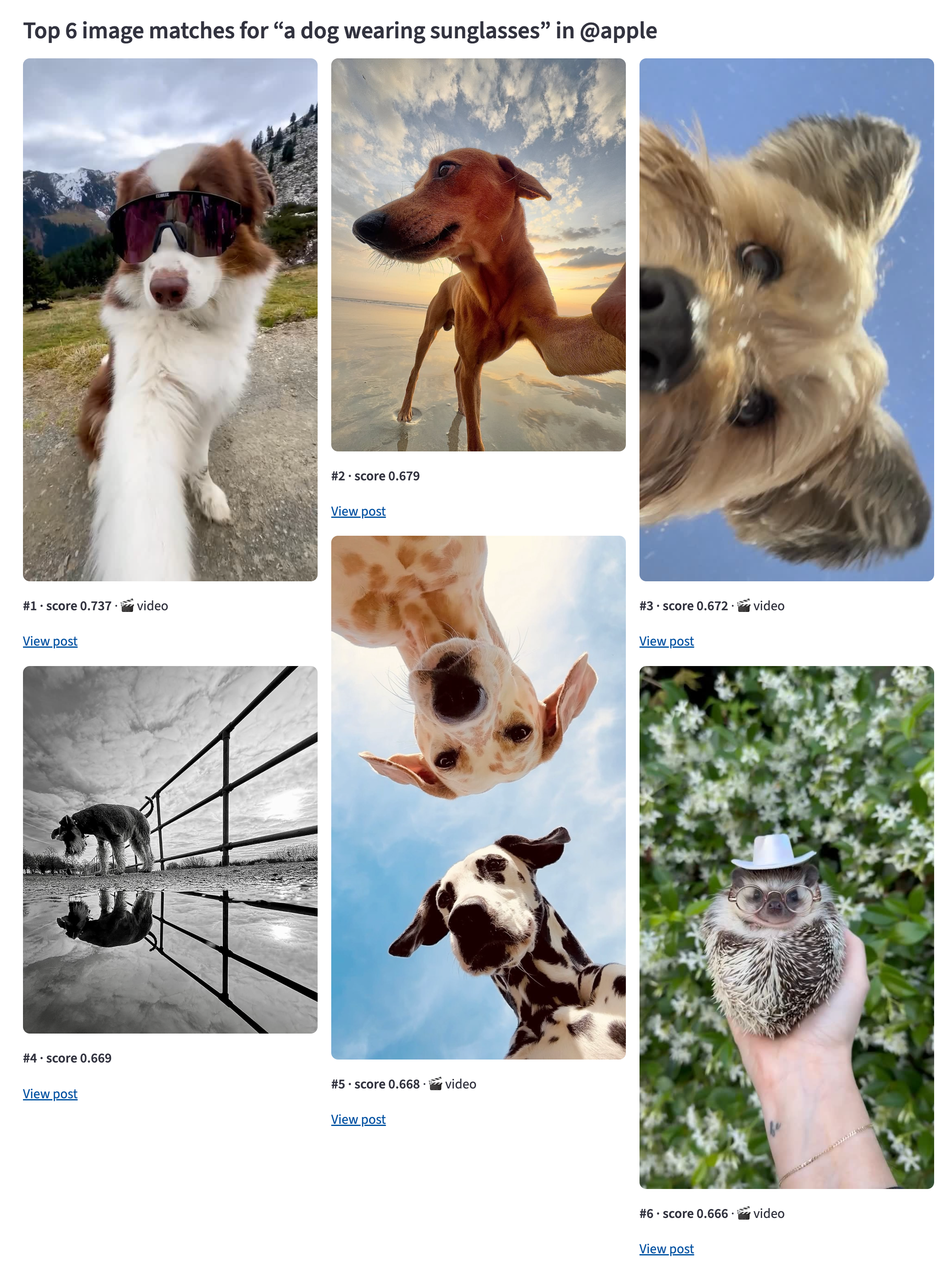
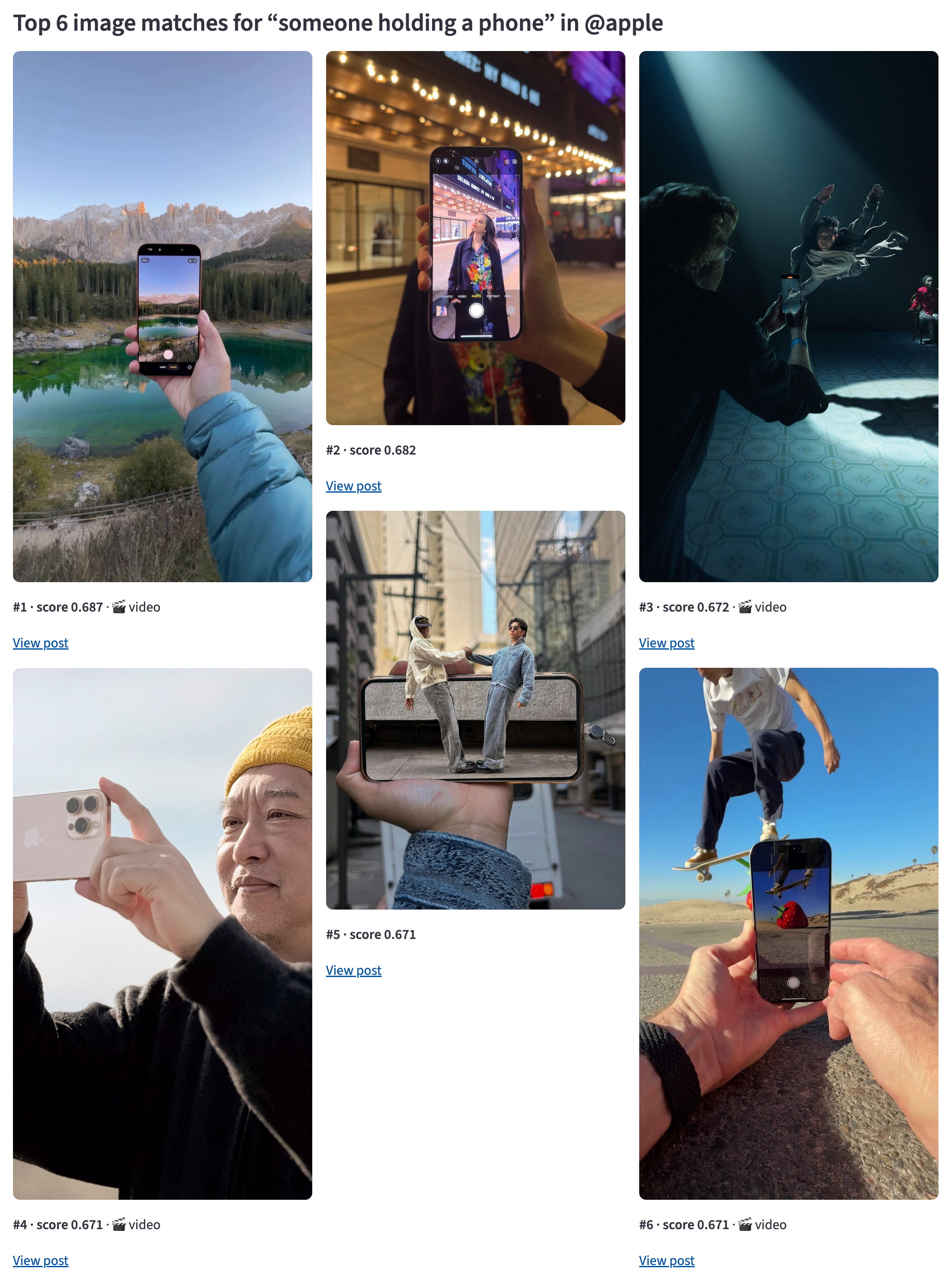
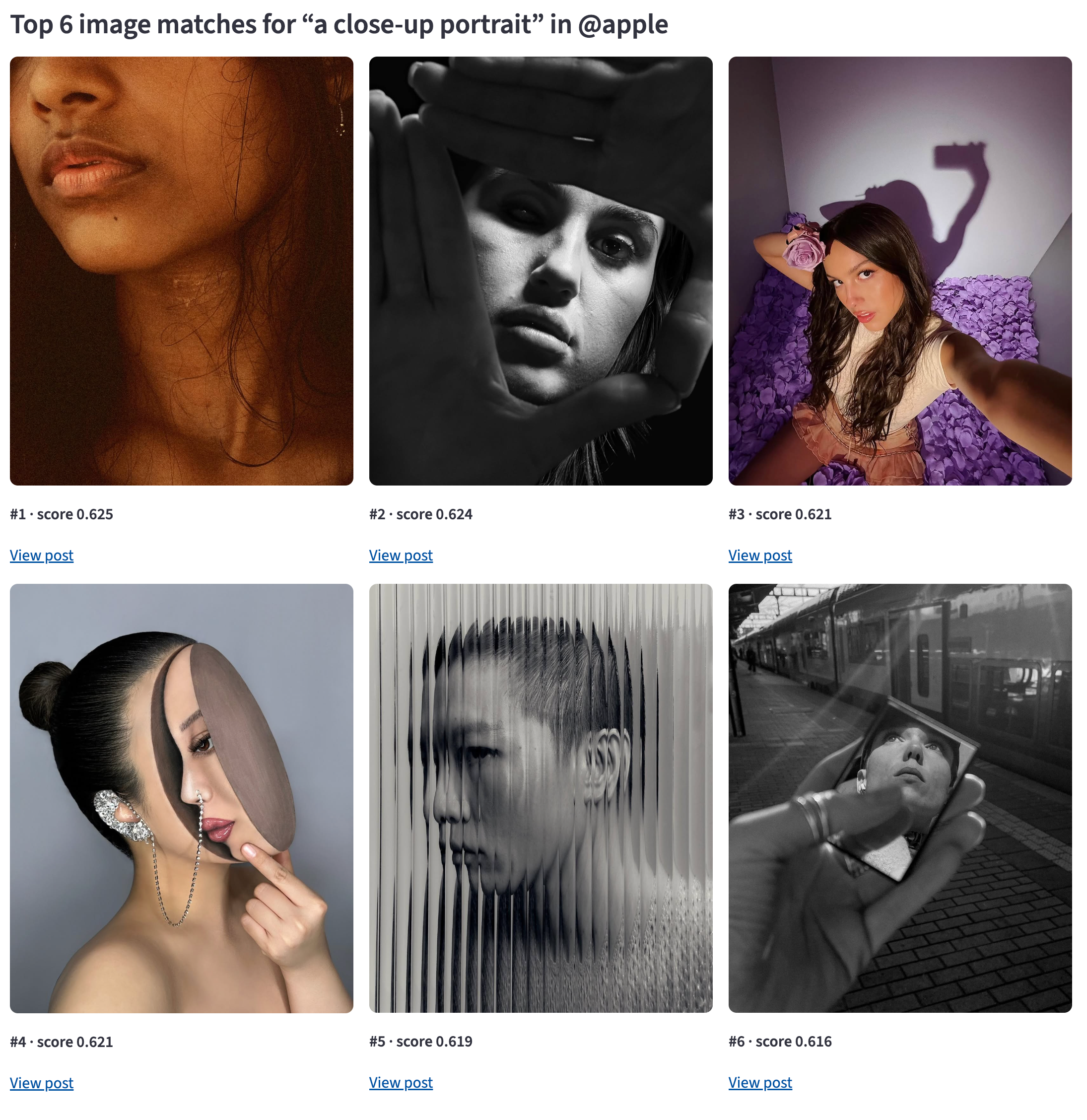
With 577 images indexed from the Apple profile, the search delivers exactly what you'd expect.
The top result is a video thumbnail (poster frame) from Apple's feed, a dog in sunglasses, scored at 0.737 cosine similarity. No caption matching. No keyword overlap. The pipeline matched the visual content of the image to the meaning of the text query.
A dog wearing sunglasses
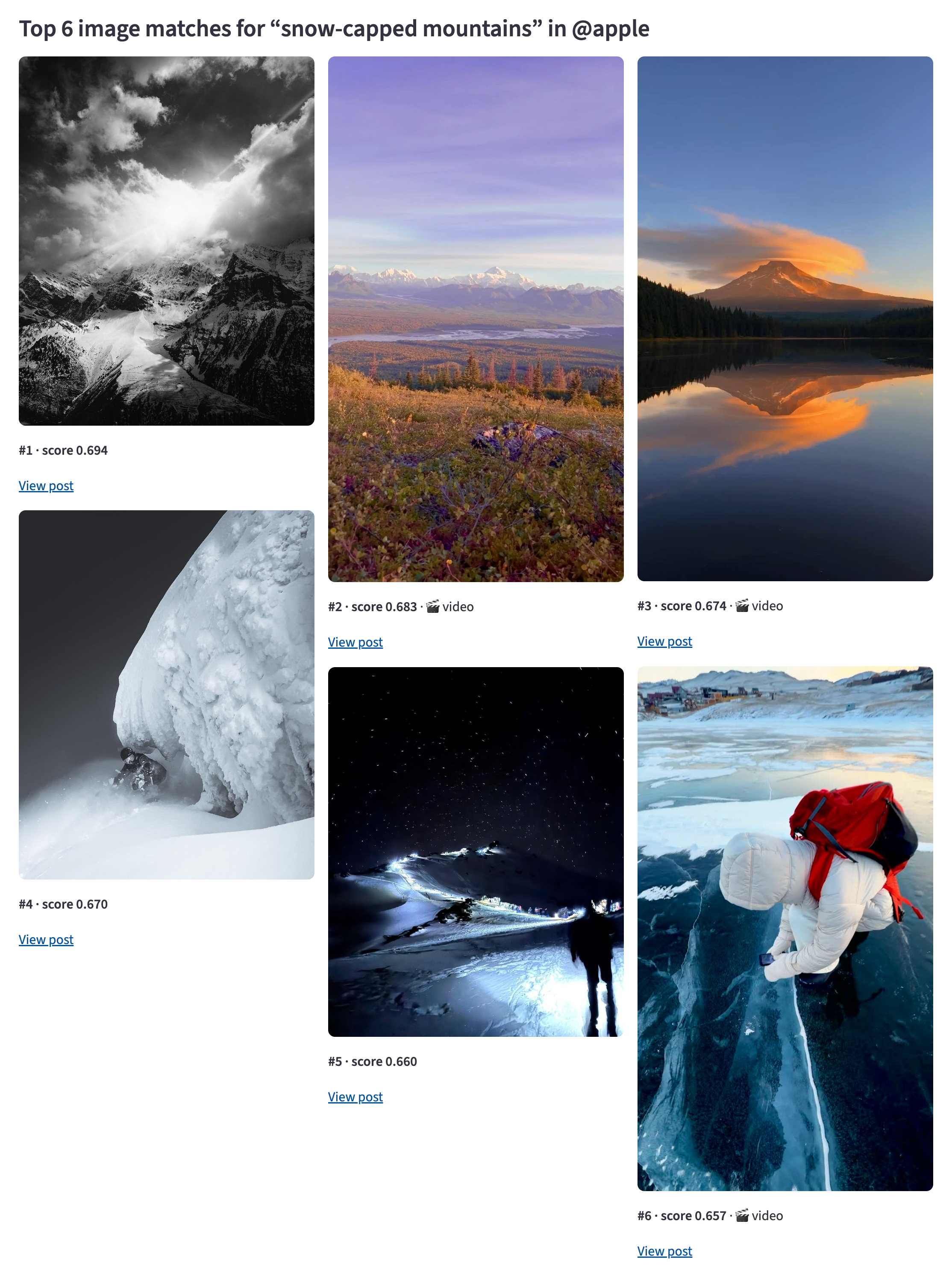
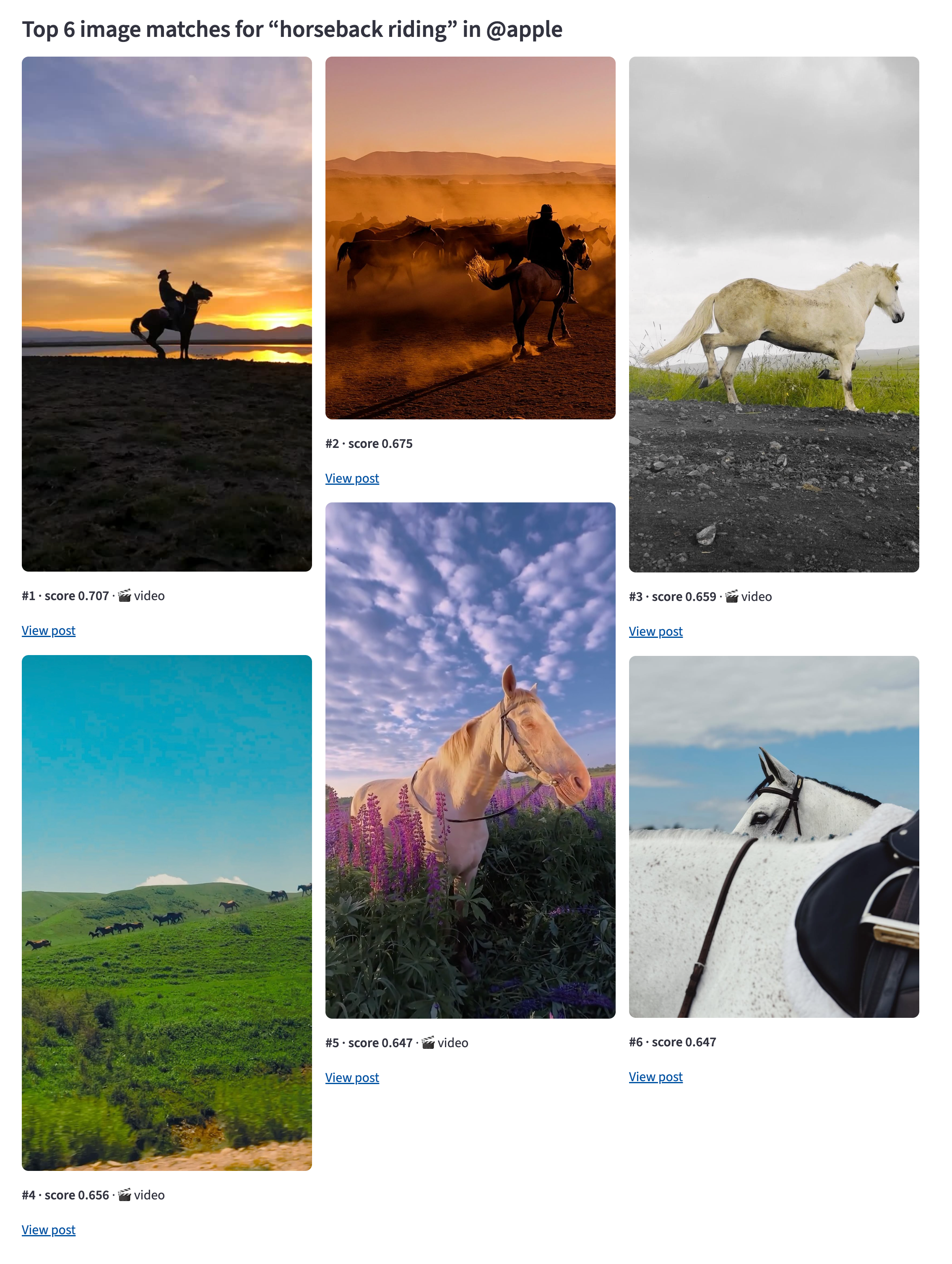
More examples from the same index:
Snow-capped mountains
Horseback Riding
Someone holding a phone
A close-up portrait
Beyond Instagram
The embedding and search code doesn't change. Only the SerpApi engine and the fields you extract differ. The same architecture applies to any visual data source SerpApi can reach.
| Source | SerpApi engine | Image field | What you'd search |
|---|---|---|---|
| YouTube Search | youtube |
thumbnail.static |
Video thumbnails by visual content |
| Google Images | google_images |
original |
Web images matching a topic |
| Google Shopping | google_shopping |
thumbnail |
Product photos |
| Google Lens | google_lens |
thumbnail |
Visual matches for a source image |
| Amazon Search | amazon |
thumbnail |
Product gallery images |
Where to Go from Here
Concrete next steps to extend this pipeline:
- Hybrid search combining captions and embeddings: Add a
textquery over thecaptionfield alongside the vector search using Elasticsearch's RRF (Reciprocal Rank Fusion). Posts where both the image and the caption match will rank higher. - Index multiple profiles: The
usernamefield already supports multi-profile indexing. Fetch a second profile, embed its images, and use the filter to search within or across profiles. - Try other SerpApi engines from the table above: Swap the fetch step for YouTube thumbnails or Google Shopping product photos. The embedding and search code stays identical.
Conclusion
This pipeline reads images the way people describe them, not the way someone happened to describe or tag them. That single capability changes what you can do with an image catalog.
The Instagram example is just a demonstration. An e-commerce store can surface products by what they look like, not by category tags. A media archive can retrieve photos by scene, mood, or subject. An LLM agent can query the same index in plain language and reason over the matches, no captions or manual tagging required.
Both sides of the search now carry meaning. The query is interpreted by what it means, and the images are stored by what they show. That opens a second layer of interaction between your users, or an LLM, and your content.