









 Ruby
Ruby
 Golang
 .Net
.Net
 MCP
MCP
 C++
C++

Whether you're looking to integrate web scraping into your Java project for the first time or are interested in learning about the latest libraries, read on. Today we will be covering the value of scraping, latest Java compatible technologies, and step-by-step instructions on how to get your latest app that scrapes off the ground.
What is Scraping and Why is it Useful?
Scraping extracts structured information out of the HTML of a webpage or search engine result, including data like titles, links, prices, dates, or listings. It turns those results into data a program can work with. Instead of a person reading a page and copying what they need by hand, a script fetches the page and pulls out just the pieces that matter.
It's useful because most of the useful data on the web isn't offered as a clean file or API. It's embedded in a page meant for web surfers’ eyes. Scraping bridges that gap. It transforms scattered, unstructured pages into a resource computers can understand.
Price comparison tools, lead generation, and academic research all rely on scraping. Each turns scattered pages into structured data you can analyze, store, or feed into another system.
In other words, applications that scrape web content can turn code-locked pages into real-world solutions. This tutorial builds one example: a Hacker News scraper that pulls article titles and links straight off the page.
In this post, we'll cover:
- A list of tools you can use for web scraping in Java
- A simple “Hello World” program that scrapes static websites with Jsoup
- Information and guides on using Playwright and Selenium for dynamic, JavaScript-heavy sites
- A demonstration on expanding your web scraper capabilities to fetch multiple sites or store results
- Additional tools, tips, and a comparison of when to apply each approach
List of tools for Java Web Scraping
In this tutorial, we'll walk through an example of scraping the top Hacker News submissions.
| Category | Tool | Description |
| HTTP Driver | Java’s built-in HttpClient | Included in the JDK (Java 11+) |
| Jsoup | Performs both HTML fetching and parsing for static pages | |
| Parsing Driver | Jsoup | Parses HTML using CSS-selector syntax, similar to jQuery |
| Gson | Parses JSON data | |
| Web Driver | Playwright | Drives a real browser (Chromium, Firefox, WebKit) to render JavaScript-heavy pages, with built-in auto-waiting and support for multiple browser engines |
| Selenium | Drives a real browser (Chrome, Firefox) so JavaScript executes normally, necessary for dynamic, client-rendered pages | |
| Automation Tools | Crawler4j | Helps with automating data scraping, filtering urls, and setting query depth |
| Thread sleep loop method | Helps facilitate multi-site/multi-query processing with a manual loop | |
| Data Processing | OpenCSV | Writes scraped data out to CSV files |
| Jackson | Serializes scraped data to JSON |
Step By Step Scraping Web Content in Java
Today, we will be implementing a program that gathers article links and titles.
Prerequisites:
- Java 11 installed
- Maven or Gradle for a build tool
- Jsoup added as a dependency
Maven (pom.xml)
<dependency>
  <groupId>org.jsoup</groupId>
  <artifactId>jsoup</artifactId>
  <version>1.17.2</version>
</dependency>
Gradle (gradle.build)
dependencies {
  implementation 'org.jsoup:jsoup:1.17.2'
}
Scrape a Static Site in Java with Jsoup
Jsoup is the exact right level of complexity for beginners.
It's best used for stitching static pages, meaning ones that keep all information in the raw HTML and do not inject anything with JavaScript.
Step 0 : Imports
import org.jsoup.Jsoup;
import org.jsoup.nodes.Document;
import org.jsoup.nodes.Element;
import org.jsoup.select.Elements;
Step 1: Fetching a Page
First, we need to define a document and connect to a webpage through a user agent.
Setting a userAgent shows the request as coming from a browser instead of a script.
String url = "https://news.ycombinator.com";
Document doc = Jsoup.connect(url)
  .userAgent("Mozilla/5.0")
  .referrer("https://google.com")
  .timeout(10_000)
  .get();
Step 2: Inspect the Page Structure
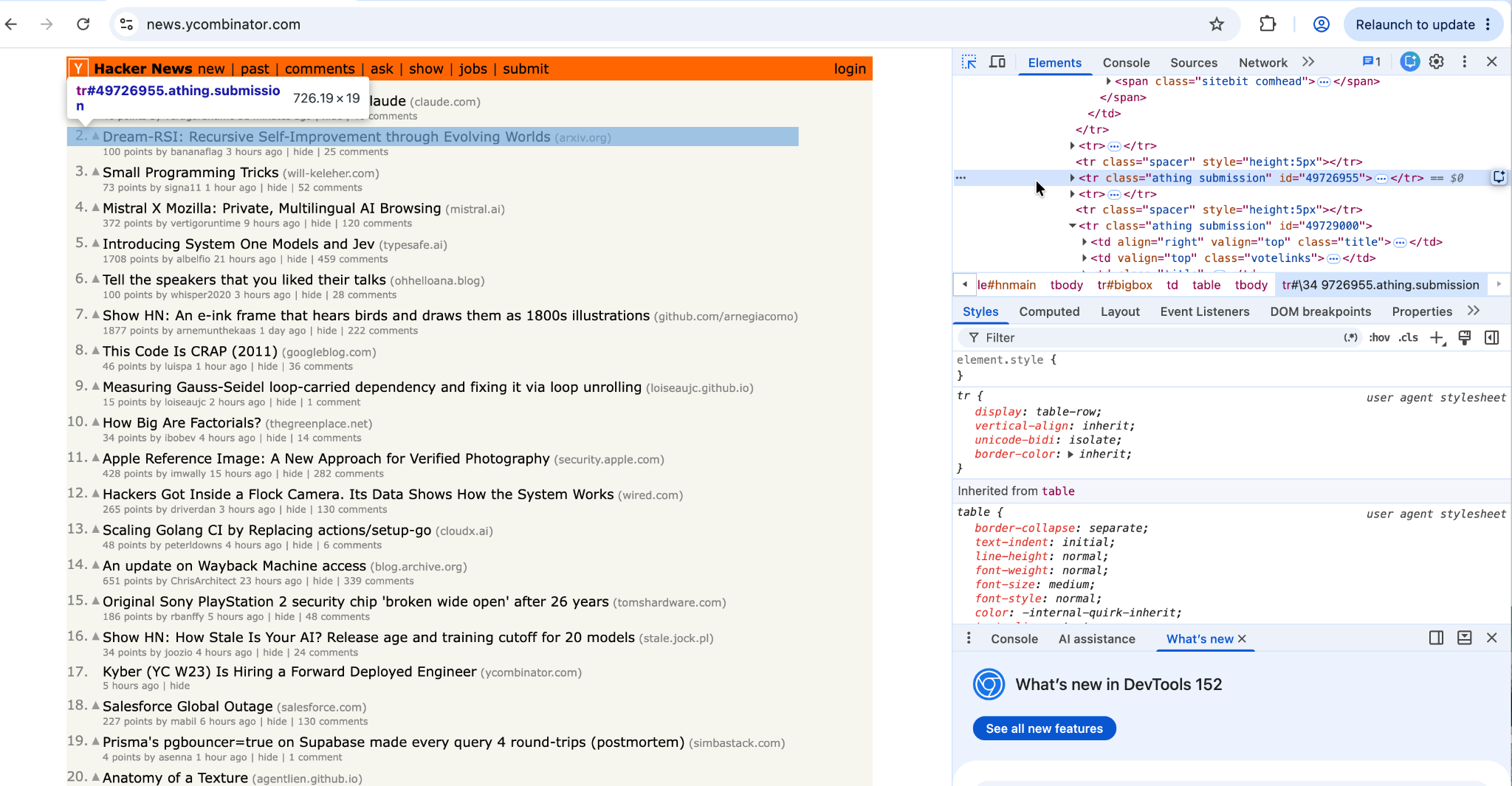
Before writing selectors, open the target page in your browser's DevTools (right-click → Inspect) and find the CSS classes or tags wrapping the data you want.
In our example case, this is the article container, which is located under athing submission. We can target anything under athing from the tr class to grab our titles and links.
Step 3: Select and Extract the Data
Elements entries = doc.select("tr.athing");
int limit = Math.min(entries.size(), 10);
Step 4: Display the Results
System.out.println("Top " + limit + " Hacker News Stories: \n");
for (int i = 0; i < limit; i++) {
  Element entry = entries.get(i);
  String title = entry.select(".titleline > a").text();
  String link = entry.select(".titleline > a").attr("href");
  System.out.printf("%2d. %s%n Link: %s%n", (i + 1), title, link);
  System.out.println();
  }
}
The full program is located here.
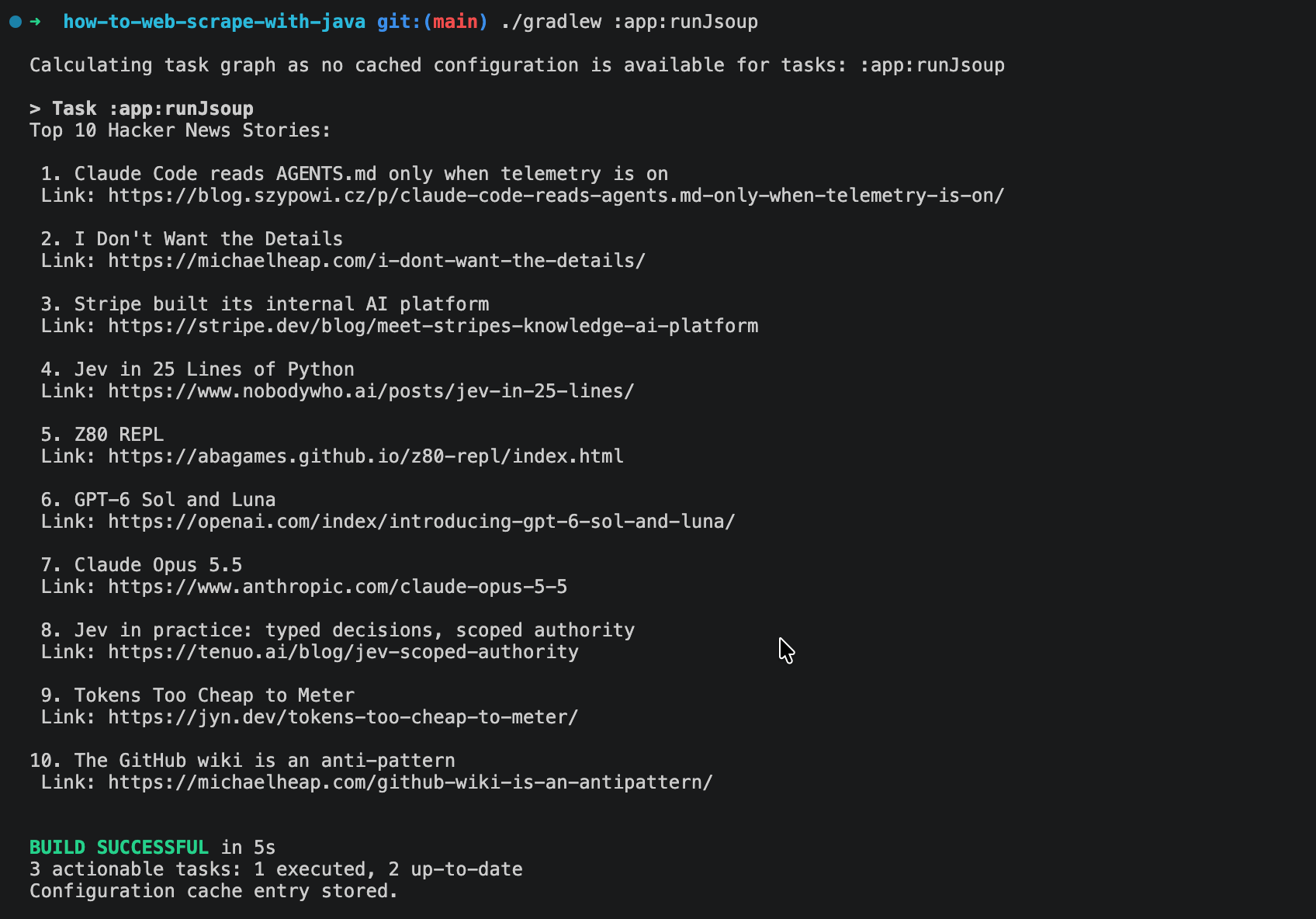
Run it with /gradlew :app:runJsoup.
The expected output is a console printed list of the current top ten articles, which may change over time.
Note:
If doc.select(...) returns nothing, the content is likely loaded via JavaScript after the initial page load. Jsoup only accesses the raw HTML returned by the server and not anything rendered afterward. If you want to access information injected by JavaScript such as scroll feeds, what exists behind a “Load More” button, and data brought in by background APIs, this is your signal to move to Playwright or Selenium (covered below).
When to Use Playwright or Selenium
Both tools solve the core problem of rendering JavaScript to access content outside the raw HTML files. However, different situations make one more useful than the other.
Here’s a quick guide to figuring out which to use before the walkthroughs.
Use Playwright for:
- New projects with no existing Selenium code to maintain
- JS-heavy single page using (built with Vue, React, or Angular)
- Faster local development
- Projects where you want request mocking built in
Use Selenium for:
- Projects that already use Selenium
- Teams that need broad cross-brower and language support
- Situations where team familiarity is prioritized - since Selenium is older its developer ecosystem and documentation is more mature
If you are just starting today without previous infrastructure, start with Playwright.
Scrape a Dynamic Site with Playwright
Prerequisites:
Maven (pom.xml)
<dependency>
  <groupId>com.microsoft.playwright</groupId>
  <artifactId>playwright</artifactId>
  <version>1.44.0</version>
</dependency>
Gradle (build.gradle.kts)
dependencies {
  implementation 'com.microsoft.playwright:playwright:1.44.0'
}
Step 0: Imports
import com.microsoft.playwright.Browser;
import com.microsoft.playwright.BrowserType;
import com.microsoft.playwright.Locator;
import com.microsoft.playwright.Page;
import com.microsoft.playwright.Playwright;
import java.util.List;
Step 1: Launch A Browser with Playwright
try (Playwright playwright = Playwright.create()) {
    Browser browser = playwright.chromium().launch(
    new BrowserType.LaunchOptions().setHeadless(true));
    Page page = browser.newPage();
Step 2: Grab the Site and Wait for it to Load
    page.navigate("https://news.ycombinator.com/");
    page.waitForSelector("tr.athing");
Step 3: Select and Extract the Data
    // Select and extract the data
    List<Locator> entries = page.locator("tr.athing").all();
    int limit = Math.min(entries.size(), 10);
Step 4: Display the Results
    System.out.println("Top " + limit + " Hacker News Stories:\n");
    for (int i = 0; i < limit; i++) {
      Locator entry = entries.get(i);

      /* Extract title text and 'href' attribute from the anchor tag
       '.titleline > a' because we only want to access the 'a' (anchor) tag.
       .textContext and .getAttribute to grab the data type (title and link)
       */
      String title = entry.locator(".titleline > a").textContent();
      String link = entry.locator(".titleline > a").getAttribute("href");
      System.out.printf("%2d. %s%n    Link: %s%n%n", (i + 1), title, link);
    }
Step 5: Close the Browser
browser.close();
The full program is located here.
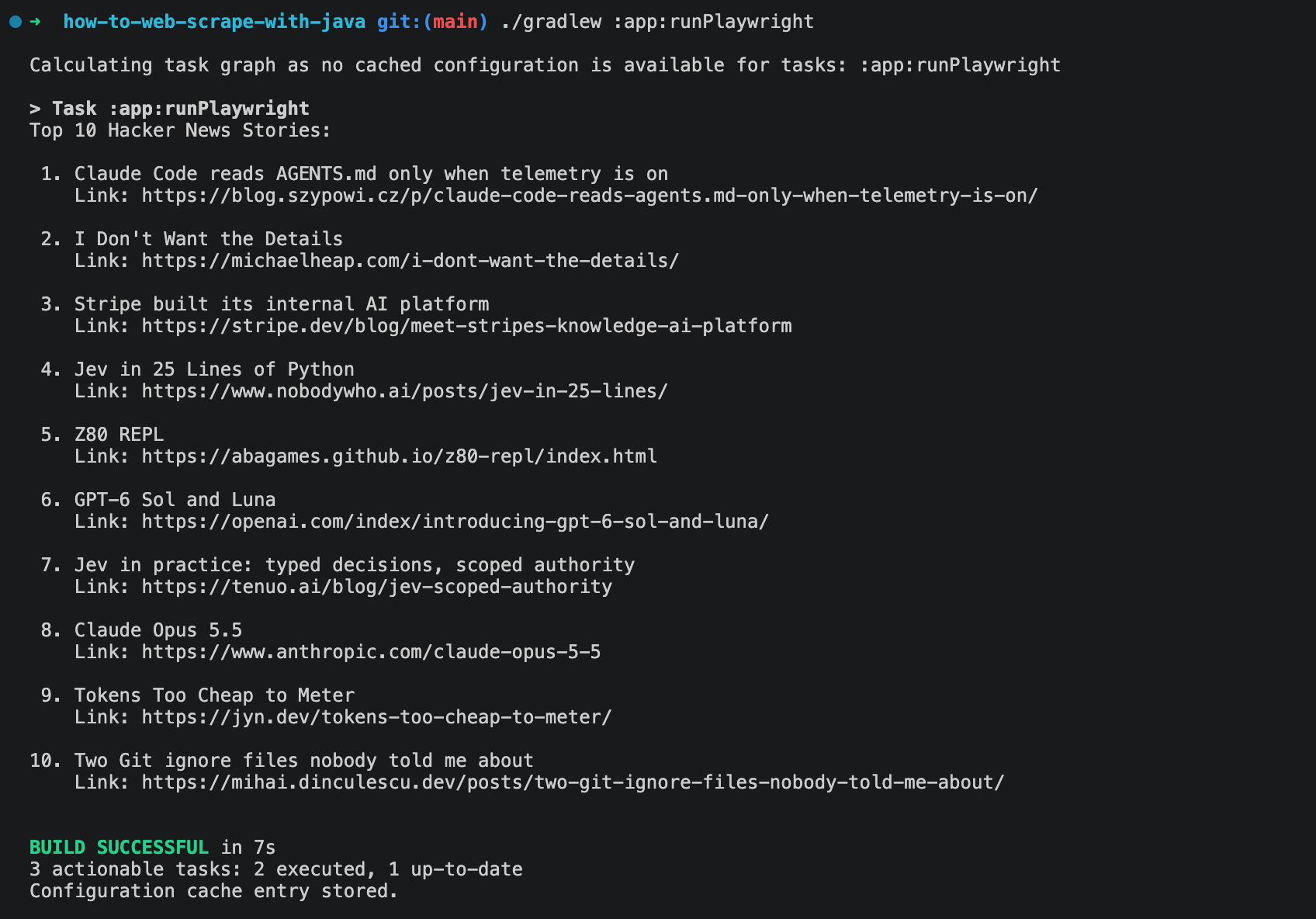
Run it with /gradlew :app:runPlaywright.
The expected output is a console printed list of the current top ten articles, which may change over time. (This is why output may vary depending upon when you run each version).
Scrape a Dynamic Site with Selenium
Prerequisites:
Maven (pom.xml)
<dependency>
  <groupId>org.seleniumhq.selenium</groupId>
  <artifactId>selenium-java</artifactId>
  <version>4.20.0</version>
</dependency>
Gradle (build.gradle)
dependencies {
  implementation 'org.seleniumhq.selenium:selenium-java:4.20.0'
}
Step 0: Imports
import org.openqa.selenium.By;
import org.openqa.selenium.WebDriver;
import org.openqa.selenium.WebElement;
import org.openqa.selenium.chrome.ChromeDriver;
import org.openqa.selenium.chrome.ChromeOptions;
import org.openqa.selenium.support.ui.ExpectedConditions;
import org.openqa.selenium.support.ui.WebDriverWait;
import java.time.Duration;
import java.util.List;
Step 1: Launch a Browser
We can first define a driver:
ChromeOptions options = new ChromeOptions();
options.addArguments("--headless=new");
WebDriver driver = new ChromeDriver(options);
Step 2: Select the Content and Wait for it To Load
try {
           driver.get("https://news.ycombinator.com/");
           // Wait until the story rows are fully present in the DOM
           WebDriverWait wait = new WebDriverWait(driver, Duration.ofSeconds(10));
           wait.until(ExpectedConditions.presenceOfElementLocated(By.cssSelector("tr.athing")));
           // Find all story rows
           List<WebElement> entries = driver.findElements(By.cssSelector("tr.athing"));
           int limit = Math.min(entries.size(), 10);
Step 3: Display the Results
System.out.println("Top " + limit + " Hacker News Stories:\n");
           for (int i = 0; i < limit; i++) {
               WebElement entry = entries.get(i);
               // Locate the title and URL link inside each row
               WebElement titleLink = entry.findElement(By.cssSelector(".titleline > a"));

               String title = titleLink.getText();
               String link = titleLink.getAttribute("href");
               System.out.printf("%2d. %s%n    Link: %s%n%n", (i + 1), title, link);
           }
Step 4: Close the Connection
It’s important to always call quit to prevent memory leaks.
} finally {
           driver.quit();
       }
The full program is located here.
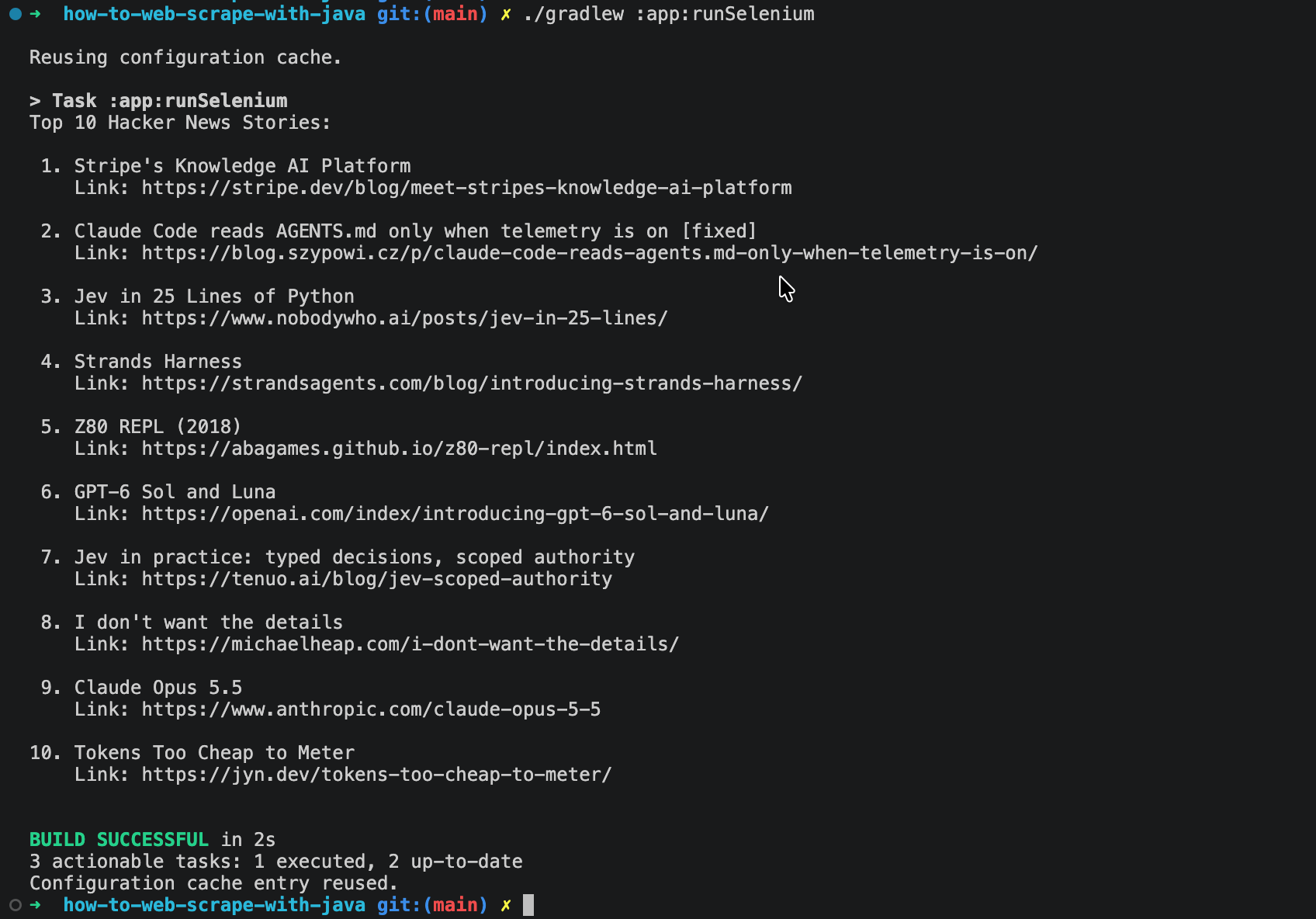
Run it with /gradlew :app:runSelenium.
The expected output is a console printed list of the current top ten articles, which may change over time.
Automating with Crawler4j
Crawler4j is an open source library that allows deep crawling, the access to multiple pages through seeds.
It offers built-in multithreading, rate limiting, and structured lifecycle hooks.
Like Jsoup, it does not support Single Page Applications that render websites outside of HTML.
This is a standard example of the main section of a typical Crawler4j:
CrawlConfig config = new CrawlConfig();
config.setCrawlStorageFolder("/data/crawl");
PageFetcher pageFetcher = new PageFetcher(config);
RobotstxtConfig robotstxtConfig = new RobotstxtConfig();
RobotstxtServer robotstxtServer = new RobotstxtServer(robotstxtConfig, pageFetcher);
CrawlController controller = new CrawlController(config, pageFetcher, robotstxtServer);
controller.addSeed("https://example.com");
controller.start(MyCrawler.class, 1);
To see a full application and comments that explain how this works please refer to the file here.
Automating with a Manual Loop
Setting up a manual loop is the simplest way to poll multiple sites continuously.
This is an abridged part of the main function:
String[] urls = {"https://example.com/page1", "https://example.com/page2"};
for (String url : urls) {
   Document doc = Jsoup.connect(url).get();
   System.out.println(doc.title());
   Thread.sleep(1000); // basic politeness delay between requests
}
To see a full version of a manual loop program refer to the application here.
Data Processing with OpenCSV
If we want to write the scraped data to a file to store for later access, tools like OpenCSV help make this easy. It is most effective for when the output needs to be a flat, spreadsheet-friendly file (CSV) for personal review or tools like Excel to open directly.
Here is an example of the main lines required.
try (CSVWriter writer = new CSVWriter(new FileWriter("output.csv"))) {
   writer.writeNext(new String[]{"Title", "URL"});
   for (Element link : links) {
       writer.writeNext(new String[]{link.text(), link.attr("href")});
   }
}
To see a full example with more instruction, check here.
Data Processing with Jackson
Jackson is mainly used to translate Java objects to/from JSON output, though it can help handle results in various formats including XML, CSV, YAML, and Avro.
It is most effective for when data has nested/variable structure or will be consumed programmatically by another app. It is the industry standard because it is exceptionally fast, memory-efficient, and integrates automatically with major frameworks like Spring Boot.
Here are the core lines needed:
Map<String, String> data = new HashMap<>();
data.put("title", doc.title());
data.put("url", "https://example.com");
ObjectMapper mapper = new ObjectMapper();
mapper.writeValue(new File("output.json"), data);
To see a full example with more instruction, check here.
Frequent Questions and Answers
Why is my Jsoup scraper returning empty data or missing elements?The most common reason is that the content you're after isn't actually in the raw HTML. It gets added to the page after the browser runs JavaScript. Jsoup only fetches the initial HTTP response, so if a site builds its content client-side (React, Vue, infinite scroll, "load more" buttons, that kind of thing), Jsoup just sees an empty shell like <div id="root"></div> and nothing else.
If the data is showing up in the page source, then the issue is probably one of these instead:
- Wrong selector. The site's HTML structure might differ from what you're expecting, so test your CSS selector against the actual fetched HTML rather than what you see in DevTools.
- The request got blocked. You might be getting a login wall, a CAPTCHA, or an error page instead of real content (see the next question on anti-bot detection).
- Missing headers. Some sites check things like User-Agent, Referer, or cookies, and will serve you stripped-down content if the request looks automated.
How do I prevent my Java scraper from getting IP-banned or blocked?
There are a few ways to go about this. Considering implementing the following:
- Slow your requests down using `Thread.sleep` or a `politenessDelay `between calls.
- Respect robots.txt. Sites will often rate-limit or ban you if you ignore it.
- Set a User-Agent, and rotate it if you can.
- For anything at scale, use residential or rotating proxies. A single IP hitting a site over and over is easy to spot and block, but spreading requests across several IPs is much harder to flag.
- If avoiding blocks is more trouble than it's worth to handle yourself, consider using a third-party scraping tool that takes care of this.
How can I detect and handle anti-bot challenges or Cloudflare interstitial pages using a headless browser in Java?
To detect one, look out for a few signs. Cloudflare's "checking your browser" page (and similar challenges from other providers) usually shows up as:
- A page title containing something like "Just a moment..." or "Attention Required"
- A response status of 403 or 503
- Distinctive HTML or JavaScript, such as a `cf-browser-verification` div, or scripts referencing `challenges.cloudflare.com`
With Playwright or Selenium, you can check the title or page content after loading and add your handling logic from there:
if (page.title().contains("Just a moment")) {
    // wait and retry, or flag this URL for manual handling
}
As for handling it once you've spotted one, you've got a few options:
- Wait and retry. A lot of these challenges clear up on their own after a few seconds, so a short pause and a reload can be enough to get through.
- Make your browser look more like a real one. Use a proper browser context instead of default headless settings, keep your User-Agent consistent, and add some human-like timing. Some anti-bot systems specifically look for signs of a headless browser.
- Back off instead of retrying in a loop. If the challenge keeps showing up, log the URL and move on rather than hammering it.
- Use a dedicated bypass service like FlareSolverr or a commercial anti-bot API if this is a regular problem rather than a one-off. Trying to reverse-engineer Cloudflare's checks yourself is a losing battle since they change often.
How do I prevent Playwright or Selenium from eating up all my server's RAM during a long scraping run?
Headless browsers are heavy. Each instance or context can easily use 100 to 300+ MB, and that adds up quickly if you're not careful. A few habits help:
- Reuse the same browser instance across pages instead of launching a new one per URL. Launch once, then open and close lightweight pages or sessions as you go.
- Always close pages and contexts when you're done with them, ideally in a finally block or with try-with-resources if the API supports it. A page you forget to close keeps its memory and network connections alive for as long as the JVM runs.
- Cap your concurrency to what your machine can actually handle. Running twenty headless Chrome instances at once on a small server will use up your RAM fast, so aim for a handful rather than dozens.
- On long runs, restart the browser every so often, say every few hundred pages. Even with proper cleanup, browser processes can accumulate memory over a very long session, so a periodic restart is a cheap way to guard against that.
- Turn off resources you don't need. If you only care about the DOM or text content, block images, fonts, and CSS from loading to save memory and speed things up with a line like this:
page.route("**/*.{png,jpg,jpeg,css,font,woff}", route -> route.abort());
How can I scale my Java scraper for high performance?
The short answer is to use concurrency, but keep it controlled.
Here are ways to do this:
- Use a thread pool or crawler4j's multi-crawler support to fetch pages in parallel, but cap it so you don't overwhelm your own machine or the target site.
- Stick with Jsoup wherever you can, and only reach for Playwright or Selenium when you genuinely need JavaScript rendering. Headless browsers are 10 to 100 times heavier per page, so mixing strategies saves a lot of CPU and memory at scale.
- Stream your output instead of holding everything in memory. Write results to a database, file, or queue as you go rather than building one giant list for millions of rows.
- For real scale (think millions of pages), a single JVM process usually won't cut it. Distribute work across multiple machines backed by a shared queue like Redis or RabbitMQ, so workers can pull URLs independently.
What's next?
Now you can expand this project into something bigger. A few directions worth trying:
- Analyze HN trends over time. Run the scraper on a schedule (a cron job or a simple scheduled task), store each run's results in a database, and track things like which titles or domains show up most often, how quickly posts rise and fall off the front page, or how post volume changes by day and hour.
- Build a small dashboard. Take the CSV or JSON output you're already generating and feed it into a charting library, or a lightweight web page, so trends are visible at a glance instead of buried in a data file.
- Scrape beyond the front page. Follow the "More" link to pull deeper pages, or scrape individual post pages and their comment threads for a richer dataset, using crawler4j's depth setting instead of leaving it at 0.
- Add alerting. Notify yourself (email, Slack webhook, etc.) when a post matching certain keywords hits the front page, turning the scraper into a lightweight monitoring tool.
Why use Java for web scraping?
Java provides performance at scale. Java's concurrency model (thread pools, ExecutorService) and JVM performance make it a strong fit once you're scraping thousands or millions of pages rather than a handful.
It has well-documented libraries. Tools like Jsoup, crawler4j, and Playwright's Java bindings are mature, actively maintained, and backed by solid documentation and community support.
It can be integrated into existing projects. If you're already working in a Java codebase (a backend service, an existing data pipeline), it's much simpler to add scraping directly rather than bridging to a separate language and runtime.
Java is built for production-heavy scraping. Java's strong typing, tooling, and ecosystem (build systems, testing frameworks, monitoring) make it easier to build and maintain a scraper that needs to run reliably over the long term, not just as a one-off script.
One thing worth mentioning, Python is generally lighter weight for quick scripts and prototyping. Its scraping libraries (BeautifulSoup, Scrapy, Requests) tend to require less boilerplate for small, one-off jobs, and its syntax is often faster to write and read for simple tasks.
Feel free to read our beginner's guide on Web Scraping to learn more fundamentals.
That's it! Hope you enjoyed this tutorial and happy scraping!