









 Ruby
Ruby
 Golang
 .Net
.Net
 MCP
MCP
 C++
C++

We’ve given SerpApi on Postman a major upgrade.
Our official Postman collection is now live on the Postman Public Network as a single place to explore SerpApi across Google, Bing, Amazon, Apple, Walmart, Yelp, YouTube, Tripadvisor, and more.
If you use Postman to learn an API, test requests, or share working examples with a team, this should feel much easier to work with.
Why Postman for SerpApi?
SerpApi already has a Playground that lets you run any search interactively, inspect the full JSON response, and compare it side-by-side with the raw HTML. It's the best place to explore a specific engine in depth and understand exactly what the API extracts from a page.
Postman fills a different need. It's where you build and organize requests you actually want to reuse, share with a teammate, run against different parameters, or hand off to someone onboarding onto the API. Most development teams already have it open.
The collection also gives you a complete picture of SerpApi's breadth in one place. Instead of reading through the API docs page by page, you can browse folders by provider, open a request, see exactly what parameters it takes, and run it with a prefilled example without leaving Postman.
What Makes the Collection Rich
Opening the collection, you'll notice it's designed to be useful right away, not just a list of endpoints.
Collection-level auth. Set your api_key once in the collection's Variables tab, and every request picks it up automatically. You don't need to touch the auth settings on individual requests.
Organized by provider and engine. Requests are grouped into folders — Google, Bing, Amazon, Apple, Walmart, Yelp, YouTube, and so on. Within each folder, individual engines like Google Images, Google Maps, or Google Scholar have their own request. It's easy to navigate by the platform you care about.
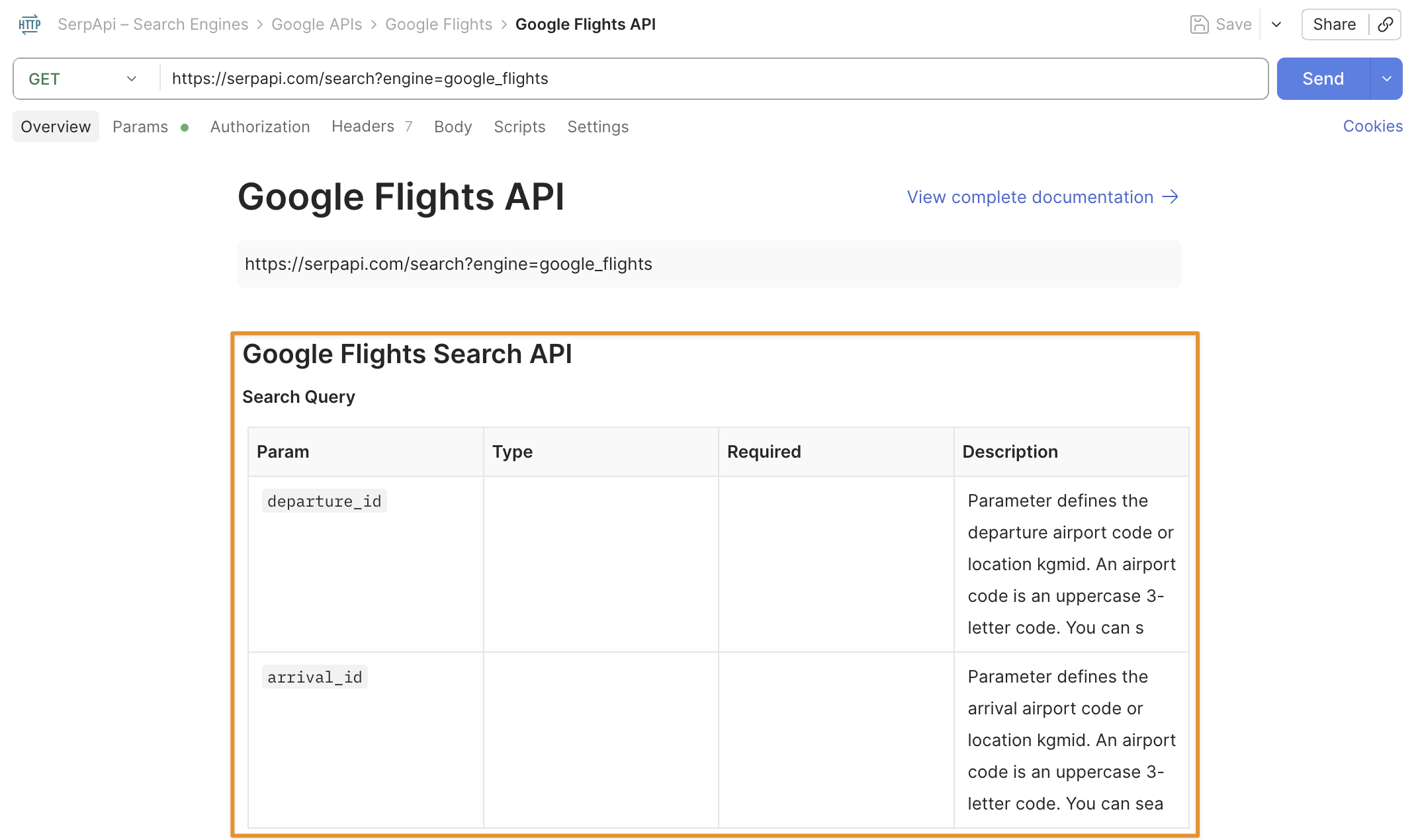
Descriptions on everything. The collection itself, each folder, and each individual request has a description. So if you open the Google Flights request, you can read what the endpoint does and what its main parameters mean before you send anything.
Prefilled example parameters. Every request comes with real parameters already filled in, taken from working examples in the SerpApi docs. You can send a request as-is to see a live response, then adjust parameters from there.
Saved response examples. Most requests include saved example responses alongside the request. This means you can open a request, click the example, and see the full JSON response shape without spending a live API call. It's useful for understanding what fields are returned before writing any code.
Setting Up Auth
Getting started takes about a minute.
Open or fork the collection from the SerpApi workspace, then go to the collection's Variables tab. Find the serp_api_key row and paste your SerpApi key into the Current Value column. Every request in the collection inherits it from there — you only do this once.
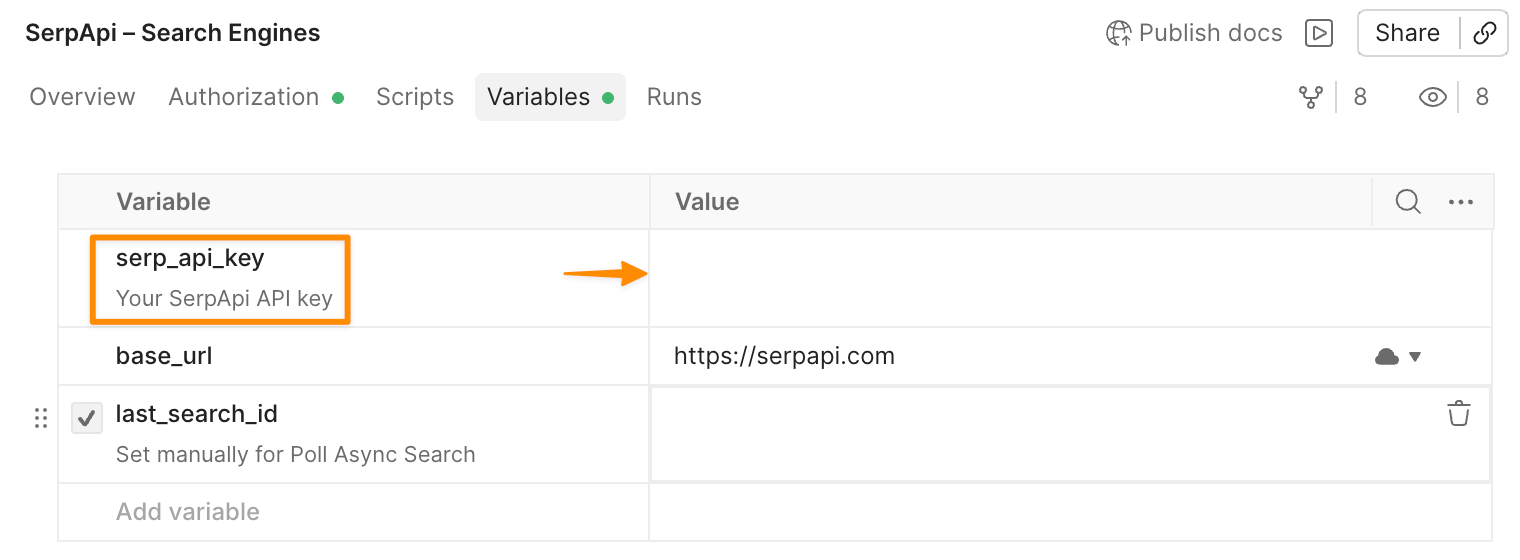
serp_api_key in the Postman collection's Variables tab for automatic authentication across all requests.You can get your API key from serpapi.com/manage-api-key.
Using the Collection
Once auth is set, the workflow is straightforward.
Browse the folders on the left to find the engine you want. Open a request and read the description first — it explains what the endpoint does and what the key parameters control. The example params are already filled in, so you can hit Send immediately to see a real response.
If you want to understand the response shape before making a live call, click the 200 OK menu under the request. The saved responses show you the full JSON structure returned by that engine, including all the fields you'd work with in code.
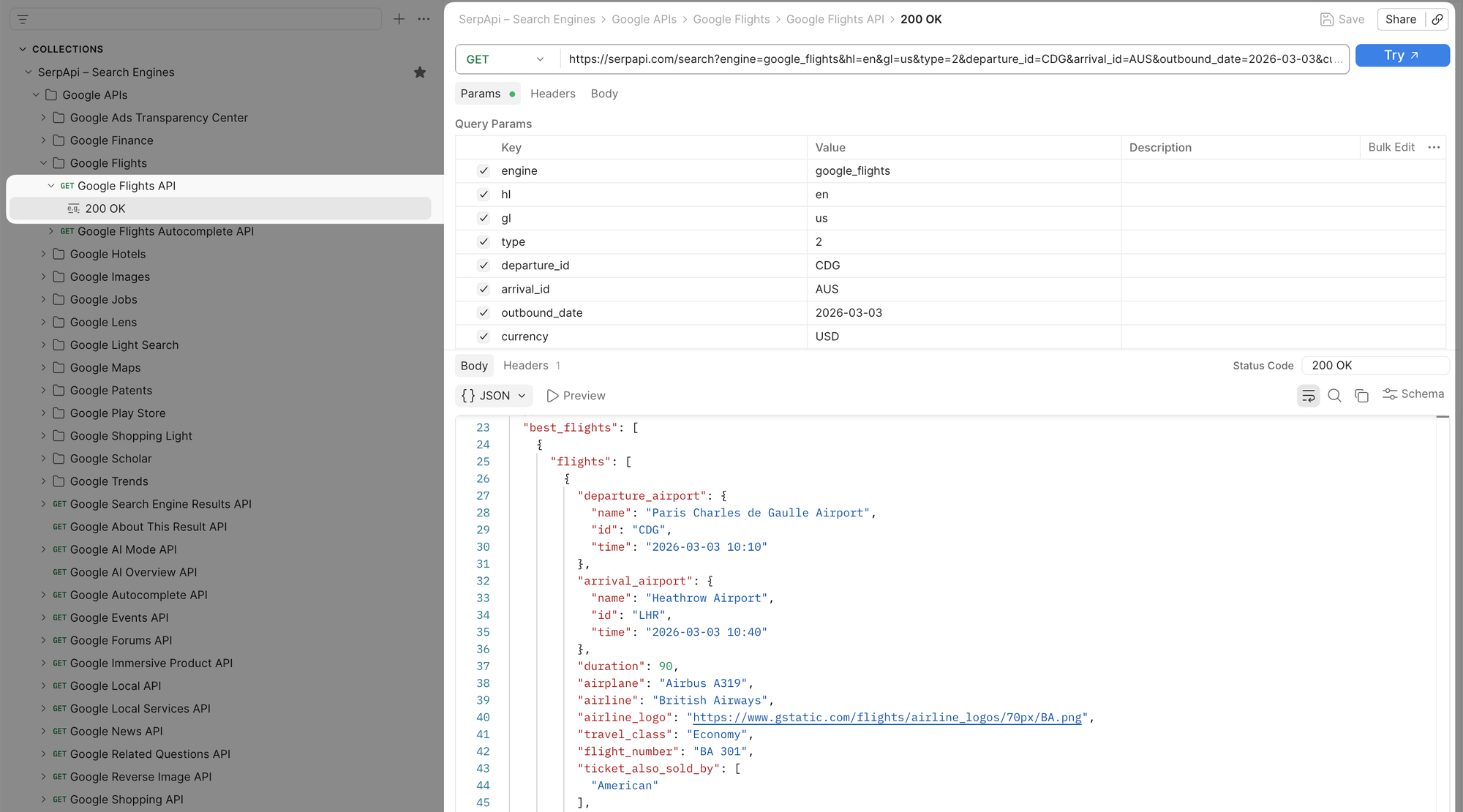
From there, adjust the parameters to match your use case, change the search query, location, language, or any of the engine-specific filters, and send again.
If you need to move from Postman into code, open a request and click the </> icon in the right sidebar to generate a snippet in your language. Postman supports curl, Python, JavaScript, Ruby, Go, PHP, and more.
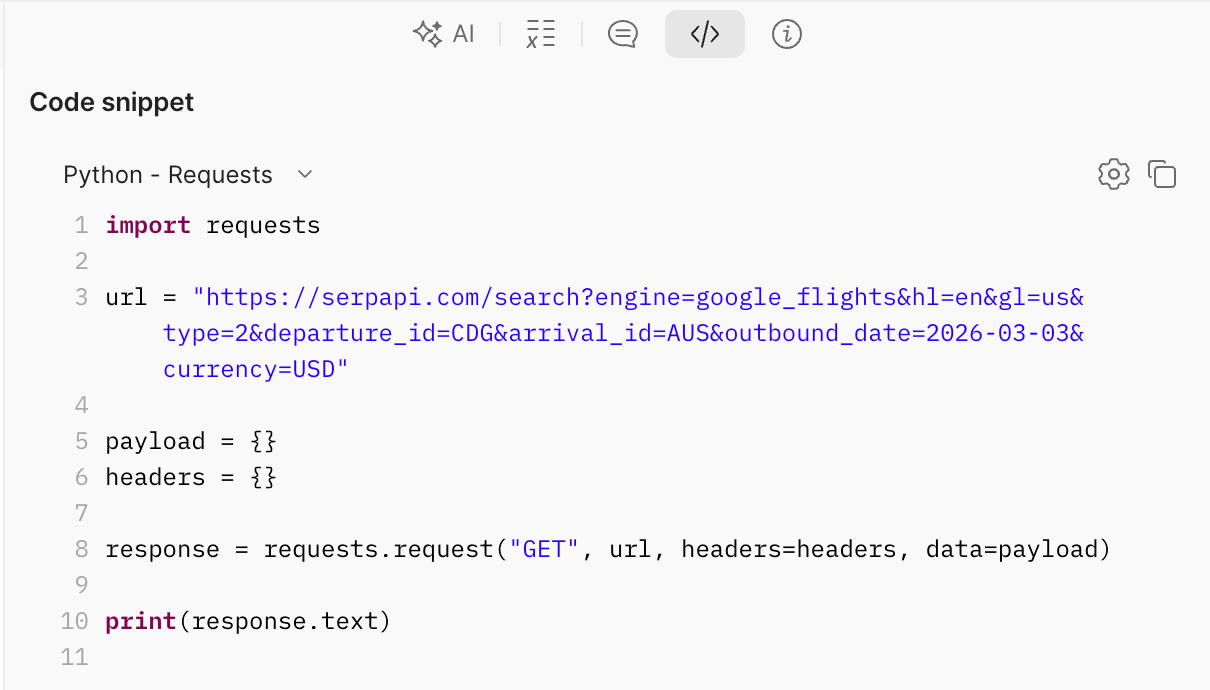
</>) in the right sidebar to generate ready-to-use code in Python, JavaScript, cURL, or other languages.When It's Most Useful
A few situations where this collection saves real time:
- Trying SerpApi for the first time. You can open the collection, set your key, and have a working request in under a minute without reading docs first.
- Exploring what's available. Browsing the folder structure gives you a quick overview of every engine SerpApi supports across providers.
- Onboarding a teammate. Share the collection link, and they have a ready-to-run environment with working examples.
- Demoing an endpoint. Saved response examples let you show what an API returns without making a live call in front of someone.
- Moving into implementation. Use the generated code snippet to take a tested Postman request directly into your codebase.
Get Started
Open the collection, add your API key, and pick any request to send.
Open the SerpApi Postman Collection
If you run into anything or have suggestions, reach out at contact@serpapi.com.