









 Ruby
Ruby
 Golang
 .Net
.Net
 MCP
MCP
 C++
C++

Many web services require you to send and receive requests with an application programming interface key, or API key, or other credentials. If you are building a project with a shared or public codebase, it’s important that you safely store API keys in environment variables or a separate file. If you don't move the credentials out of your code, the connected account could be compromised and receive unexpected charges.
This guide will explain how to securely store your API keys in Python, Node.js, and Ruby projects, using SerpApi keys as an example. Finally, for projects running in GitHub Actions, this guide will explain how to store API keys using secrets in your repository.
How to store API keys in a .env file
If you are running code on your own computer or server, the best way to store API keys or other credentials is usually an environment variables file. This is a plain text file placed in the root directory of your project, with a .env file name, containing a list of environment variables that can be used in your code.
First, create the text file with the name .env (no .txt or other extensions) in the root directory of your project. Then add your variables on each line, like this:
TEST_VARIABLE=HelloWorld
SERPAPI_KEY=72e1dedd608740be8008ab773d7494ab
/.env
Now you're ready to use your environment variables in your code! If you're using Git or another version control system, make sure to add the .env file to your ignore list afterwards.
How to use an .env file in Python
If we're using the Google Search API from SerpApi, we can save the key to the SERPAPI_KEY variable in the .env file, like this example:
SERPAPI_KEY=72e1dedd608740be8008ab773d7494ab./env
Before switching to environment variables, your code might look something like this, with the API keys in the request code:
import serpapi

client = serpapi.Client(api_key="72e1dedd608740be8008ab773d7494ab")
results = client.search({
  "engine": "google",
  "q": "watch tron 1982"
})

print(f'First result link: {results["organic_results"][0]["link"]}')
The python-dotenv package can read variables from a .env file. You can install it with this command:
pip install python-dotenvNext, import the library at the top of your script, along with the os module if you don't have that already, and load the file:
import os
from dotenv import load_dotenv

load_dotenv()
Finally, replace your API key strings with the environment variable, like this:
client = serpapi.Client(api_key=os.getenv("SERPAPI_KEY"))Here's a full example script for sending the request with an environment variable:
import serpapi
import os
from dotenv import load_dotenv

load_dotenv()

client = serpapi.Client(api_key=os.getenv("SERPAPI_KEY"))
results = client.search({
  "engine": "google",
  "q": "watch tron 1982"
})

print(f'First result link: {results["organic_results"][0]["link"]}')
Don't forget to replace all instances of your API key(s) across your project with the environment variable!
How to use an .env file in Node.js
For this example, we're using the Google Search API from SerpApi, with the key saved to the SERPAPI_KEY variable in the .env file, like this:
SERPAPI_KEY=72e1dedd608740be8008ab773d7494ab./env
Before implementing environment variables, you might be including the API keys in the request code, like this:
import { getJson, getJsonBySearchId } from 'serpapi';

const request = await getJson({
    "api_key": "72e1dedd608740be8008ab773d7494ab",
    "engine": "google",
    "q": "watch tron 1982"
});

console.log(`First result link: ${request["organic_results"][0]["link"]}`);
Node.js has built-in support for reading environment variables from a .env file, but you still have to import that feature from the process core module, and set the path to the file. You can do that by adding these lines to the top of your script:
// ES Modules (ESM) projects should use this:
import { loadEnvFile } from 'node:process';
loadEnvFile('./.env');

// CommonJS projects should use this instead:
const { loadEnvFile } = require('node:process');
loadEnvFile('./config/.env');
Finally, replace your API key strings with the environment variable, like this:
const request = await getJson({
    "api_key": process.env.SERPAPI_KEY,
    // The rest of the code...
});
Here's a complete example in ES Modules format, using the environment variable to send an API request:
import { getJson, getJsonBySearchId } from 'serpapi';
import { loadEnvFile } from 'node:process';
loadEnvFile('./.env');

const request = await getJson({
    "api_key": process.env.SERPAPI_KEY,
    "engine": "google",
    "q": "watch tron 1982"
});

console.log(`First result link: ${request["organic_results"][0]["link"]}`);
Remember to replace all instances of your API key(s) across your project with the environment variable!
How to use an .env file in Ruby
Let's use the Google Search API from SerpApi as an example, with the key saved to the SERPAPI_KEY variable in the .env file, like this:
SERPAPI_KEY=72e1dedd608740be8008ab773d7494ab./env
If you didn't have environment variables, you might be including the API key directly inside the request code, like this:
require 'serpapi'

client = SerpApi::Client.new(
    "api_key": "72e1dedd608740be8008ab773d7494ab",
    "engine": "google",
    "q": "watch tron 1982"
)

puts "First result link: #{client.search[:organic_results][0][:link]}"
You can use the dotenv gem to access environment variables from an .env file. Install it from the terminal with this command:
gem install dotenvNext, add require 'dotenv/load' to the top of your script, and replace the API key string with the ENV['SERPAPI_KEY'] reference, like this:
require 'serpapi'
require 'dotenv/load'

client = SerpApi::Client.new(
    "api_key": ENV['SERPAPI_KEY'],
    "engine": "google",
    "q": "watch tron 1982"
)

puts "First result link: #{client.search[:organic_results][0][:link]}"
Finally, make sure to replace all instances of your API key(s) across your project with the environment variable.
How to exclude your .env file from commits
You need to make sure your .env file is never committed to your code repository, or published anywhere else. It should always remain separate from your codebase, and recreated manually on new computers or servers as needed.
If you are using Git or GitHub, create a .gitignore text file in your project's root directory (if you don't already have that file) and add .env as a new line. For example, the .gitignore file for a Node.js project might look like this:
.DS_Store
node_modules
.env
/.gitignore
If you are using Apache Subversion (SVN) for version control, you would add the "ignore" property to the .env file like this:
svn propset svn:ignore .envIf you are using Mercurial SCM for version control, create a .hgignore text file in your project's root directory (if the file doesn't already exist), then add .env as a new line using the glob syntax:
syntax: glob
.env
./hgignore
When you set the .env file as ignored, any changes you make should not appear in your version control, and no version of the file should be committed to your repository. In the below project, I made changes to my .env file, a search test script, and the readme, but the .env file isn't being tracked:
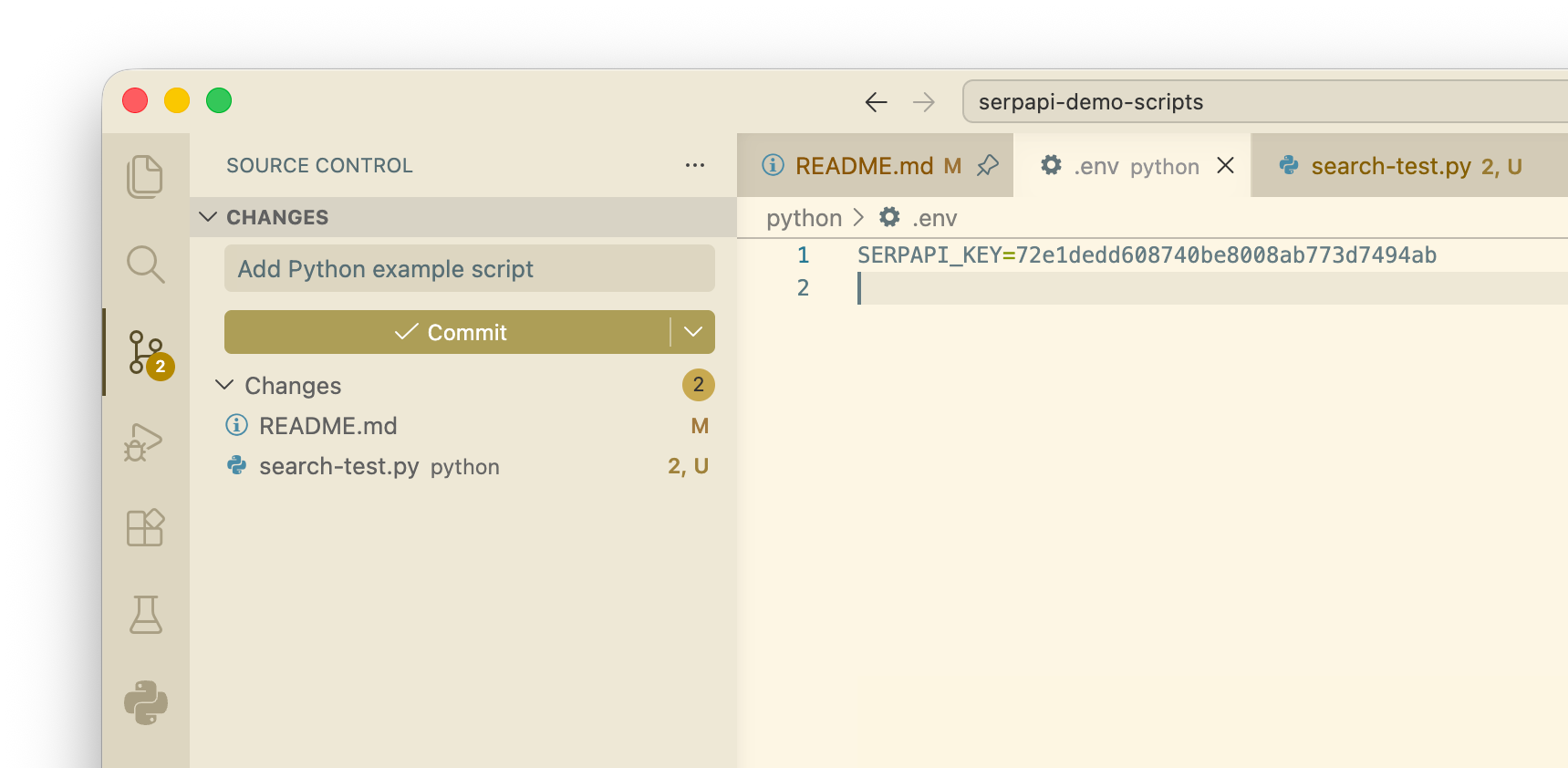
If you want to set up a template or initial values for your .env file, create the template as a separate file in the same repository with a different name or location. You could also create the template in the main .env file, commit it to your repository, then ignore the file, so any subsequent changes (like filling in the values) are not tracked.
How to store API keys for GitHub Actions
If you're using GitHub Actions, or another continuous integration/delivery (CI/CD) platform, the process is slightly different. In most cases, the best solution is storing your keys as environment variables in the platform, and update your code to check for variables in both locations.
In a GitHub Action, you can pass secrets to a workflow, either as input for commands or environment variables. Check out GitHub's documentation for all the supported options across different runners and shells.
Here's an example workflow that runs a Google search with SerpApi in a Node.js script. When the workflow is started from the Actions page, it looks for a secret called serpapi_key in the GitHub repository, and passes that to the script as the environment variable SERPAPI_KEY:
name: Run Node.js search test
on:
  workflow_dispatch:

jobs:
  run_test:
    runs-on: ubuntu-latest
    steps:
    - name: Checkout
      uses: actions/checkout@v4
    - name: Run script
      env:
        SERPAPI_KEY: ${{ secrets.serpapi_key }}
      run: |
        npm install
        node ./search-test.js
./.github/workflows/test.yml
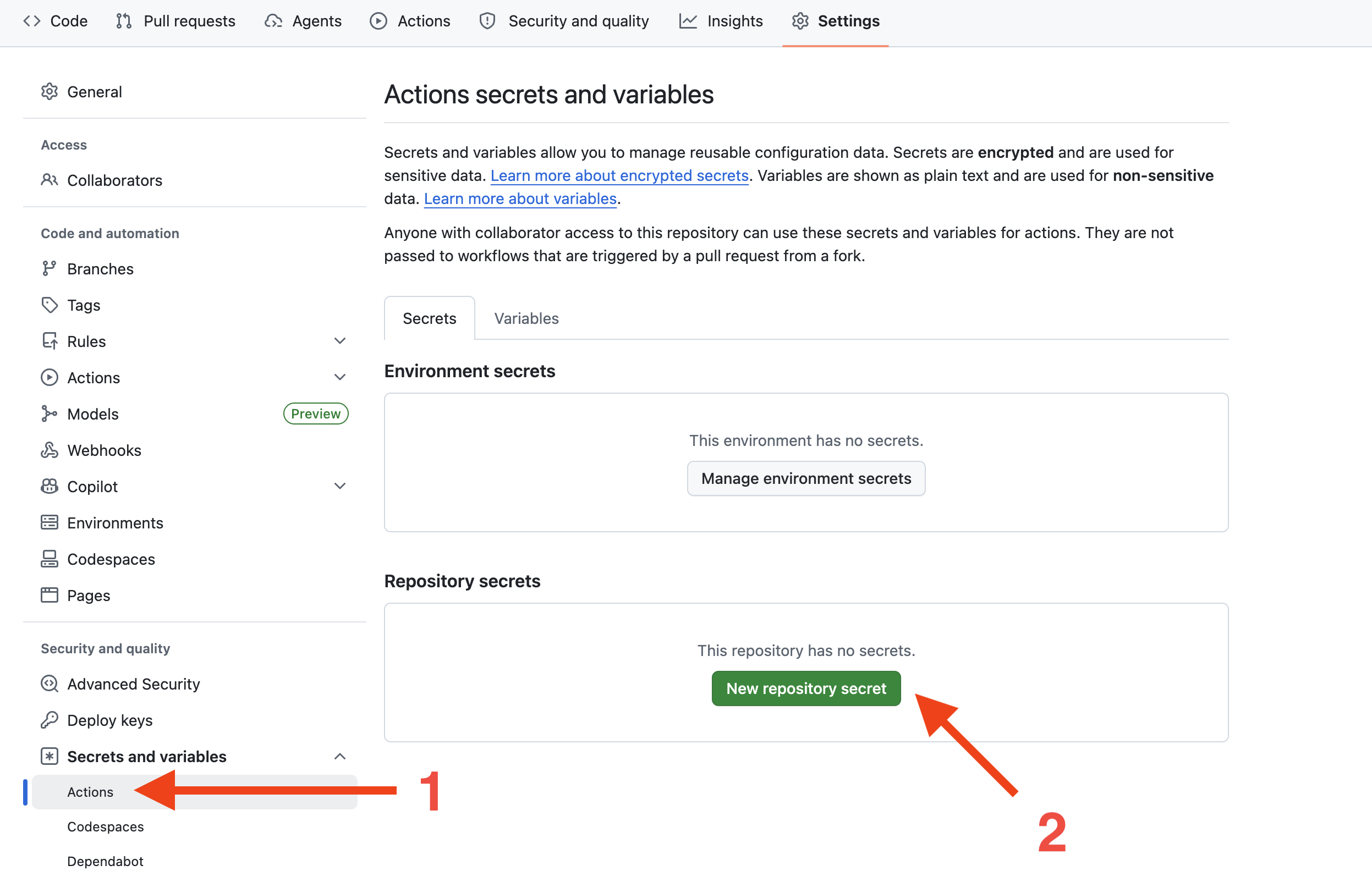
You will need to add your secrets to the settings for your GitHub repository. Open the home page for the repository, then click the Settings tab and navigate to Secrets and variables > Actions. Then click, the "New repository secret" button.
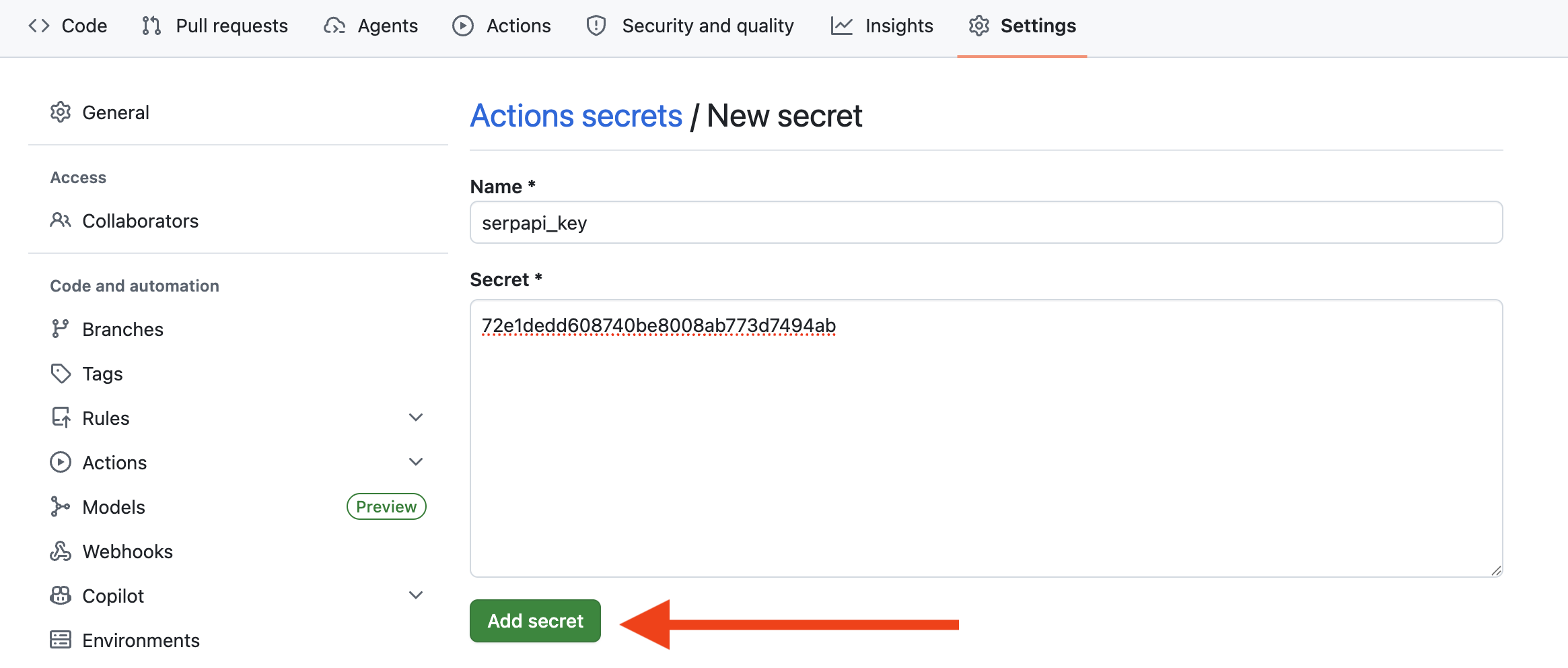
Here, you need to give the secret a name, paste the data in the text area, and then click the "Add secret" button.
Here's the updated version of the Node.js script, which loads environment variables from either the system or a .env file:
import { getJson } from 'serpapi';
import { loadEnvFile } from 'node:process';
import { existsSync } from 'node:fs';

// Only load the environment variables file if it exists
if (existsSync('./.env')) {
  loadEnvFile('./.env');
}

const request = await getJson({
  "api_key": process.env.SERPAPI_KEY,
  "engine": "google",
  "q": "watch tron 1982"
});

console.log(`First result link: ${request["organic_results"][0]["link"]}`);
If the script finds a .env file, the SERPAPI_KEY variable (and any other variables) will be loaded from that file. If the file doesn't exist, it will look in the system environment variables instead, where it will find the secrets stored in GitHub.
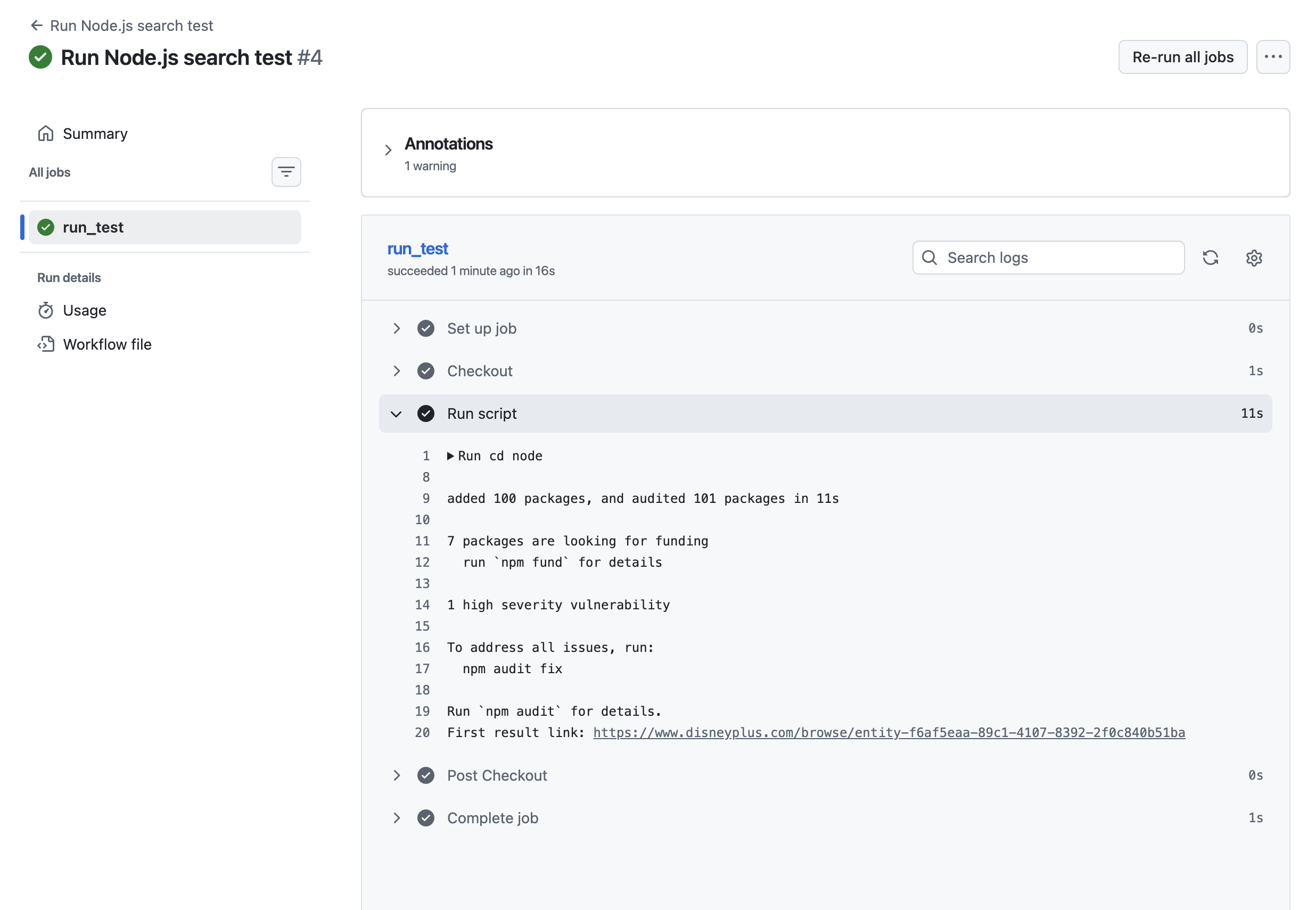
When running the workflow, the script uses the API key passed through environment variables:
The exact process for using secrets in GitHub Actions depends on your code's language, especially with how it reads environment variables from the host system, and the shell/runner being used in the workflow. Again, take a look at GitHub's documentation for more instructions and examples.
If you need to share your API keys or other secrets between computers in the future, and accessing them directly from a web dashboard isn't a great solution, you can store them in a password manager.