









 Ruby
Ruby
 Golang
 .Net
.Net
 MCP
MCP
 C++
C++


Introduction
Google Lens is an extremely powerful tool, by allowing users to search using images or image links, it helps users easily find more information about products, places, and more!
Beyond searching, Google Lens allows for showing only Exact Matches, Products, Visual matches, and also results with information about the image queried with their About this image tab.
SerpApi helps you scraping Google Lens and all its different tabs. Let's see how we can scrape the About this image section:
About This Image tab on Google Lens
Scraping Google Lens results using SerpApi's Google Lens API is completely frictionless. We can choose which Google Lens tab we want to scrape by only changing the request parameter type to any of the available options: all (default), exact_matches, products, visual_matches, and finally about_this_image, which is the type needed to scrape the About This Image tab.

about_this_image value for the type parameter in SerpApi's Google Lens API.What is available on Google Lens About This Image results
All the results related to About This Image tab is returned under the about_this_image hash.
It's split into the header hash, that comes with title and image (link), and the sections array, which shows the position of the section, its title and page_results, which is where the pages about the image queried are located.
There's a lot of information scraped in these page_results, such as page position, title, link, source, displayed_link, date, snippet, thumbnail, and favicon.
Result Structure
Here is the full result structure for the data you will receive from an "About this Image' query:
{
  ...
  "about_this_image": {
    "header": {
      "title": "String - Title of the header",
      "image": "String - URL to the image"
    },
    "sections": [
      {
        "position": "Integer - Position of the section",
        "title": "String - Title of the section",
        "page_results": [
          {
            "position": "Integer - Position of the page result",
            "title": "String - Title of the result",
            "link": "String - URL of the website that has the image",
            "source": "String - Displayed name of the website that has the image",
            "displayed_link": "String - Displayed link of the website that has the image",
            "date": "String - Date of the page that has the image",
            "snippet": "String - Snippet of the text block",
            "thumbnail": "String - URL to the image thumbnail",
            "favicon": "String - URL to the favicon of the website that has the image"
          },
          ...
        ]
      },
      ...
    ]
  }
}
Let's create a SerpApi account so we can start scraping Google Lens and all other Search Engines SerpApi offers.
Setting up SerpApi
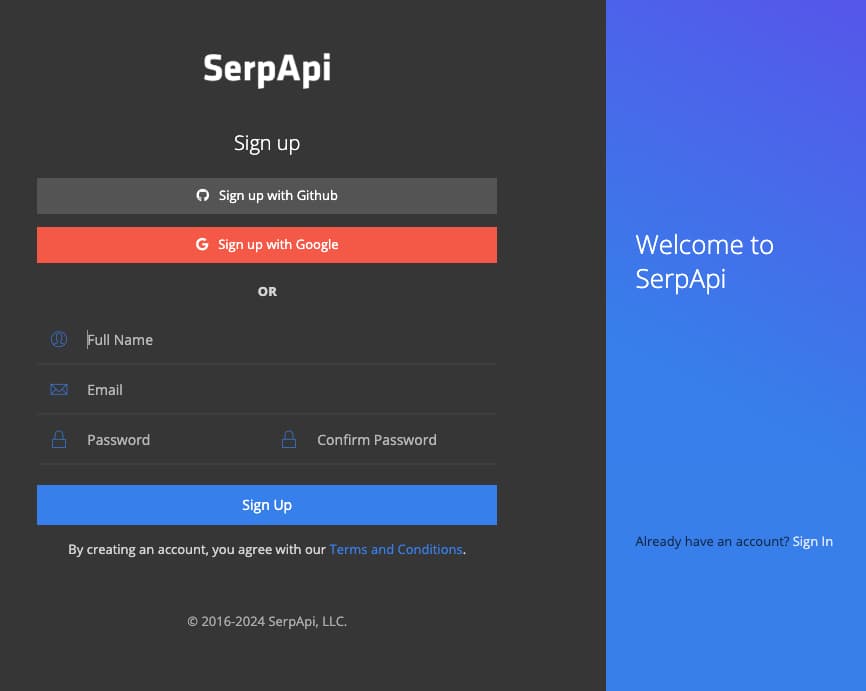
First, we need to create a SerpApi account. SerpApi has a Free tier that offers up to 250 searches per month.
Let's head to the sign-up page to create an account. Provide a valid email and a valid phone number in order to access your account's dashboard.
You can also follow the steps in this blog post to get started:
 Hilman Ramadhan
You can also take a look at how to use the Google Lens API in this blog post:
 Andy L
Now you should be set up with SerpApi and familiar with the Google Lens API.
Exploring Google Lens API About This Image
Now that we have an account, we can sign in and use SerpApi's Playground technology to explore all the information we can get from Google Lens API, including the About This Image tab.
For this example, we're scraping Google Lens API About This Image (engine: google_lens, type: about_this_image) for the Danny DeVito image (url: https://i.imgur.com/HBrB8p0.png). We can also change the type parameter, let's look into this parameter further.
type Parameter
One of the parameters availabe in the Google Lens API, is the type parameter. You can read the full documentation here.
The values for the type parameter include:
- all: All results
- about_this_image: Receive the About This Image tab
- products - Receive product results
- exact_matches - Receive only exact matches
- visual_matches - Receive only visual matches
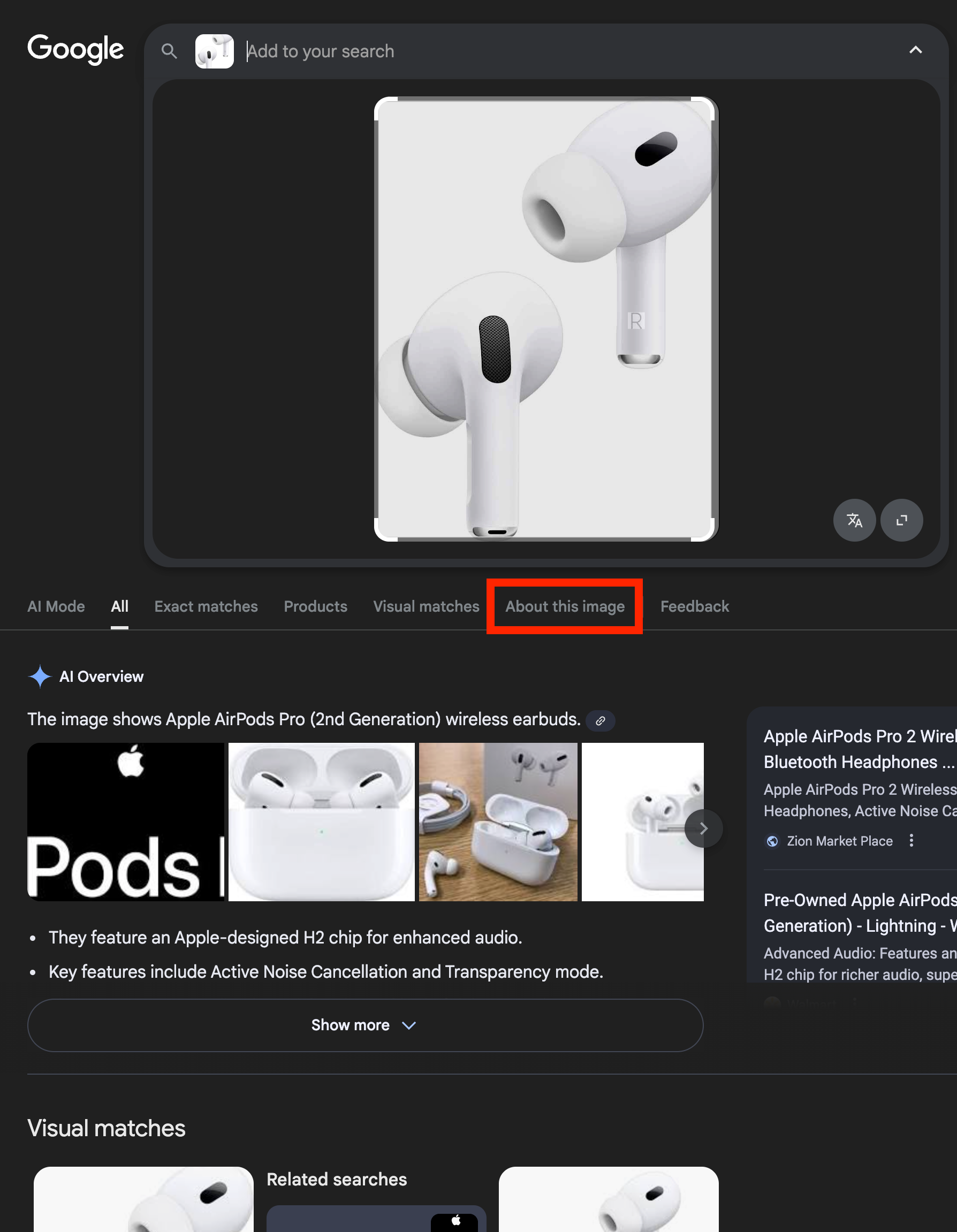
We can use the type parameter to see what else we can get when we set it to all, exact_matches, products, and visual_matches.
Integrating SerpApi with your application
Exploring SerpApi's vast diversity of Search APIs using Playground is a lot of fun, but to get the most out of SerpApi's services it's best to use the results from Search Engines directly in your application programmatically.
In order to send requests to SerpApi, we will need your unique secret API key that can be copied right from your dashboard:
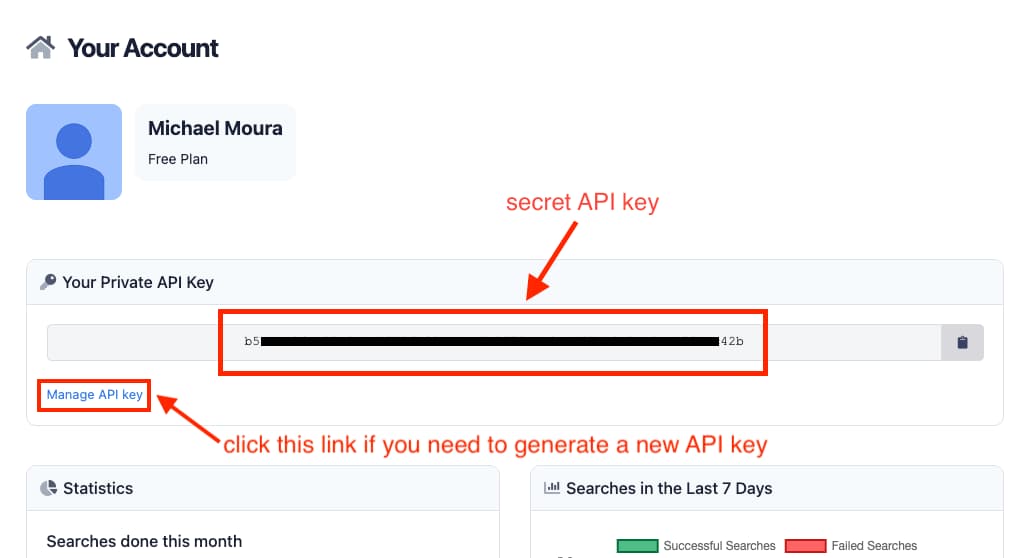
Your API key is unique to you and you should never share it anywhere to avoid other people using your account, but in case you accidentally expose your API key, you can easily generate a new one from the Manage API key page (if you generate a new API key, don't forget to update your application code with the newly generated API key).
Integrations
Check out the documentation for SerpApi libraries based on the programming language you use:
How to Scrape Google Lens About this Image tab using SerpApi
To demonstrate how simple it is to use SerpApi in your code, here's all you'd need to do to retrieve Google Lens API About This Image results from your application. You can also see examples in SerpApi's Google Lens API About This Image documentation page.
GET Request
The syntax for the actual GET request between languages will of course vary between programming languages.
However, the link used each time is consistent. When you are sending a GET request in any language you will use this link to make the request:
https://serpapi.com/search.json?engine=google_lens&api_key=YOUR_SECRET_API_KEY&url=https://i.imgur.com/HBrB8p0.png&type=about_this_imagePython (using SerpApi library)
import serpapi

params = {
  engine: "google_lens",
  url: "https://i.imgur.com/HBrB8p0.png",
  type: "about_this_image",
  api_key: "YOUR_SECRET_API_KEY"
}

search = serpapi.search(params)
results = search.as_dict()
Ruby (Using SerpApi library)
Using the Ruby language, as you can also see in SerpApi's Google Lens API About This Image documentation page:
require "serpapi"

client = SerpApi::Client.new(
  engine: "google_lens",
  url: "https://i.imgur.com/HBrB8p0.png",
  type: "about_this_image",
  api_key: "YOUR_SECRET_API_KEY"
)

results = client.search
about_this_image_results = results[:about_this_image]
That's all there is to it. Integrating SerpApi is extremely simple and straightforward. You can explore how to use all other Search Engine APIs offered by SerpApi at our documentation page, and play around with each of them using SerpApi's Playground feature.
Have fun! 😃
Enjoyed learning about Google Lens About This Image and want to build fun projects using SerpApi's Google Lens API?
I got you covered! Why don't you get started with these:
 Terry Tan
 Hilman Ramadhan
 Nathan Skiles
 Hilman Ramadhan
 Mikhail Zub