









 Ruby
Ruby
 Golang
 .Net
.Net
 MCP
MCP
 C++
C++



Intro
Scraping YouTube data can be useful for analyzing trends, checking the rankings of your YouTube content, downloading Creative Commons-licensed videos, and more. SerpApi provides a convenient way to scrape YouTube data with the YouTube Search API giving you structured JSON results without handling HTML parsing yourself.
YouTube itself is massive, more than one billion monthly users watch over one billion hours of content daily. With so much activity happening every minute, having structured access to this data is extremely valuable.
The YouTube Search API is an easy way to search YouTube programmatically and extract the available data. To learn the basics of how to use the YouTube Search API, checkout our How to Scrape YouTube Video Results - 2025 Guide post.
This post will focus on more advanced features of the YouTube Search API, with a beginner-friendly approach. How do you paginate, change the sort order, or filter the results? SerpApi supports this with the sp parameter. We will go over how this is done using examples from the Playground.
Before that, let's take a look at the basic gl and hl parameters.
Localization and Language
YouTube has fewer parameters than our other APIs, but customization is still powerful.
You can modify:
gl: countryhl: interface language
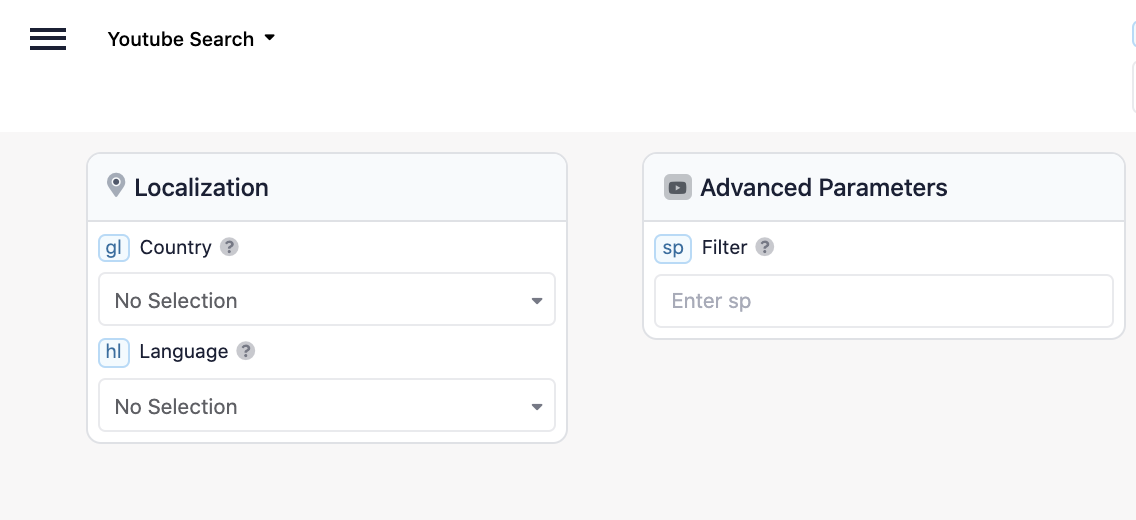
These behave similarly to Google Search parameters.
However, switching hl and gl does not always drastically change the results. Although we can’t speak for YouTube’s algorithm, YouTube tends to prioritize English-language and U.S.-based content even when using localized settings.
For example, let's switch the hl and gl to German and Germany and still retrieved American/English results:
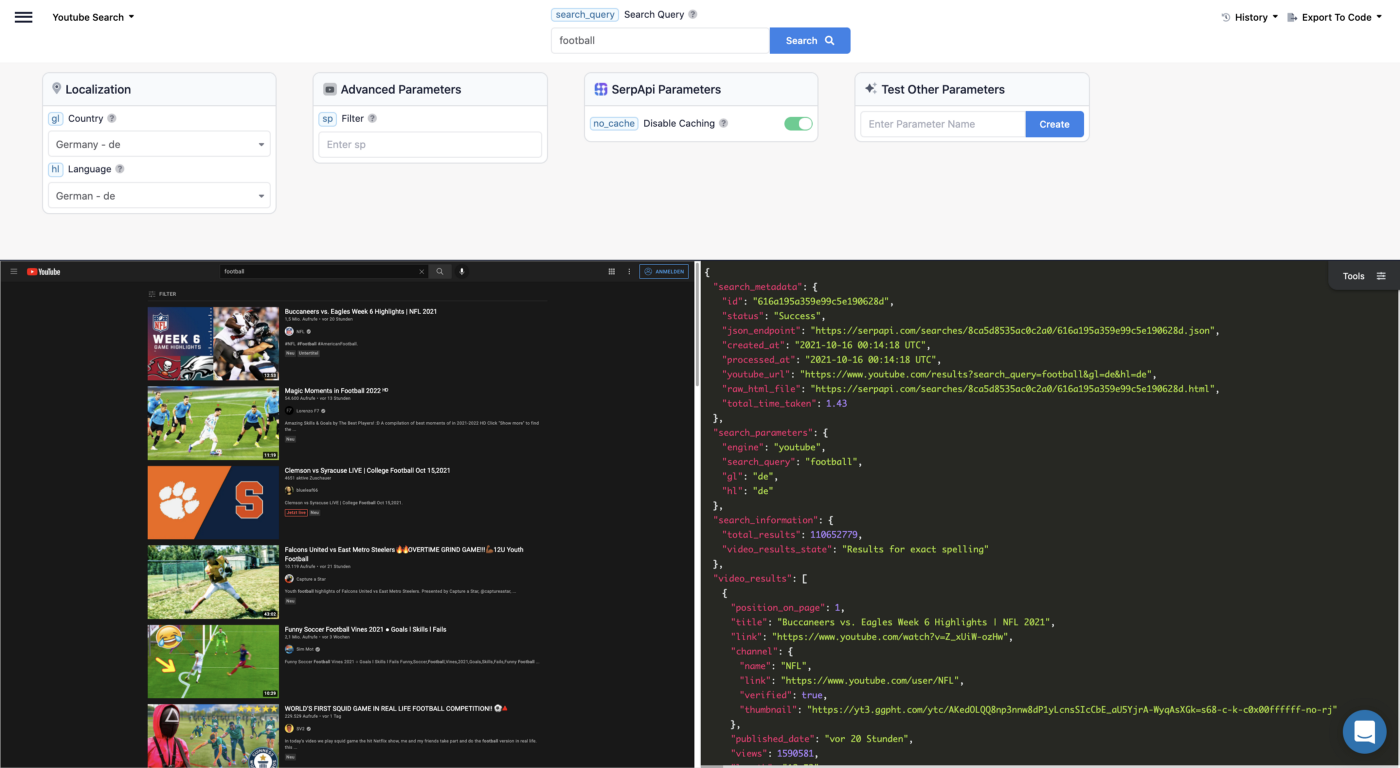
Now that we’ve covered localization settings, let’s go back to the main parameter used for advanced control in YouTube searches: the sp parameter.
Pagination
Like most search engines SerpApi provides for scraping solutions, YouTube doesn't return all results for a search with a single request. When you manually search on YouTube in your browser, you usually either click a button to go to the next page or scroll down to load more results.
YouTube uses token-based pagination. This means that if you want to paginate by modifying the URL, you need to pass a unique parameter value. In the case of YouTube, it is passed as the value of the sp parameter.
SerpApi extracts this value for each YouTube API search and provides it as the value of the pagination.next_page_token and serpapi_pagination.next_page_token keys. So, to get the next page of any YouTube search with our YouTube API, you need to first extract next_page_token. If you try a search in our Playground, you can find it at the bottom of the JSON:
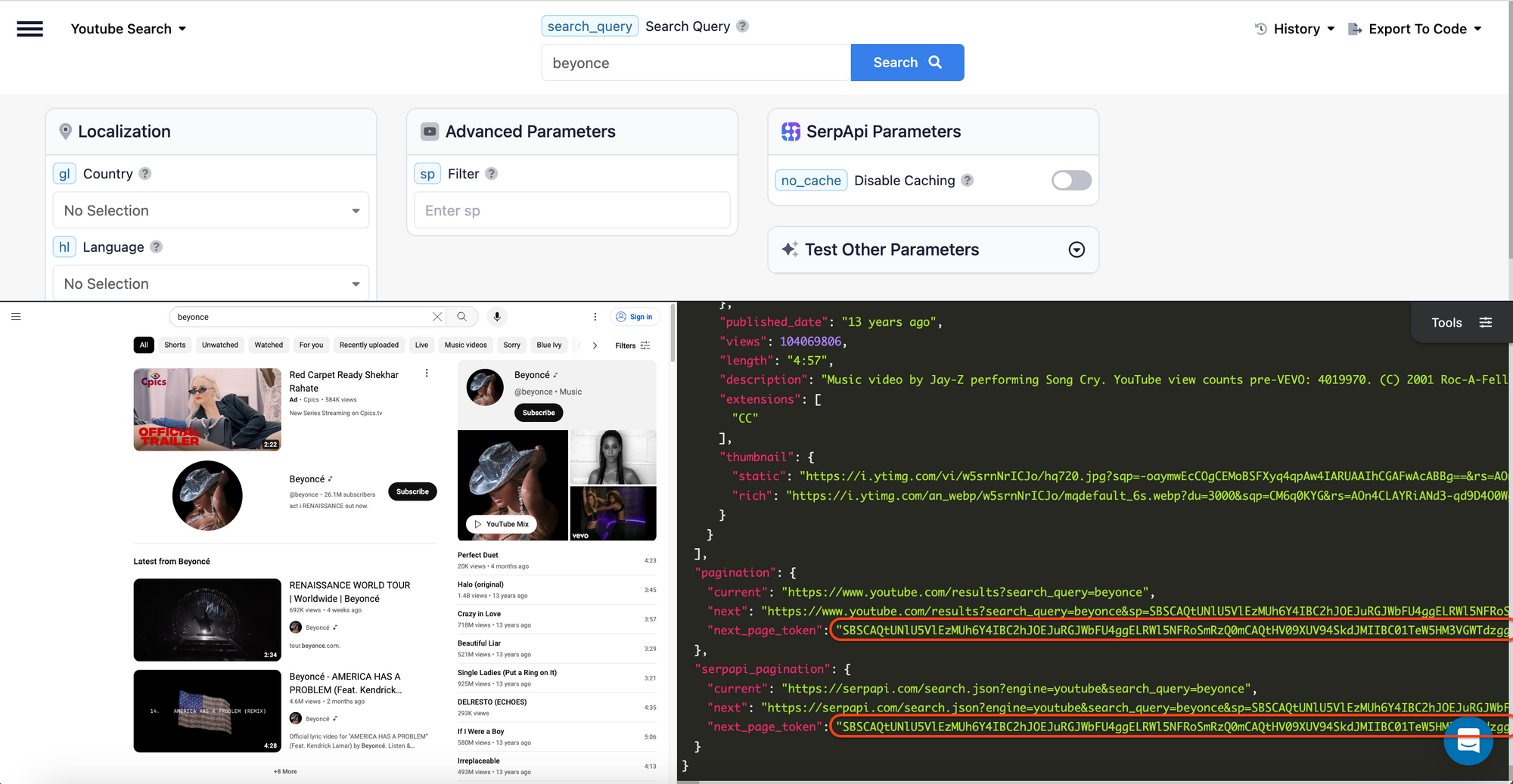
To navigate to the next page, copy this value and paste it into the sp field:
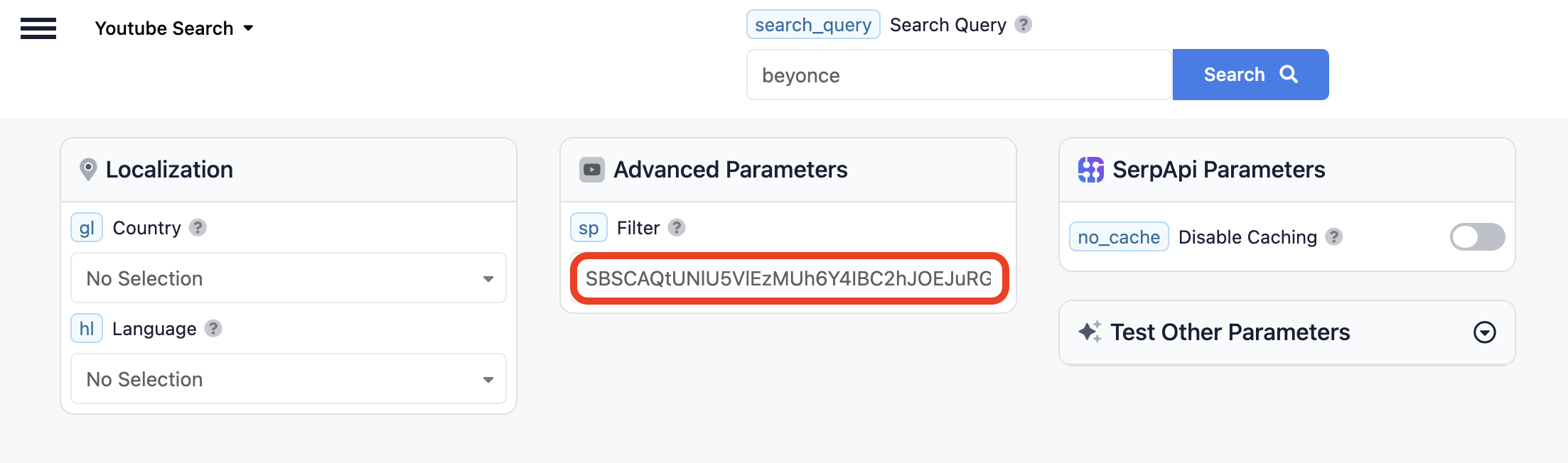
Click search and you should see the next page of results:
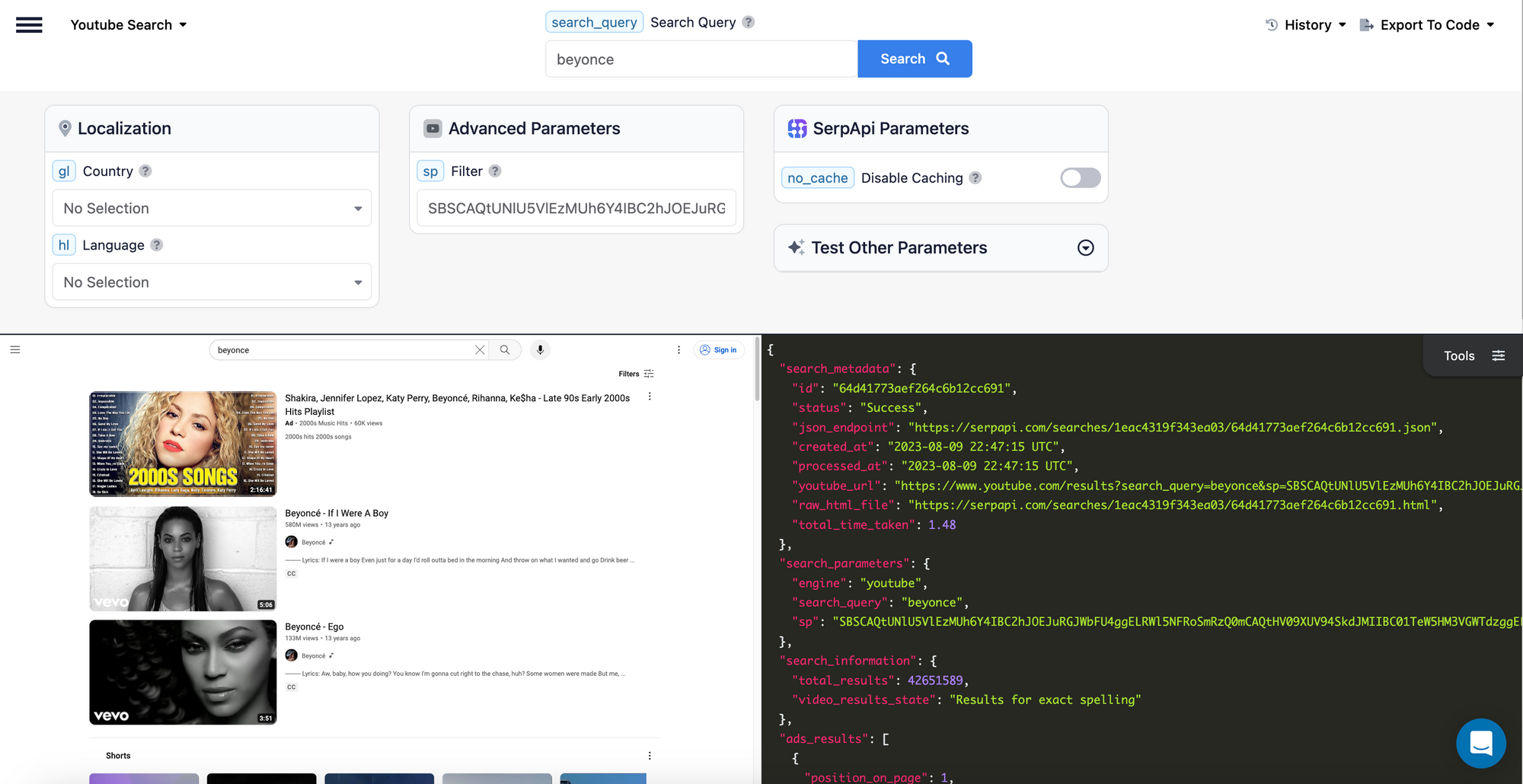
To get the third page, we repeat the process. The next_page_token is different for each additional page, so we scroll to the bottom of the JSON again, get the new next_page_token, copy it, and paste it in sp.
If you keep repeating these steps, eventually you will see something that looks like this:
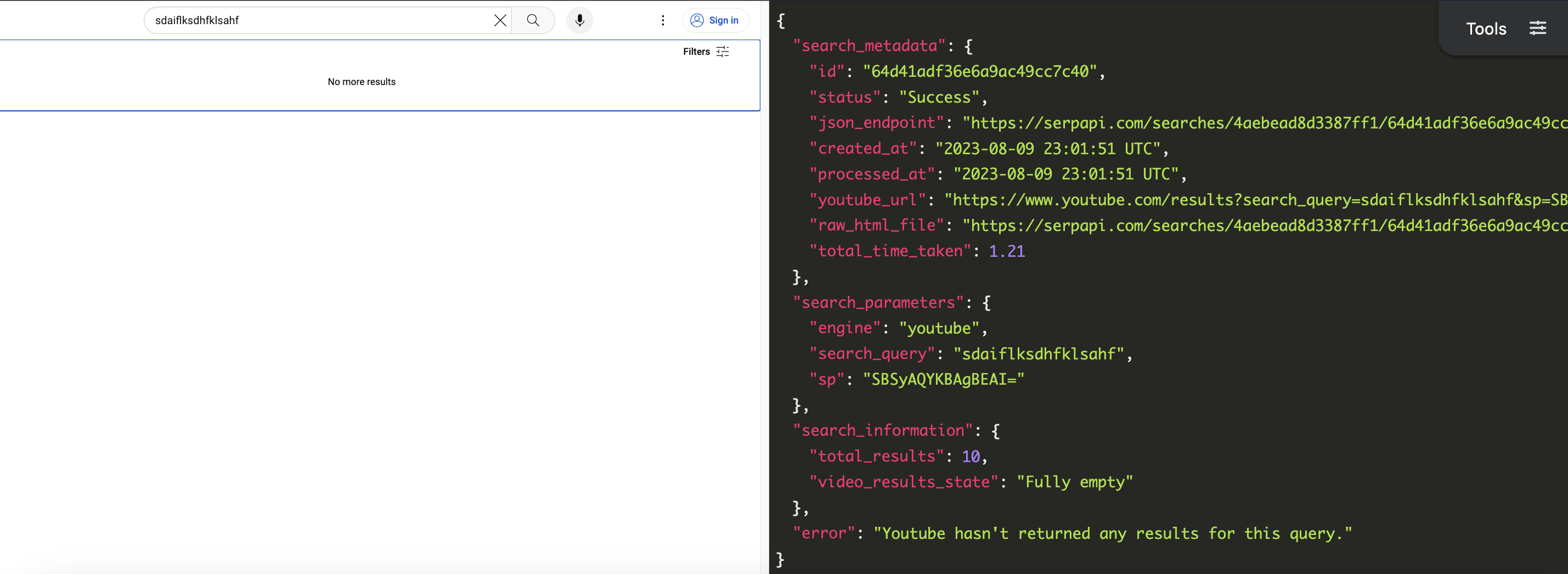
But don't worry - the API isn't broken. This just means you've reached the last page of results.
The most common use case involves writing code to paginate using a loop. When doing this, make sure to include code to handle this edge case to avoid crashing your program.
Changing the Sort Order
By default, YouTube sorts videos to return the most relevant results first.
Sometimes you may only want to extract data from the newest, the most popular, or the highest-rated videos. You can also use the sp filter to change the sort order.
For example:
- Sort by date uploaded, you can set
sp=CAI%3D. - Sort by the number of views, you can set
sp=CAM%253D. - Sort by rating, set
sp=CAE%253D.
These values match YouTube's internal filtering system directly.
Applying Filters
You can also use the sp parameter to apply a variety of filters to a YouTube search.
For example:
- Search for only 4k videos:
sp=EgJwAQ%253D%253D. - Search only for videos less than 4 minutes long:
sp=EgIYAQ%253D%253D. - Force exact search spelling:
sp=QgIIAQ%253D%253D
But rather than list the sp value for all of the filters YouTube supports, we're going to cover how you can calculate this yourself. You can also use this method to combine multiple filters.
How to Get the sp Value for Any Filter or Filter Combination
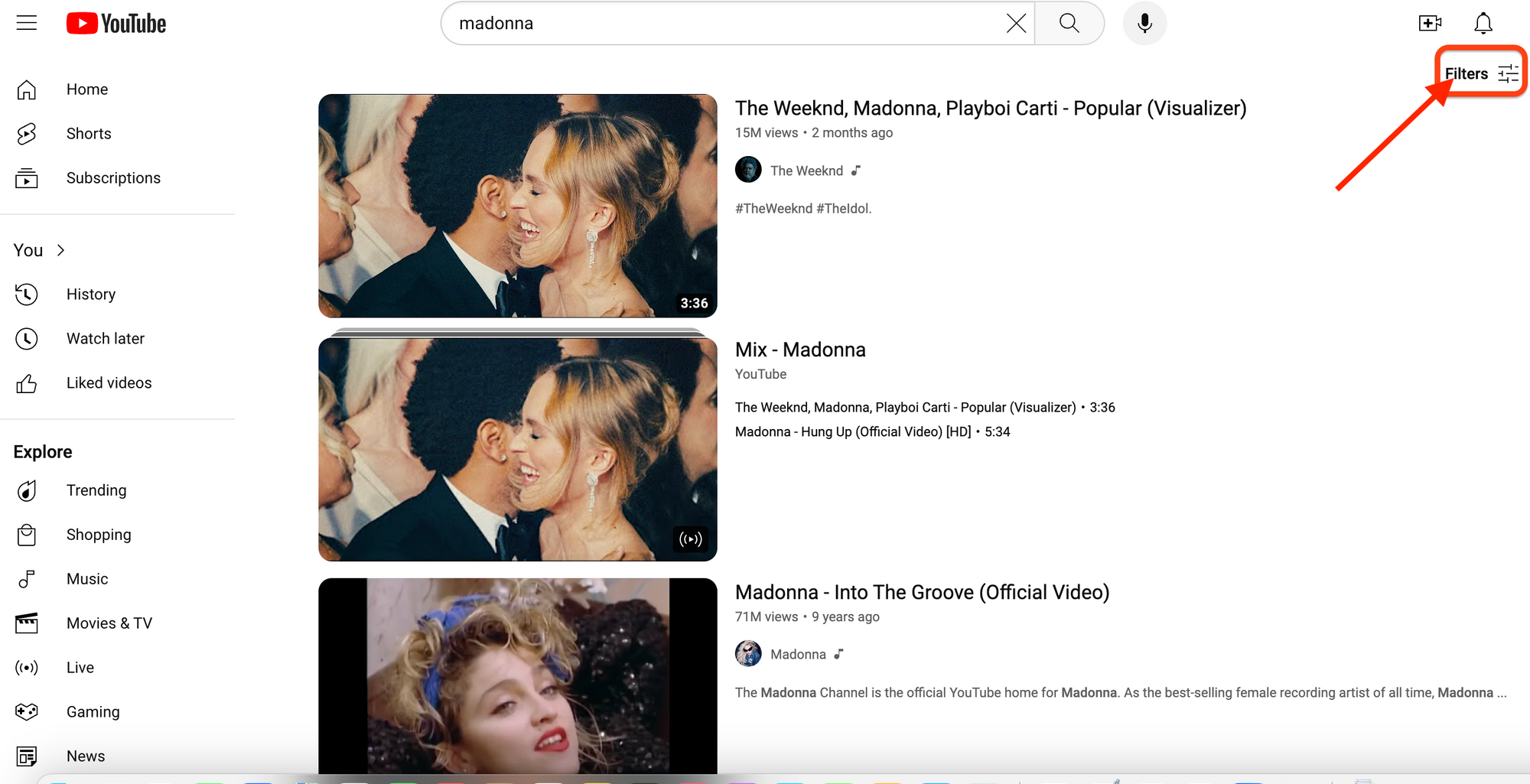
You can get the sp value for any filter or combination of filters directly from YouTube. To do this, first open YouTube in your browser, and perform a search.
Then click the "Filters" button in the top right corner:
Then select one more filters from the dialogue that pops up:
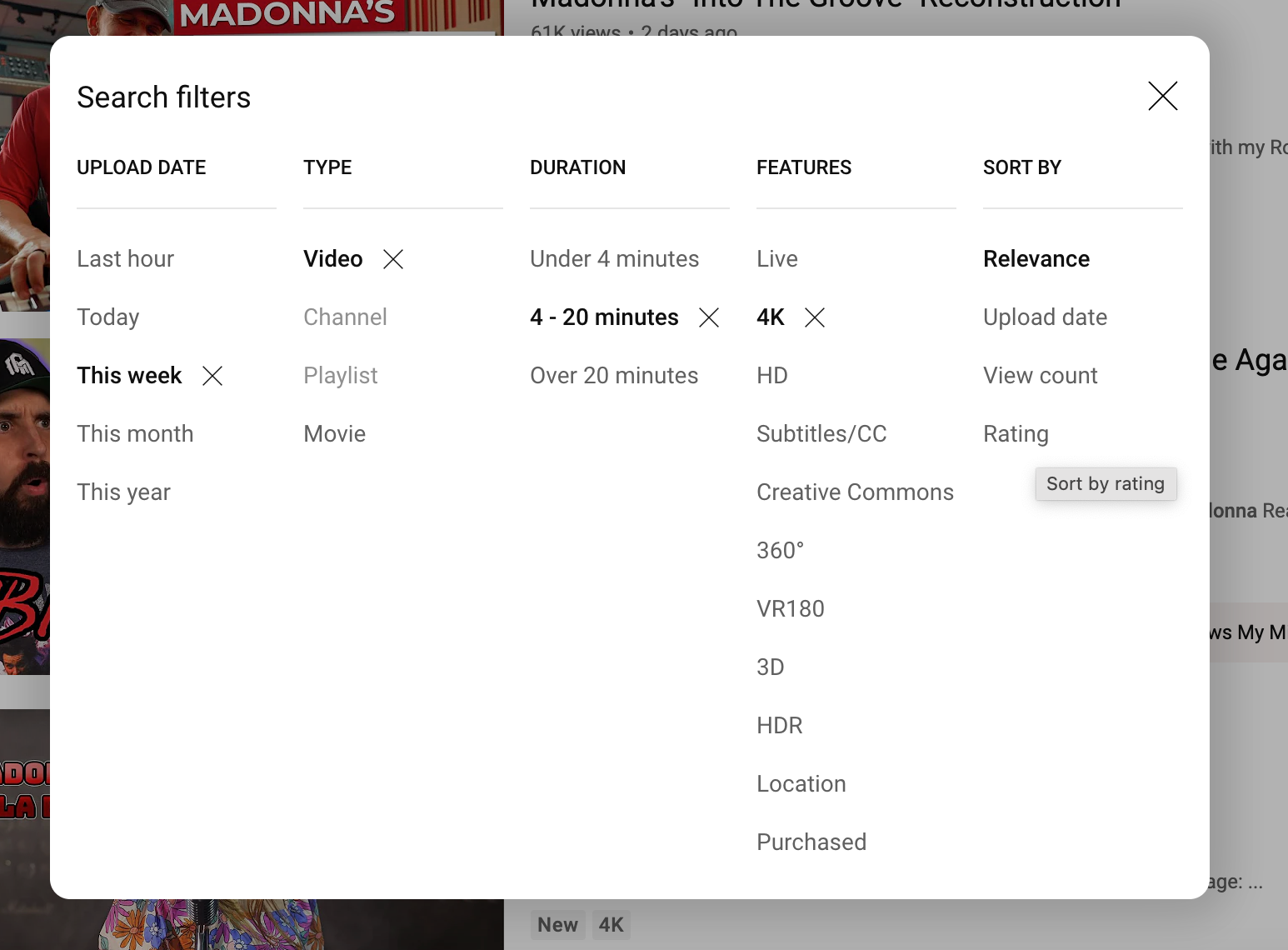
As soon as you select one, the dialogue will close. So if you want to select more than one, you'll have to keep opening it again. You can also change the sort order in conjunction with one or more filters.
Finally, look at the URL in your address bar:

All you have to do is copy the sp value from the URL.
This is true of many of the advanced parameters SerpApi supports. Typically if is a url parameter supported by the search engine itself, SerpApi will support the same values for the parameter as the search engine does.
Conclusion
You now know how to use the sp filter to sort, filter, and paginate through YouTube results with SerpApi's YouTube API.
I hope you found the tutorial informative and easy to follow. If you have any questions, feel free to contact me at ryan@serpapi.com.