 Google Local Services API
 Google Travel Explore API
 Baidu Search API
 Bing Search API
 DuckDuckGo Search API
 eBay Search API
 Naver Search API
 The Home Depot Search API
 Tripadvisor Search API
 Walmart Search API
 Ruby
Ruby
 Golang
 .Net
.Net
 C++
C++


Intro
Tracking Google Search Rankings for different keywords can be a useful way to monitor the visibility of your business. If you know where your domain ranks in the search results for different keywords, you can use this information to improve your SEO. Checking this manually for a long list of keywords or search queries can be time-consuming and inefficient.
In this tutorial, we’ll explore two ways to automate this process.
First, we’ll take a developer-focused approach, building a rank tracking script programmatically using Node.js and the SerpApi JavaScript/TypeScript module. We’ll export the results to a CSV file using the objects-to-csv package, manage environment variables with dotenv, and use delaytime-consuming to handle asynchronous searches.
Next, we’ll look at a no-code approach, where you can automate monitoring Google search ranking using n8n and Google Sheets. This method allows you to create a scheduled, visual workflow without writing backend code.
If you prefer to jump straight into the implementation, you can access the full code on Github or official n8n workflow template.
Method 1: Build a Google Search Rankings and Export to a .CSV file using Node.js
Prerequisites
You will need to be somewhat familiar with basic Javascript. You will have an easier time if you are familiar with ES6 syntax and features, as well as Node and Npm.
You need to have the latest versions of Node and Npm installed on your system. If you don’t already have Node and Npm installed you can visit the following link for help with this process:
https://docs.npmjs.com/downloading-and-installing-node-js-and-npm
You need to have an IDE installed on your system that supports Javascript and Node.js. I recommend VSCode or Sublime, but any IDE that supports Node.js will do.
You will also need to sign up for a free Serpapi account at https://serpapi.com/users/sign_up.
Preparation
First you will need to create a package.json file. Open a terminal window, create a directory for the project, and CD into the directory.
mkdir track-google-rankings
cd track-google-rankings
Create your package.json file:
npm init
Npm will walk you through the process of creating a package.json file.
After this we need to make a few changes to the package.json file.
We will be using the ES Module system rather than CommonJs, so you need to add the line type="module" to your package.json.
{
  "name": "track-google-search-rankings-nodejs",
  "version": "1.0.0",
  "description": "Track Google Search Rankings with NodeJs and SerpApi",
  "type": "module",
  "main": "index.js",
We will also add a start script for convenience:
  "scripts": {
    "start": "node index.js",
    "test": "echo \"Error: no test specified\" && exit 1"
  },
Next we need to install our dependencies:
npm install serpapi dotenv delay objects-to-csv
If you haven’t already signed up for a free Serpapi account go ahead and do that now by visiting https://serpapi.com/users/sign_up and completing the signup process.
Once you have signed up, verified your email, and selected a plan, navigate to https://serpapi.com/manage-api-key . Click the Clipboard icon to copy your API key.
Then create a new file in your project directory called ‘.env’ and add the following line:
SERPAPI_KEY = “PASTE_YOUR_API_KEY_HERE”
Scraping Google Search Results with SerpApi
To get the data we need to check our rankings, we will use SerpApi. SerpApi is a web-scraping API that streamlines the process of scraping data from search engines. This can also be done manually, but SerpApi provides several distinct advantages. Besides providing real time data in a convenient JSON format, SerpApi covers proxies, captcha solvers and other necessary techniques for avoiding searches being blocked. You can click here for a comparison of the process of scraping Google Search Results manually vs using SerpApi, or here for an overview of the techniques you can use to prevent getting blocked.
We’re ready now to start coding. Create a file called ‘index.js’ and open it with your IDE.
At the top of index.js add the following import statements:
import { config, getJson, getJsonBySearchId } from "serpapi";
import * as dotenv from "dotenv";
Then we need to add the following lines to configure the serpapi and dotenv models:
dotenv.config();
config.api_key = process.env.SERPAPI_KEY;
config.timeout = 60000;
We will also define a few constants. We need an array of keywords and a domain to use throughout the project. Feel free to change these to anything that suits your purposes. You may want to include some keywords that you expect your domain to rank highly for, as well as some that won’t produce a direct number one hit.
// the keyword combinations we will check our rankings for
const keywords = [
  "serpapi",
  "serp api",
  "Google Search API",
  "Google Search Results API",
  "Google Organic Results API",
  "google serp api",
  "serps api",
  "Google Search Engine API",
  "Google Local Pack API ",
  "Knowledge Graph API",
  "Google Results API",
  "Search Results API",
  "Google News Results API",
  "Google News API",
  "News Results API",
];


//   the domain to check the rankings of
const domain = "https://serpapi.com";
First, we will query SerpApi for Google Search Results, passing the name of our business as the search query:
async function keywordSearch(keyword) {
  // The parameters we will include in the the GET request
  const params = {
    q: keyword,
    location: "Austin, Texas, United States",
    google_domain: "google.com",
    gl: "us",
    hl: "en",
    engine: "google",
    num: 10,
    start: 0,
  };


  // here we call the API and wait for it to return the data
  const data = await getJson("google", params);
  return data;
}
You can change the location parameters ( location, google_domain, gl , and hl) to any valid value you like. You can also change num to any multiple of 10 up to 100, if you want to get the exact rankings for domain/keyword pairings that might be below the 10th result. You can learn more about the parameters used with the Google Search Results API here.
Now we will print out the results in the terminal, so we can get a look at the data that is returned.
const results = await keywordSearch("serpapi")
console.log(results);
Scroll down in your terminal window to where it says organic_results. This is the part we are interested in.
You can see in the above example that the first hit is a site with title: “SerpApi: Google Search API” and displayed_url: “https://serpapi.com” This means that for the keyword “serpapi” the domain “serpapi.com” has a rank of 1.
Checking a Ranking
To check the rank programmatically, we need to write some code that will loop through the results, and stop when it finds the domain we are looking for:
async function getRanking(data) {
  let keyword = data.search_parameters.q;
  let rank = 1;
  // loop through the organic results untill we find one that matches the domain we are looking for
  while (
    !data.organic_results[rank - 1]["displayed_link"].includes(domain) &&
    rank < data.organic_results.length
  ) {
    rank++;
  }
  // If the rank is greater than or equal to the number of results, we didn't find the domain with this query
  rank = rank < data.organic_results.length ? rank : "N/A";


  return { keyword, rank };
}
In the condition for the while loop we check whether the displayed_link contains our domain name. Depending on what you are looking for, you could also compare titles and check for a direct match.
Multiple Keyword Combinations
If we just wanted to check one keyword, we wouldn’t need to write a script. We will now add an array of keyword combinations to query, and a method to loop through them:
// iterate over the list of keywords and get the ranking for each one.
async function getAllRankings(keywords) {
  const rankings = Promise.all(
    keywords.map(async (keyword) => {
        const result = await keywordSearch(keyword);
        return getRanking(result, keyword);
    }
  ))
  return rankings;
}
Each call to getRanking() returns a Promise. We use Promise.all to wrap our array of rankings in a Promise that will only be resolved when all of the Promises it contains are resolved. That will allow us to use .then() on the rankings array we return, as seen below:
getAllRankings(keywords).then((rankings) => console.log(rankings));
Exporting to .CSV
Let's export the data we’ve collected to a useful format. For this we will use the ‘objects-to-csv’ module you installed earlier. So far, we’ve written our script to store the data as an array of objects. The reason for this is that the objects-to-csv module allows us to input an array of objects and get back CSV.
First add the import statement:
import ObjectsToCsv from "objects-to-csv";
Then add the following function:
async function rankingsToCsv() {
  getAllRankings(keywords).then((rankings) =>
    new ObjectsToCsv(rankings).toDisk("./test.csv")
  );
}
If you run the function:
rankingsToCsv(keywords);
You should see a file called 'test.csv' appear in your project directory. If you open it up, it should look like this:
keyword,rank
serpapi,1
serp api,1
Google Search API,2
Google Search Results API,1
Google Organic Results API,1
google serp api,1
serps api,1
Google Search Engine API,2
Google Local Pack API ,1
Knowledge Graph API,4
Google Results API,1
Search Results API,1
Google News Results API,1
Google News API,N/A
News Results API,4
Using async=true for Large Scale Rank Tracking
For this example we have only used a very short list of keyword combinations to get rankings for. But what if you have 100 or more queries you want to check? It will take a very long time if we have to wait for each request to finish before starting the next. We can speed up the process by using SerpApi’s async=true parameter.
Add the following import statement at the top of your file:
import delay from "delay";
The code below should look familiar. It is basically the same process we use for a regular search query, only we have added async=true and we are only extracting the search_id from the response.
async function getSearchId(keyword) {
  const params = {
    q: keyword,
    location: "Austin, Texas, United States",
    google_domain: "google.com",
    gl: "us",
    hl: "en",
    engine: "google",
    num: 10,
    start: 0,
    async: true,
  };


  let data = await getJson("google", params);
  const { id } = data.search_metadata;
  return id;
}
Below we are just looping through all of the keywords in our keywords array and getting the search_id by calling the function we wrote above. We include the delay() function from the delay module we imported in order to give the searches time to finish before we try to retrieve them.
async function getAllSearchIds(keywords) {
  const search_ids = [];
  keywords.forEach(async (keyword) => {
    const id = await getSearchId(keyword, "us");
    search_ids.push(id);
  });
  await delay(1000);
  return search_ids;
}
The serpapi node module gives us getJsonBySearchId(), which makes it very easy for us to query the Search Archive and retrieve our search results using a search_id.
async function retrieveSearch(id){
    const data = await getJsonBySearchId(id);
    return data;
}
Finally we add a function that will loop through all of the ids, and get the ranking of our domain for each one.
async function getAllRankingsBySearchId(ids){
    const rankings = Promise.all(
        ids.map(async (id) => {
            const result = await retrieveSearch(id);
            return getRanking(result);
        }
      ))
      return rankings;
}
Now we can print out the rankings to make sure our code is working:
    const ids = await getAllSearchIds(keywords);
    getAllRankingsBySearchId(ids).then((rankings) => console.log(rankings));
And then we can define a function to output to .csv:
async function asyncRankingsToCsv() {
    const ids = await getAllSearchIds(keywords);
    getAllRankingsBySearchId(ids).then((rankings) =>
      new ObjectsToCsv(rankings).toDisk("./test.csv")
    );
  }
We then delete the “test.csv” file we created earlier, and call the function to make sure it works:
asyncRankingsToCsv();
If you did everything correctly, you should see test.csv in your project directory again.
The result
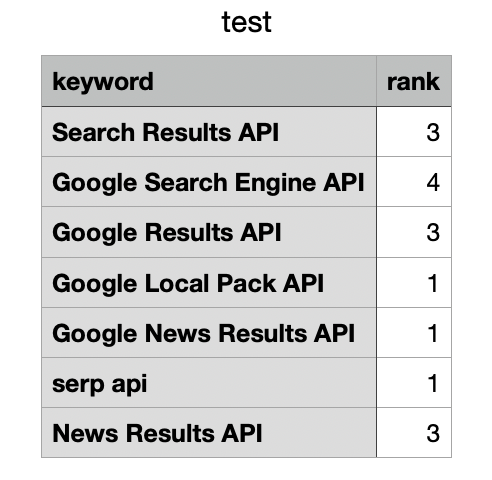
CSV files are compatible with most spreadsheet applications, so you can now load the data into Google Sheets or Excel or similar.
Method 2: Automate monitoring Google Search Ranking using n8n
If you prefer a no-code or low-code approach, you can automate monitoring Google search ranking using n8n together with SerpApi.
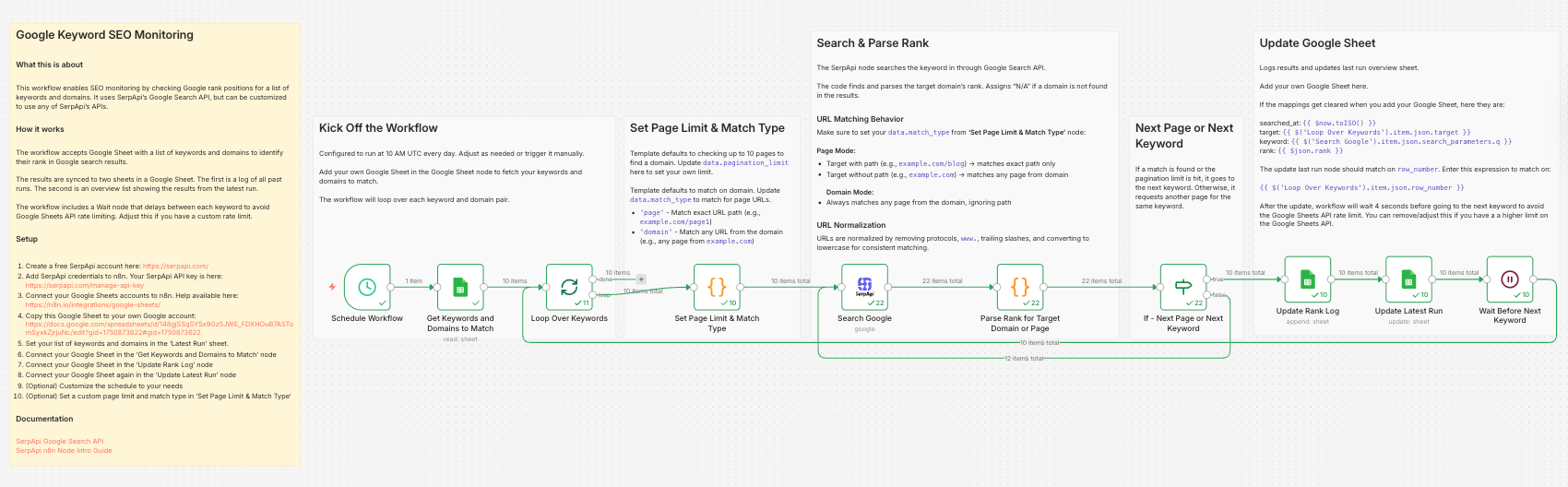
Instead of writing and maintaining scripts, n8n allows you to create a visual workflow that runs on a schedule, calls the Google Search API, extracts ranking positions, and automatically logs results into Google Sheets.
This effectively turns SerpApi into a fully automated Google rank tracking system without writing backend code.
You can import or copy our official workflow template here:
 igordisco
How the Rank Tracking Workflow Works
- The workflow reads Google Sheet containing a list of keywords and target domains (or a specific page) to monitor.
- For each keyword-domain pair, it sends a request to SearchApi's Google Search API to determine the ranking position in the organic search results.
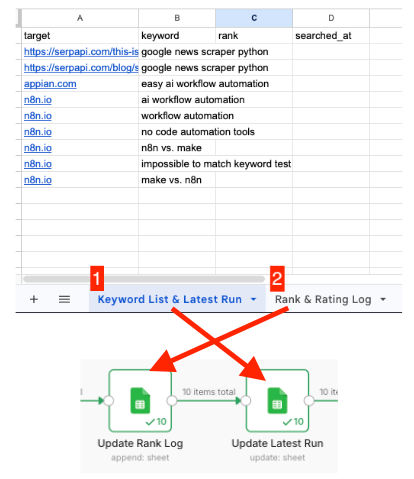
- Once it finds the rank, the results are written to two sheets within the same Google Sheet.
- Rank Log: Stores a historical record of all previous runs.
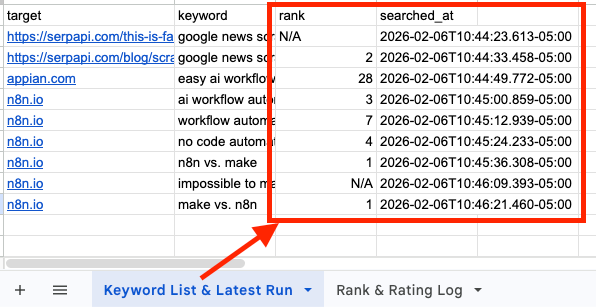
- Latest Run: Shows the most recent ranking results for a quick overview and reporting.
- A Wait node pauses the workflow between each keyword check to prevent exceeding Google Sheets API rate limit. You can adjust this delay if you have a higher quota or need faster execution.
Clone the Template
- Go to the workflow template page.
- Click "Use for free".
- Import into your n8n instance (self-hosted or n8n cloud)
Once imported, you'll see the full visual workflow, including the schedule, Google Sheets nodes, the SerpApi node, and ranking parser logic.
Setting up your credentials
Before executing the workflow, you'll need:
- Your SerpApi API key
- Google Sheets OAuth2 Credentials
Refer to this blog on how to set up your credentials:
 Alex Barron
Configure the workflow
- Copy this Google sheet template to your own account
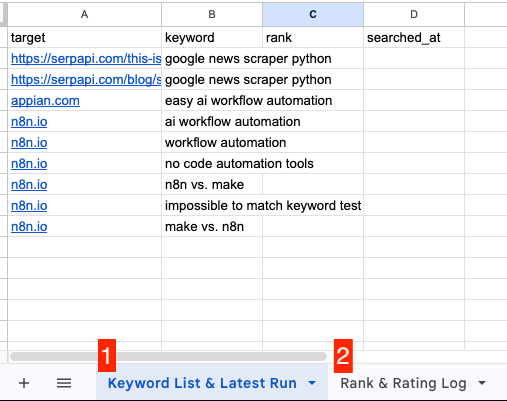
- Set your keyword and target page or domain in "Keyword List & Latest Run" sheet [1]
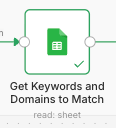
- Copy the URL from that sheet [1] and paste it in "Get Keywords and Domains to Match" node.
- In the "Set Page Limit & Match Type" node, you can set the:
page_limit: How many Google result pages to check. Default: 10 (checks up to 100 results)
match_type:domain: Matches any URL from the domain (e.g., any page fromexample.com)page: Matches exact URL path (e.g.,example.com/page1)
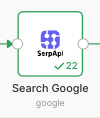
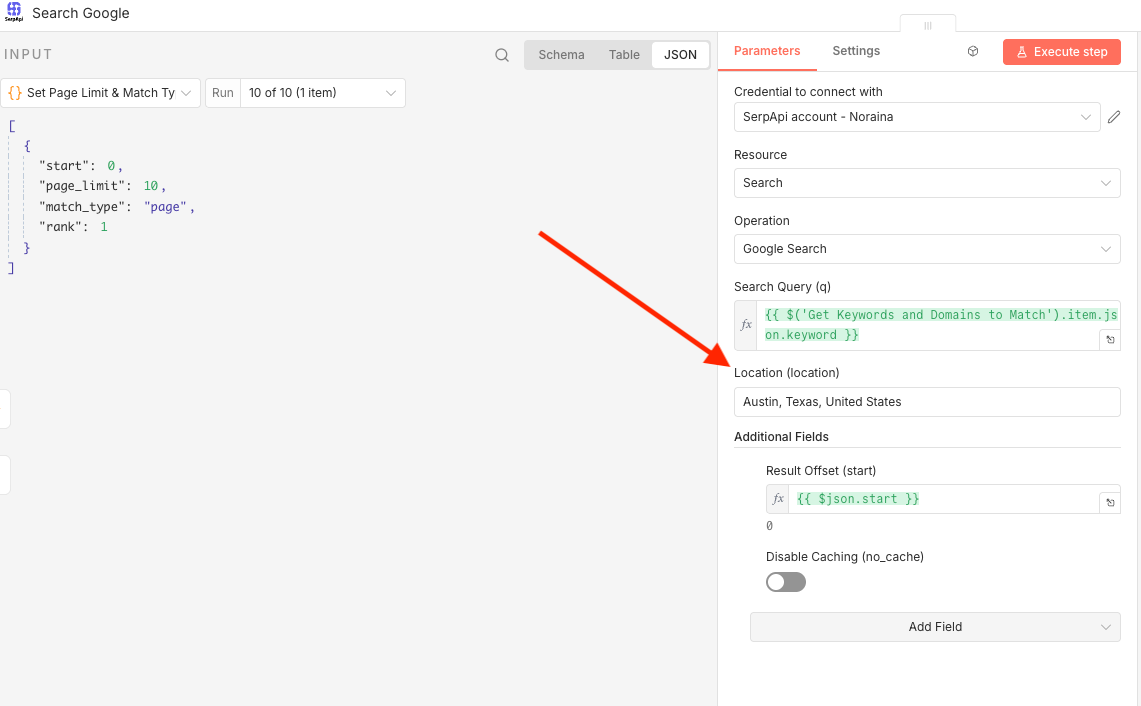
- In the "Search Google" node, you can set the "Location" of your choice.
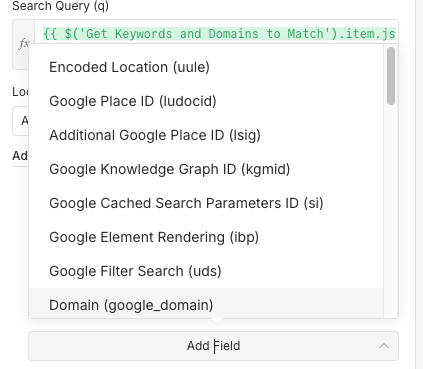
- Click on the "Add Field" section to add other parameters as needed
- Copy the sheet URL from "Rank & Rating Log" [2] and paste it in the "Update Rank Log" node and "Keyword List & Latest Run" [1] in the "Update Latest Run" node
- Click "Execute Workflow" to test your workflow, or set the automation time in the "Schedule Workflow" node as needed.
The results
Node.js vs n8n: Which Rank Tracking Method Should You Use?
Both approaches rely on SerpApi as the backend data source, but they serve different use cases.
Use Node.js if:
- You're building a SaaS product
- You need full backend control
- You want advanced logic or custom processing
- You need a scalable infrastructure
- You’re integrating rank tracking into an existing application
Node.js gives you maximum flexibility for building a fully custom Google rank tracker inside your system.
Use n8n If:
- You want to automate monitoring Google search ranking quickly
- You prefer visual workflows
- You don’t want to manage servers
- You need simple recurring reports
- You want direct integration with Google Sheets or Slack
n8n allows you to deploy a production-ready rank-tracking workflow in minutes.
Conclusion
We have seen how to scrape Google Search Organic Results and check the Google Search ranking of a domain for a custom list of keywords. Whether you choose to build the solution programmatically with Node.js or automate the workflow using n8n, you now have a flexible template that can be adapted to your needs.
You can extend this setup by adding multiple locations, comparing several domains, increasing the number of pages checked, or combining and generating keywords programmatically. With these foundations in place, you can scale your rank tracking system as your SEO monitoring requirements grow.
We hope you found the tutorial informative and easy to follow. If you have any questions, feel free to contact us at ryan@serpapi.com or noraina@serpapi.com.
Links:
Full code on Github
Google Search API Documentation
SerpApi Playground