Ruby
 Golang
 .Net
 MCP
 C++



Google Finance shows stock quotes, price charts, financial statements, and news for almost any public company. This tutorial shows how to scrape all of that data as JSON or Markdown with Python, JavaScript, or a plain GET request, using SerpApi's Google Finance API.
SerpApi gives you access to the time-series chart data, so you can build the same graph that Google shows on the page. You can also create your own historical price database by fetching the data on a schedule. SerpApi handles blocking on the backend, so your IP won't get blocked, and you don't have to maintain a parser when Google changes its HTML.
What will be scraped
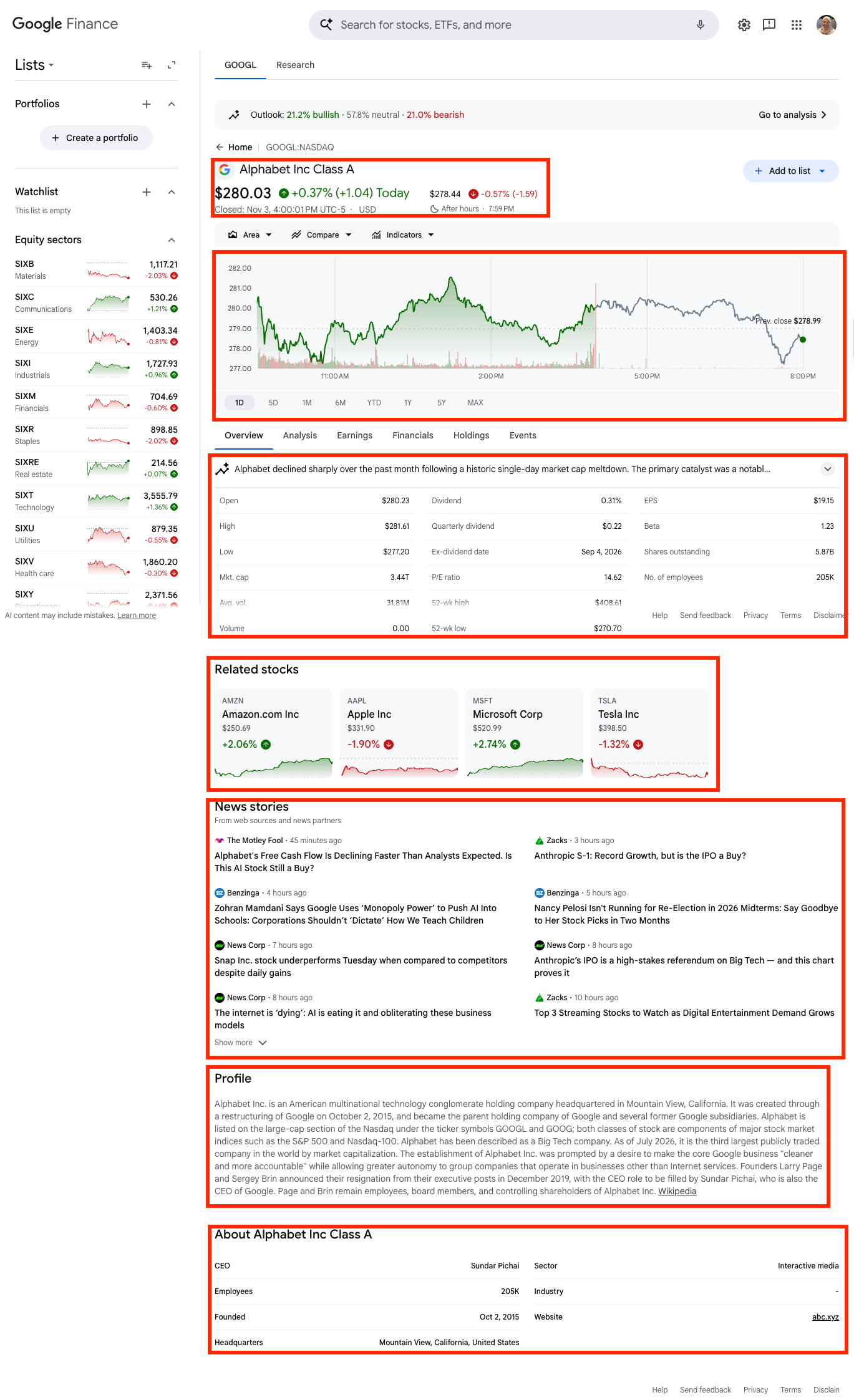
From a single Google Finance quote page, you can get:
| Field | What it holds |
|---|---|
summary |
Name, ticker, exchange, current price, price movement, and the pre-market or after-hours price |
graph |
Price chart data points (price, currency, date, volume) for the time range set by window |
key_events |
News that moved the price, for longer window ranges |
knowledge_graph |
Key stats (open, high, low, market cap, P/E ratio, dividend, 52-week range) and the company profile (CEO, employees, headquarters, website) |
financials |
Income statement, balance sheet, and cash flow, quarterly and annual |
news_results |
Latest news about the company |
markets |
Major indexes, currencies, crypto, and futures, when Google shows them on the page |
futures_chain |
Contract months and prices, for futures quotes |
discover_more |
Related tickers, such as "People also search for" |
suggestions |
The closest matching tickers, when the query has no exact match |
Not every field appears for every quote. You'll also see how to find a ticker symbol from a company name and how to get market indexes from the Google Finance Markets API.
Does Google Finance have an API
Not an official one. Google retired its old Google Finance API more than ten years ago, and the relaunched Google Finance doesn't offer a developer API either. The GOOGLEFINANCE function only works inside Google Sheets.
SerpApi's Google Finance API fills that gap. It loads the Google Finance page for the ticker you ask for and returns everything on it as structured JSON and Markdown.
How to scrape Google Finance
The results are the same regardless of the method you use. Each example below requests the quote page for Alphabet (GOOGL:NASDAQ).
Get your API key
- Sign up for a free SerpApi account. The free plan includes 250 searches per month.
- Copy your API key from your dashboard.
- Save it as an environment variable so it stays out of your code:
export SERPAPI_API_KEY="your_api_key"GET request
Paste this URL into your browser, replacing YOUR_API_KEY with your key:
https://serpapi.com/search.json?engine=google_finance&q=GOOGL:NASDAQ&hl=en&api_key=YOUR_API_KEYThe q parameter takes a ticker in TICKER:EXCHANGE format. You can try the same request without code in the SerpApi Playground.
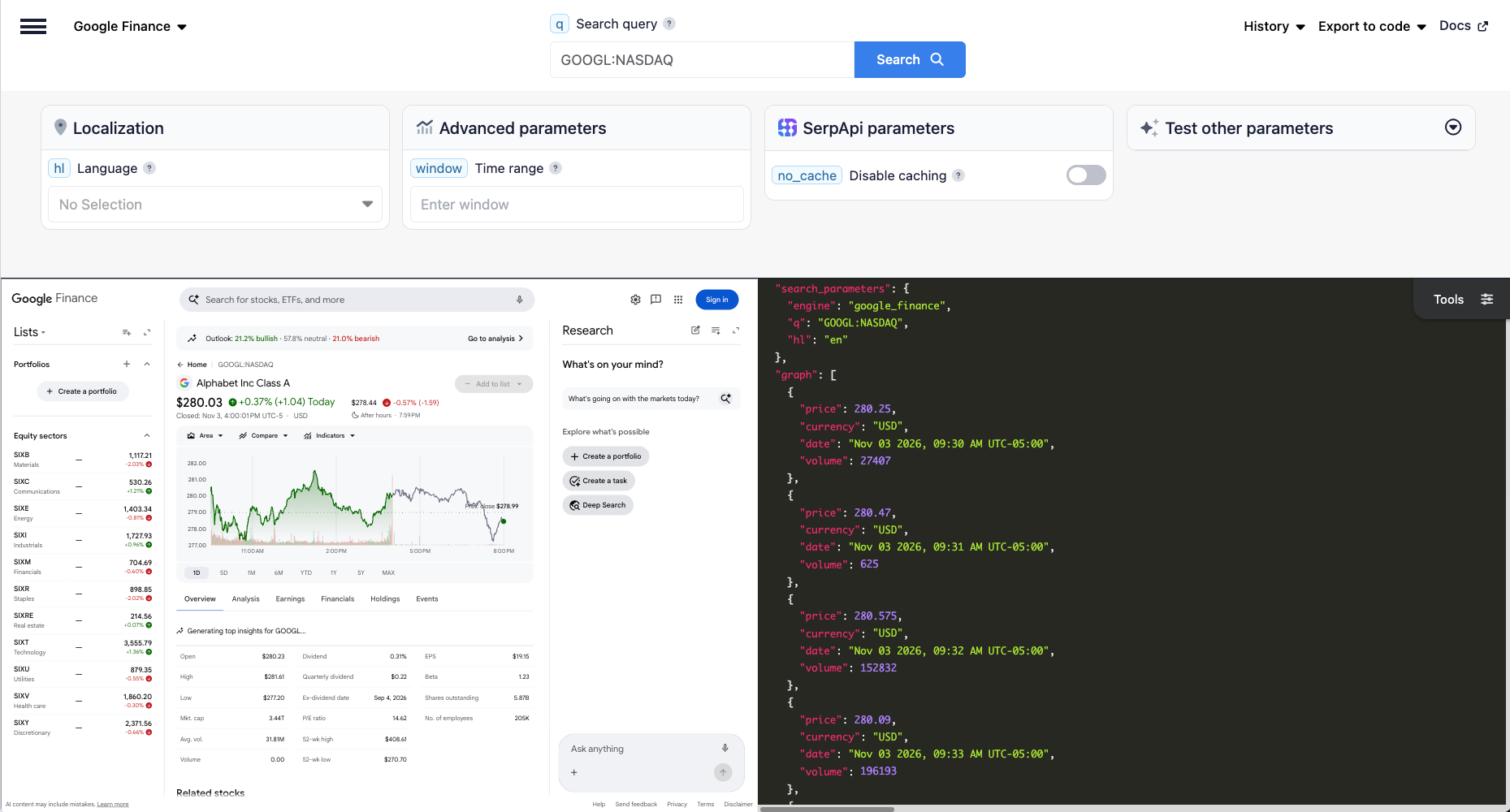
engine=google_finance, q=GOOGL:NASDAQPython
Install SerpApi's official Python library:
pip install serpapiSave this as main.py and run it with python main.py:
import os
import serpapi

client = serpapi.Client(api_key=os.getenv("SERPAPI_API_KEY"))

results = client.search({
    "engine": "google_finance",
    "q": "GOOGL:NASDAQ",
    "hl": "en",
})

summary = results["summary"]
print(summary["title"])
print(summary["extracted_price"], summary["currency"])
print(summary["price_movement"]["movement"], round(summary["price_movement"]["percentage"], 2), "%")
Output:
Alphabet Inc Class A
280.03 USD
Up 0.37 %
The response also includes graph, knowledge_graph, financials, and news_results.
main.py. The Python examples in the rest of this post below use the client and results created above, so add each one to the end of main.py instead of starting a new file. If you'd rather use a separate file, copy the import lines, the client = ... line, and the first results = client.search(...) request to the top of it first, or you'll get a NameError.JavaScript
The biggest difference from a DIY scraper is that you don't need to create the parser from scratch and maintain it.
Create a project, install SerpApi's JavaScript library, and set the project to use ES modules:
npm install serpapi
npm pkg set type=module
Then save this as index.js and run it with node index.js:
import { getJson } from "serpapi";

const results = await getJson({
  engine: "google_finance",
  q: "GOOGL:NASDAQ",
  hl: "en",
  api_key: process.env.SERPAPI_API_KEY,
});

const { title, extracted_price, currency } = results.summary;
console.log(title);
console.log(extracted_price, currency);
cURL
curl --get https://serpapi.com/search.json \
  -d engine=google_finance \
  -d q="GOOGL:NASDAQ" \
  -d hl=en \
  -d api_key="$SERPAPI_API_KEY"
Other languages and no-code solutions
SerpApi has official libraries for Ruby, Go, PHP, Java, .NET, and more. If you'd rather not write code, you can scrape Google Finance with Google Sheets using the SerpApi extension.
Find a ticker symbol
The q parameter needs the exact ticker and exchange, like TSLA:NASDAQ. If you only have a company name, use SerpApi's new Google Finance Autocomplete API to look it up. It returns the same suggestions Google Finance shows as you type in its search box, with the ticker, exchange, country, and current price for each. Add this to main.py:
lookup = client.search({
    "engine": "google_finance_autocomplete",
    "q": "tesla",
})

stocks = lookup["suggestions"]["stocks"]
for stock in stocks:
    print(stock["stock"], "|", stock["name"], "|", stock["country"])

ticker = stocks[0]["stock"]
print("Using:", ticker)
Output:
TSLA:NASDAQ | Tesla Inc | US
TSLA80:BKK | Tesla KTB DR | TH
TSLA34:BVMF | Tesla Motors Inc BDR | BR
TL0:FRA | Tesla Inc | DE
IESC:NASDAQ | IES Holdings Inc | US
Using: TSLA:NASDAQ
The first result is usually the main listing. Pass ticker straight into the q parameter of the Google Finance API.
Get historical stock prices
Set the window parameter to choose the time range of the price chart:
| Value | Range |
|---|---|
1D |
1 day (default) |
5D |
5 days |
1M |
1 month |
6M |
6 months |
YTD |
Year to date |
1Y |
1 year |
5Y |
5 years |
MAX |
Full history |
Add this to main.py. It makes a new request with window set to one year and saves the daily prices to a CSV file:
import csv

history = client.search({
    "engine": "google_finance",
    "q": "GOOGL:NASDAQ",
    "window": "1Y",
    "hl": "en",
})

graph = history.get("graph", [])

with open("googl_1y.csv", "w", newline="") as f:
    writer = csv.DictWriter(f, fieldnames=["date", "price", "currency", "volume"], extrasaction="ignore")
    writer.writeheader()
    writer.writerows(graph)

print(f"Saved {len(graph)} price points to googl_1y.csv")
print("First:", graph[0]["date"], graph[0]["price"])
print("Last:", graph[-1]["date"], graph[-1]["price"])

for event in history.get("key_events", []):
    print(event["date"], "|", event["title"])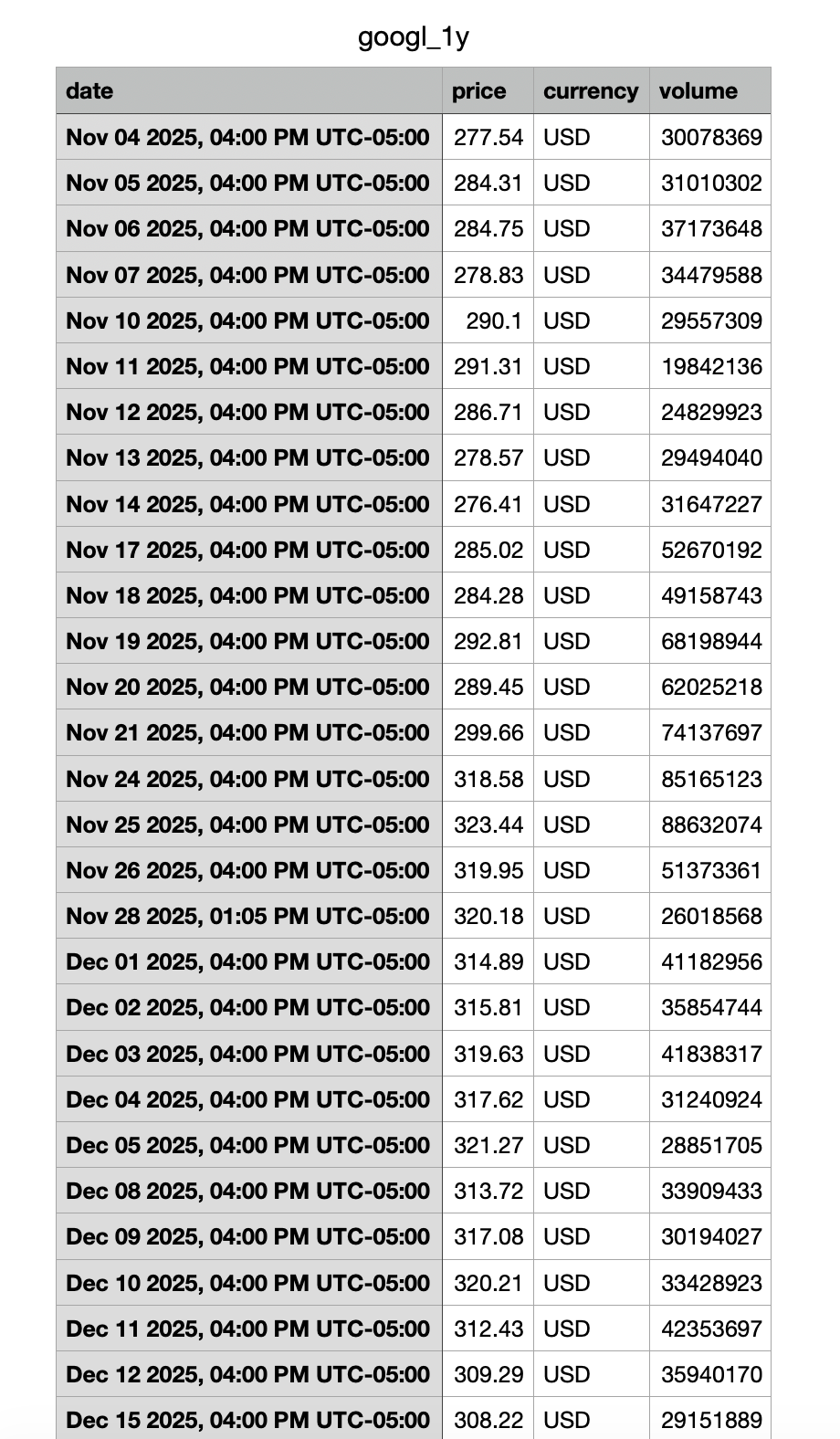
With window set, the response only includes summary and graph. For longer ranges (6M and above), Google often adds key_events: news that moved the price, attached to the matching day in graph. Not every ticker has them, so the code uses .get().
To track prices for a list of tickers over time, see how to track stock prices in Python.
Get financial statements
The financials array holds the income statement, balance sheet, and cash flow. Each statement has quarterly and annual periods, newest first. Add this to main.py. It reads the results from the first request, so it doesn't use another search:
import json

for statement in results.get("financials", []):
    latest = statement["results"][0]
    print(f"\n{statement['title']} ({latest['date']}, {latest['period_type']})")
    for row in latest["table"][:5]:
        print(f"  {row['title']}: {row['value']} ({row.get('change', 'n/a')})")

with open("googl_financials.json", "w") as f:
    json.dump(results.get("financials", []), f, indent=2)
Output:
Income statement (Sep 2026, Quarterly)
  Revenue: 127577000000 (24.65%)
  Cost of goods sold: 51419000000 (24.29%)
  ...
Values are raw numbers in the stock's currency, and change is the year-over-year change. Rows with no data show — as the value, so check for it before converting values to numbers. To get annual figures, pick the results where period_type is "Annual".
Get stock news
news_results lists the latest articles about the company. This also reads the first results, so add it to main.py:
for article in results.get("news_results", [])[:5]:
    print(f"{article['source']} ({article['date']})")
    print(article["snippet"])
    print(article["link"], "\n")
Each article has snippet (the headline), source, date, link, and thumbnail.
Get market indexes
The Google Finance Markets API extracts everything from google.com/finance/markets/indexes: major indexes by region, plus currencies, crypto, and futures. After a recent Google Finance update, the trend parameter only accepts indexes.
import csv

markets = client.search({
    "engine": "google_finance_markets",
    "trend": "indexes",
    "hl": "en",
})

rows = []
for region, items in markets.get("markets", {}).items():
    for item in items:
        movement = item.get("price_movement", {})
        rows.append({
            "region": region,
            "stock": item["stock"],
            "name": item["name"],
            "price": item["price"],
            "movement": movement.get("movement", "Flat"),
            "percentage": round(movement.get("percentage", 0), 2),
        })

for row in rows:
    print(f"{row['region']:<14} {row['name']:<16} {row['price']:>12} {row['movement']} {row['percentage']}%")

with open("market_indexes.csv", "w", newline="") as f:
    writer = csv.DictWriter(f, fieldnames=rows[0].keys())
    writer.writeheader()
    writer.writerows(rows)
Output:
us             Dow Jones            51786.72 Down 0.38%
us             S&P 500               7568.92 Up 0.36%
us             Nasdaq               25372.01 Up 0.83%
...
crypto         Bitcoin            76779.2544 Down 0.72%
The regions returned are us, europe, asia, latin_america, currencies, crypto, and futures. Each item has a serpapi_link you can call to get the full quote page for that index or coin.
Can you scrape Google Finance without an API
Yes. Here's a DIY scraper that gets the price, key stats, company profile, news, and related stocks for one ticker with requests and parsel. If you’re new to scraping, our guide on how to build a web scraper covers the basics, like sending requests and picking CSS selectors.
Install the libraries
pip install requests parselHow the code works
Add each block below to a file called diy_scraper.py, in order. Together they make the full script, which you can run with python diy_scraper.py.
Import the libraries and helper functions
from parsel import Selector
import requests, json


def clean(text):
    """Collapse whitespace (incl. non-breaking spaces Google uses) into single spaces."""
    return " ".join(text.split()) if text else None


def selector_error(section: str, ticker: str):
    """Message used when a section's CSS selectors don't match anything on the page."""
    return (
        f"Couldn't retrieve '{section}' data for {ticker}. "
        f"Google Finance may have changed its HTML/CSS selectors, "
        f"or this section isn't available for this ticker."
)requestssends the HTTP request to Google Finance.parselreads the HTML with CSS selectors. It's the same selector library Scrapy uses.jsonprints the result in a readable format.clean()collapses extra whitespace into single spaces. Google puts non-breaking spaces in some text, like the market status line.selector_error()builds one error message for any section whose selectors match nothing. When Google changes its HTML, you get a clear message instead of a silentNone.
Send the request
def scrape_google_finance(ticker: str):
    params = {
        "hl": "en" # language
        }

    headers = {
        "User-Agent": "Mozilla/5.0 (Windows NT 10.0; Win64; x64) AppleWebKit/537.36 (KHTML, like Gecko) Chrome/100.0.4896.60 Safari/537.36",
        }

    html = requests.get(f"https://www.google.com/finance/quote/{ticker}", params=params, headers=headers, timeout=30)

    # a non-200 response (e.g. 429 CAPTCHA/block page) means there's nothing to parse,
    # so don't blame the selectors for it
    if html.status_code != 200:
        return {"error": f"Request for {ticker} failed with status code {html.status_code}. Google may be blocking the request."}

selector = Selector(text=html.text)hl=enasks for the English page, so labels like "Open" and "Mkt. cap" come back in English.- The
User-Agentheader makes the request look like it comes from a Chrome browser. Without it,requestsidentifies itself aspython-requests, which gets blocked sooner. timeout=30stops waiting for a response after 30 seconds.- If the status code isn't
200(for example429when Google shows a CAPTCHA), the function returns an error right away. There's no page to parse, so the selectors aren't to blame. Selector(text=html.text)loads the HTML intoparsel.
Set up the result structure
    # where all extracted data will be temporary located
    ticker_data = {
        "ticker_data": {},
        "key_stats": {},
        "about_panel": {},
        "news": {"items": []},
        "related_stocks": {"items": []}
    }
Each section starts empty and gets filled in by the blocks below. If a section is still empty after its selectors run, it gets an error key instead.
Get the price and company name
    # current price, price change, quote, title extraction
    price_block = selector.css(".zhtAvb")
    if price_block:
        ticker_data["ticker_data"]["current_price"] = price_block.css("[jsname=Pdsbrc] span::text").get()
        ticker_data["ticker_data"]["price_change_percent"] = price_block.css("[jsname=vY9t3b] span::text").get()  # e.g. +3.18%
        ticker_data["ticker_data"]["price_change"] = price_block.css("[jsname=xnruHf] span::text").get()          # e.g. +8.90
        ticker_data["ticker_data"]["market_status"] = clean(price_block.css(".jZZ2de::text").get())             # e.g. Closed: Nov 4, 4:00:01 PM GMT-5 · USD
    else:
        ticker_data["ticker_data"]["error"] = selector_error("current price", ticker)

    ticker_data["ticker_data"]["quote"] = selector.css(".JV7gl::text").get()                                    # e.g. GOOGL:NASDAQ
ticker_data["ticker_data"]["title"] = selector.css(".gO24Ff::text").get() # e.g. Alphabet Inc Class A.zhtAvbis the block that holds the main price. Inside it, thejsnameattributes mark the price (Pdsbrc), the percent change (vY9t3b), and the change in value (xnruHf).::textgets the text inside an element, and.get()returns the first match, orNoneif nothing matches..JV7glholds the ticker (GOOGL:NASDAQ) and.gO24Ffholds the company name.- If the price block isn't found, the section gets an error message instead.
Get the pre-market or after-hours price
    # pre-market / after hours price (only shown outside of regular trading hours,
    # so a missing block is expected and isn't reported as an error)
    extended_hours = selector.css(".B0rt4b")
    if extended_hours:
        ticker_data["ticker_data"]["extended_hours"] = {
            "price": extended_hours.css("[jsname=Pdsbrc] span::text").get(),
            "price_change_percent": extended_hours.css("[jsname=vY9t3b] span::text").get(),
            "price_change": extended_hours.css("[jsname=xnruHf] span::text").get(),
            "status": clean(" ".join(extended_hours.css(".bU8Fdf::text").getall()))  # e.g. After hours · 7:59 PM
}- Google only shows this block outside regular trading hours, so a missing block isn't treated as an error.
- It reuses the same
jsnameattributes as the main price. - The status text is split across several elements, so
.getall()collects all of them, and the code joins and cleans them into one line (for example, "After hours · 7:59 PM").
Get key stats
    # key stats extraction: Open, High, Low, Mkt. cap, P/E ratio..
    # Google renders this block twice (desktop + mobile layout), so duplicate keys simply overwrite each other
    for stat in selector.css(".KxsRFb"):
        key = stat.css(".SwQK7::text").get()
        value = stat.css(".dO6ijd::text").get()
        if key:
            ticker_data["key_stats"][key.lower().replace(".", "").replace(" ", "_")] = value

    if not ticker_data["key_stats"]:
ticker_data["key_stats"]["error"] = selector_error("key stats", ticker)- Each
.KxsRFbelement is one stat, with the label in.SwQK7and the value in.dO6ijd. - Labels become dictionary keys: lowercase, dots removed, and spaces turned into underscores. For example, "Mkt. cap" becomes
mkt_cap. - Google renders this block twice, once for desktop and once for mobile. The keys are the same, so the second copy overwrites the first and you don't get duplicates.
Get the company profile
    # about panel extraction: CEO, Employees, Founded, Headquarters..
    for about in selector.css(".AT2dpf .LuLFhc"):
        key = about.css(".OspXqd::text").get()
        value = about.css(".oJCxTc").xpath("normalize-space()").get()
        if key:
            ticker_data["about_panel"][key.lower().replace(" ", "_")] = value

    # description "profile" extraction
    description = selector.css(".RaUwRb span::text").get()
    if description:
        ticker_data["about_panel"]["description"] = description
        ticker_data["about_panel"]["description_source"] = selector.css(".RaUwRb a.JTfxNb::attr(href)").get()

    website_link = selector.css(".AT2dpf .oJCxTc a::attr(href)").get()
    if website_link:
        ticker_data["about_panel"]["website_link"] = website_link

    if not ticker_data["about_panel"]:
        ticker_data["about_panel"]["error"] = selector_error("about panel", ticker)
.AT2dpf .LuLFhcmatches each row of the About panel, such as CEO, Employees, Founded, and Headquarters.xpath("normalize-space()")gets all the text in the value element, including text inside nested tags like links, and trims the spacing.- The company description and its source link (usually Wikipedia) come from
.RaUwRb. - The website row only shows the domain, so the full URL is saved separately as
website_link.
Get news
    # news extraction
    if selector.css(".LIT7If").get():
        for index, news in enumerate(selector.css(".LIT7If"), start=1):
            ticker_data["news"]["items"].append({
                "position": index,
                "title": news.css(".TQWIEd::text").get(),
                "link": news.css("a::attr(href)").get(),
                "source": news.css(".WrUjhf::text").get(),
                "published": news.css(".JQ8Czd::text").get(),
                "source_icon": news.css("img.gmunQe::attr(src)").get()
            })
    else:
ticker_data["news"]["error"] = selector_error("news", ticker)- Each
.LIT7Ifelement is one article. The code saves its position, title, link, source, publish time, and the source's icon. enumerate(..., start=1)numbers the articles starting from 1.
Get related stocks
    # "related stocks" results
    if selector.css("a.HPIOqe").get():
        for index, related_stock in enumerate(selector.css("a.HPIOqe"), start=1):
            ticker_data["related_stocks"]["items"].append(discover_more_tickers(index, related_stock))
    else:
        ticker_data["related_stocks"]["error"] = selector_error("related stocks", ticker)

    return ticker_data
def discover_more_tickers(index: int, other_data: Selector):
return {
"position": index,
"ticker": other_data.css(".zeKmqc::text").get(),
"ticker_link": f'https://www.google.com/finance{other_data.attrib["href"].replace("./", "/")}',
"title": other_data.css(".KzWCNc::text").get(),
"price": other_data.css("[jsname=Pdsbrc] span::text").get(),
"price_change_percent": other_data.css("[jsname=vY9t3b] span::text").get() # e.g. +6.12%
}- Each
a.HPIOqelink is one related stock card. discover_more_tickers()pulls the ticker, name, price, and percent change from each card.- The card's link is relative (
./quote/GOOG:NASDAQ), so the function turns it into a full Google Finance URL.
Run the scraper
print(json.dumps(scrape_google_finance(ticker="GOOGL:NASDAQ"), indent=2, ensure_ascii=False))ensure_ascii=False keeps currency symbols like € and ₹ readable in the output. To scrape another stock, change the ticker, using the TICKER:EXCHANGE format.
Limits of the DIY approach
The scraper works, but it has limits:
- Selectors change. Google uses generated class names like
.zhtAvband.KxsRFb. These worked in November 2026, but the 2026 redesign already broke the selectors in older tutorials, including the earlier version of this post. - Requests get blocked. Repeated requests from one IP soon hit CAPTCHAs. The scraper reports the failed status code, but it can't get past the block.
- It only gets what's in the page's HTML. Historical prices, financial statements, and key events load in other ways and take much more work to extract.
Here's the same data with one API call, plus everything else on the page. It uses the client from main.py:
results = client.search({"engine": "google_finance", "q": "GOOGL:NASDAQ"})
print(results["summary"]["title"], results["summary"]["extracted_price"])
FAQ
Can I get crypto and currency prices
Yes. Use the same engine with a pair as the query, for example q: "BTC-USD" for Bitcoin or q: "EUR-USD" for euros to dollars.
How fresh is the data
SerpApi caches identical searches for up to 1 hour, and cached searches are free. Set no_cache to true to force a new search.
Why does my query return no results
Check the format. It must be TICKER:EXCHANGE, for example GOOGL:NASDAQ, not NASDAQ:GOOGL. When there's no exact match, the response includes suggestions with the closest tickers. You can also look the ticker up with the Google Finance Autocomplete API.
Is there a free plan
Yes. The free plan includes 250 searches per month, and every Google Finance request counts as one search.
Related posts
- Web scraping stock prices in Python
- Scrape Google Finance Reports with Google Sheets
- Reverse engineering Google Finance charts
Conclusion
With SerpApi, you can get stock quotes, historical prices, financial statements, news, and market indexes from Google Finance without maintaining a scraper. For all parameters and response fields, check the documentation for each API used in this post:
- Google Finance API for quotes, historical prices, financials, and news
- Google Finance Autocomplete API for finding a ticker from a company name
- Google Finance Markets API for market indexes, currencies, crypto, and futures
You can also try your own tickers in the Playground.