 Google Local Services API
 Google Travel Explore API
 Baidu Search API
 Bing Search API
 DuckDuckGo Search API
 eBay Search API
 Naver Search API
 OpenTable Reviews API
 The Home Depot Search API
 Tripadvisor Search API
 Walmart Search API
 Ruby
Ruby
 Golang
 .Net
.Net
 MCP
MCP
 C++
C++

Many people are starting to use AI agents in production, and the Claude Agent SDK makes building them surprisingly easy. Unlike a basic chatbot that responds and forgets, an agent can reason through multi-step problems, call tools, handle errors, and keep going until a task is actually done.
Whether you're automating a research pipeline, wiring up a coding assistant, or orchestrating a fleet of specialized sub-agents, the SDK gives you everything you need without having to reinvent the wheel.

Claude Agent SDK features
The Agent SDK allows us to programmatically build an agent. If you're not a developer, you may want to consider a no-code solution like OpenClaw or n8n instead.
Claude Agent SDK includes built-in features such as reading and writing files, running commands, and understanding code. You can even search and fetch web content with it.
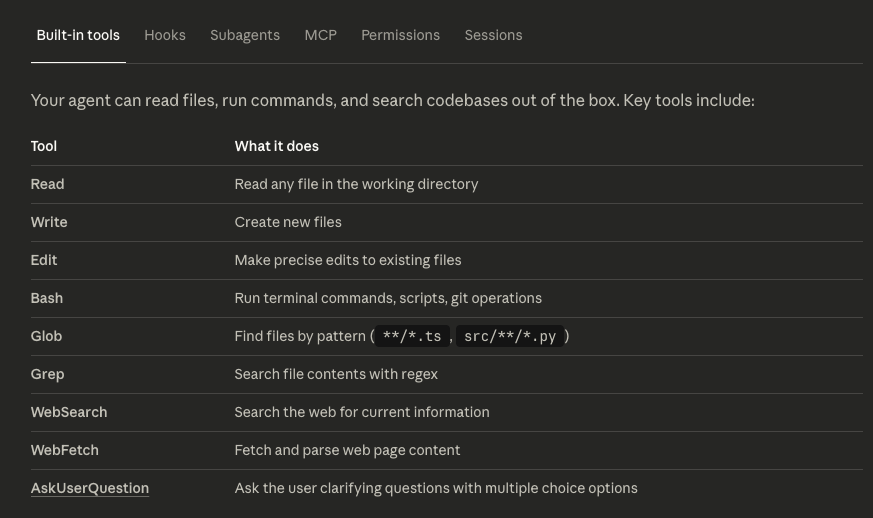
We can create a custom function to extend its capabilities. Of course, we also have an option to connect the Agent directly with MCP.
All of the code mentioned in this blog post is available in this repository:
 serpapi
Quickstart tutorial
At the moment, it offers an SDK for Python and Typescript. We'll use the Python SDK in this tutorial.
Prepare the Agent
Let's start fresh. Create a new directory and cd into it.
mkdir first-agent && cd first-agent
Create a new Python file
touch main.pyInstall SDK
Here is the repo if you want to learn more about the Python SDK.
pip install claude-agent-sdkPrerequisite: Python 3.10+
Set your API Key
Register a free account and get your API key here. Create a new .env file, then store the value there:
ANTHROPIC_API_KEY=your-api-keySample code
Here is a simple code to test if the SDK is installed properly
import asyncio
from claude_agent_sdk import query

async def main():
    async for message in query(prompt="What is the Claude Agent SDK capabilities?"):
        print(message)

asyncio.run(main)
Sidenote: asyncio is an asynchronous networking and concurrency library.
What is the query command?
Query is the entry point for the agentic loop. We have to use async for to stream the message.
It'll loop the process if there are any tools to call or other things to do; otherwise, it'll share the final answer.
The query command can also accept options besides a prompt.
options = ClaudeAgentOptions(
    system_prompt="You are an expert in marketing",
    max_turns=2
)

async for message in query(prompt="How to improve my SEO", options=options):
    print(message)
Allowed tools
We can choose a specific tool by adding allowed_tools option. For example, let's say we want to read a file and fix an error in it.
import asyncio
from claude_agent_sdk import query, ClaudeAgentOptions, AssistantMessage, ResultMessage

USER_PROMPT = "Review oldfile.py for bugs that would cause crashes. Fix any issues you find. Please create a new file, newfile.py, with the fixes. Summarize your changes in a comment at the top of the new file."

async def main():
    # Agentic loop: streams messages as Claude works
    async for message in query(
        prompt=USER_PROMPT,
        options=ClaudeAgentOptions(
            allowed_tools=["Read", "Edit", "Glob"],
            permission_mode="acceptEdits",  # Auto-approve file edits
        ),
    ):
        # Print human-readable output
        if isinstance(message, AssistantMessage):
            for block in message.content:
                if hasattr(block, "text"):
                    print("Claude Reasoning:", end=" ")
                    print(block.text)  # Claude's reasoning
                elif hasattr(block, "name"):
                    print(f"Tool: {block.name}")  # Tool being called
        elif isinstance(message, ResultMessage):
            print(f"Done: {message.subtype}")  # Final result


asyncio.run(main())
There's also disallowed_tools if you want to prevent the agent from using a specific tool.
WebSearch tool
Let's try the built-in web search tool to scrape the internet. We'll see the limitations of the native tool and the solution to them.
Add WebSearch in the allowed_tools parameter.
import asyncio
from claude_agent_sdk import query, ClaudeAgentOptions, AssistantMessage, ResultMessage


PROMPT = "What's trending news in Indonesia at the moment?. Share article link for each."

async def main():
    # Agentic loop: streams messages as Claude works
    async for message in query(
        prompt=PROMPT,
        options=ClaudeAgentOptions(
            allowed_tools=["WebSearch"],  # Allowing web search
        ),
    ):
        # Print human-readable output
        if isinstance(message, AssistantMessage):
            for block in message.content:
                if hasattr(block, "text"):
                    print("Claude Reasoning:", end=" ")
                    print(block.text)  # Claude's reasoning
                elif hasattr(block, "name"):
                    print(f"Tool: {block.name}")  # Tool being called
        elif isinstance(message, ResultMessage):
            print(f"Done: {message.subtype}")  # Final result


asyncio.run(main())
It took me around 84.76 seconds to finish this. It's pretty slow for a simple question.
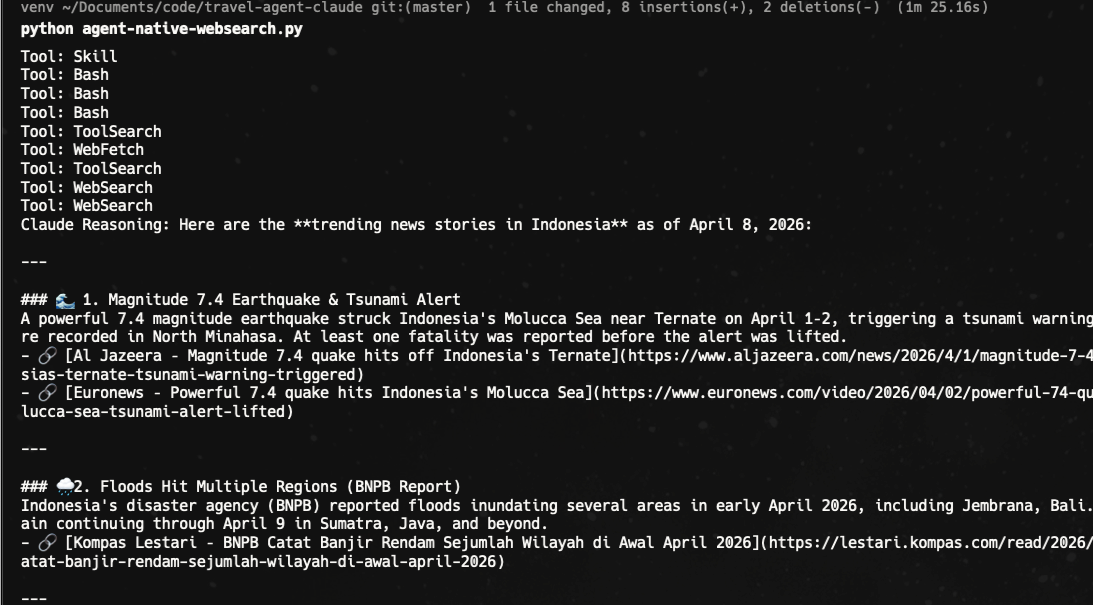
Next, I want it to handle more complex tasks, like searching for flight information. I switch the prompt to this:
PROMPT = "Share flight info from Jakarta to Bali on April 30th? Share price, time detail, flight number, and resource for each. Don't hallucinate." This time. It took me 80.68s.. but with little useful information.
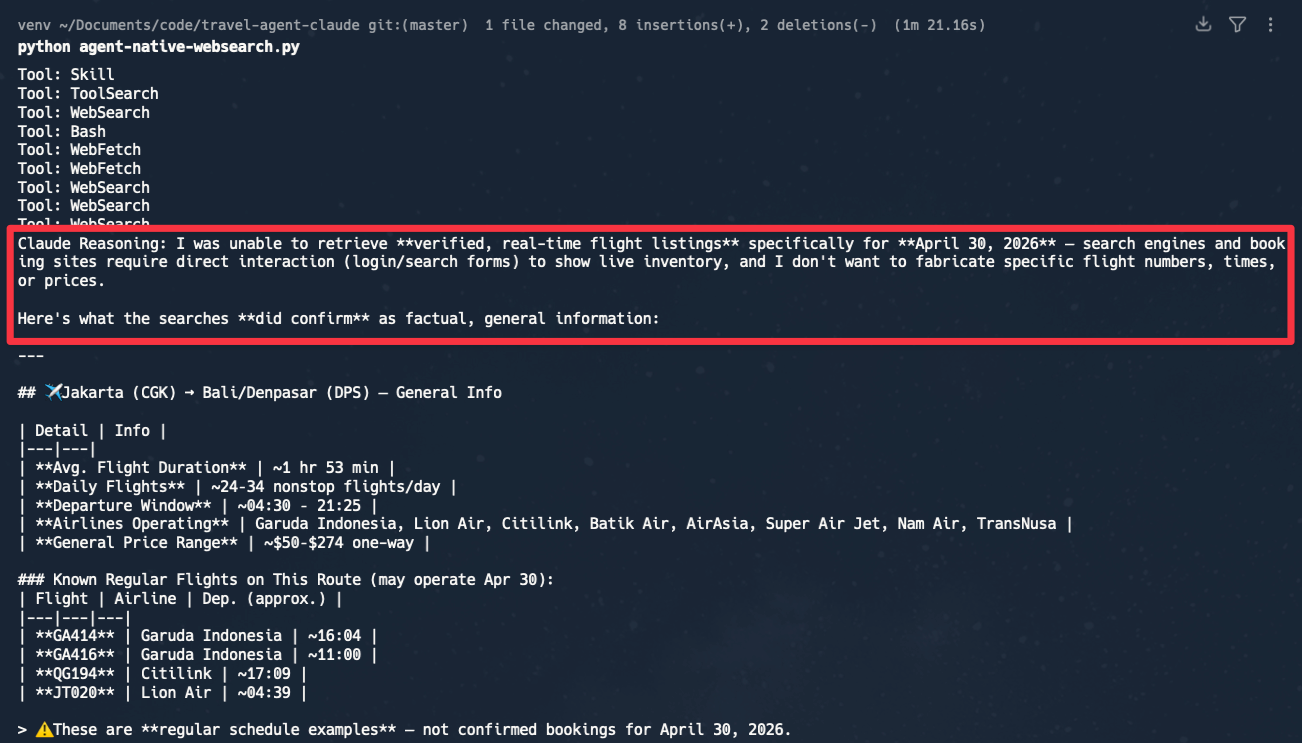
It seems like we're not able to scrape the internet with more advanced tasks like this. The result is just basic knowledge, not really from any resources.
Let's see the solution in the next section.
Real-time data for AI tools: SerpApi
Meet SerpApi, it's the web search API for your AI tools, LLMs, and AI agents. As we've seen, the native web search tool is not very reliable.
SerpApi allows you to collect data from various search engine results in real-time, like:
- Google Search
- Google Maps
- Amazon
- Ebay
- and more.
It supports 100+ search engine APIs.
Connect Agent SDK with an external tool
It's possible to use a custom API with the agent. We have several ways to do it:
- Connect an MCP server
- Write our function manually
- Use
claude skillfile
We'll see how to do all of them in this blog post.
Connect the Claude Agent with an MCP server
If the external tool you want to use already has an MCP server, good news! You can connect the server directly, without adding too much code.
I'll share an example of connecting the Claude Agent SDK with the SerpApi MCP server. Feel free to use any other MCP server that is relevant to your project.
Ensure to register for free at serpapi.com to get your API key. I'll put my API key in an .env file and load it in the main.py file.
Install python-dotenv to read .env file
pip install phyton-dotenvLoad the API key
# Connecting SerpApi key
import os
from dotenv import load_dotenv
load_dotenv()
SERPAPI_API_KEY = os.environ.get("SERPAPI_API_KEY")
Here is how to connect the MCP server:
import asyncio
from claude_agent_sdk import query, ClaudeAgentOptions, ResultMessage

# load SerpApi API key from .env file
import os
from dotenv import load_dotenv
load_dotenv()
SERPAPI_API_KEY = os.environ.get("SERPAPI_API_KEY")

async def main():
    SYSTEM_PROMPT = "Always use the SerpApi MCP server for web search;"
    USER_PROMPT = "Find me a hotel under $100 in Bay Area next week."

    options = ClaudeAgentOptions(
        system_prompt=SYSTEM_PROMPT,
        mcp_servers={
            "serpapi": {
                "type": "http",
                "url": "https://mcp.serpapi.com/"+ SERPAPI_API_KEY +"/mcp",
            }
        },
        allowed_tools=["mcp__serpapi__*"], #Base name:mcp__<server-name>__<tool-name>
    )

    async for message in query(
        prompt=USER_PROMPT,
        options=options,
    ):
        if isinstance(message, ResultMessage) and message.subtype == "success":
            print(message.result)


asyncio.run(main())
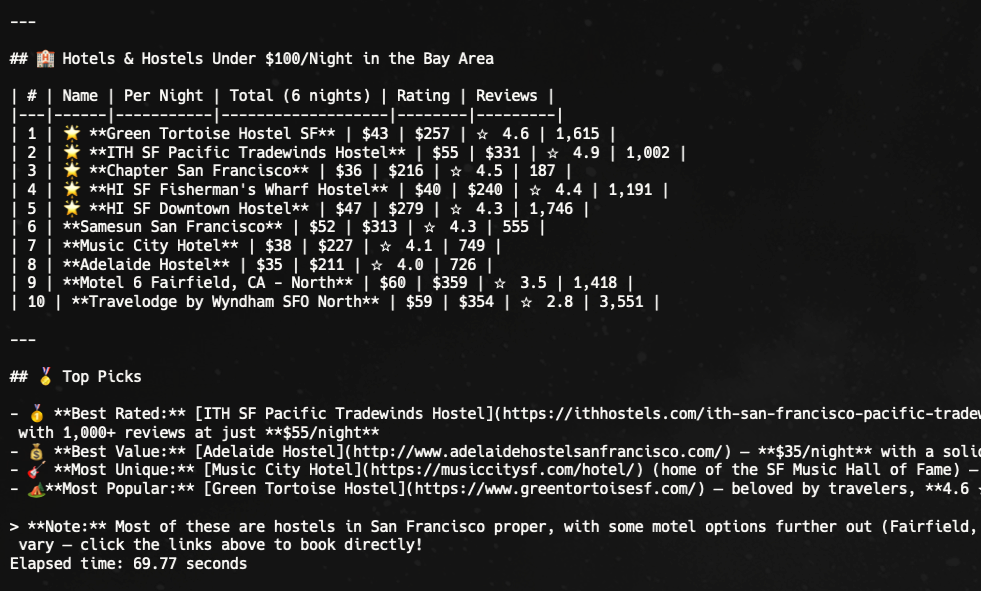
Based on my personal experience, Claude doesn't always use the MCP, so I need to specify the instructions for them, which I put in the SYSTEM_PROMPT variable above. The result is more consistent.
Here is the example result:
How to call a custom API
Regardless of whether you're using SerpApi, it's good to learn how to call a custom function in the Claude Agent SDK to make it more powerful.
The easiest way is to use MCP, as we've seen in the previous section. However, since not many tools support MCP at the moment, let's see how to connect a tool manually. You also have more control when declaring the custom function manually.
The steps are:
- Define the custom tool with the actual function inside
- Connect this tool using create_sdk_mcp_server function
- Allow this tool to use allowed_tools parameter
Let's say we want to build a travel agent. First, we want to connect it with the Google Flights API.
Ensure to understand what are the parameters and how to call your API.
Here is an example of defining the Google Flights API function:
import json
import requests
import asyncio
from typing import Any
from claude_agent_sdk import tool, create_sdk_mcp_server, query, ClaudeAgentOptions, AssistantMessage, ResultMessage

# Connecting SerpApi key
import os
from dotenv import load_dotenv
load_dotenv()
SERPAPI_API_KEY = os.environ.get("SERPAPI_API_KEY")

# Custom tool: SerpApi Google Flights Search
@tool(
    name="search_flights",
    description="Search for flights using SerpApi. Input should be a JSON string with 'origin', 'destination', and 'date' fields.",
    input_schema={
        "type": "object",
        "properties": {
            "departure_id": {"type": "string", "description": "IATA code of the departure airport"},
            "arrival_id": {"type": "string", "description": "IATA code of the arrival airport"},
            "type": {"type": "number", "description": "Type of flight search: 1 for round trip (default), 2 for one way"},
            "outbound_date": {"type": "string", "description": "Departure date in YYYY-MM-DD format"},
            "return_date": {"type": "string", "description": "Return date in YYYY-MM-DD format (required if type is 1)"},
        },
        "required": ["departure_id", "arrival_id", "type", "outbound_date"],
    },
)
async def search_flights(args: dict[str, Any]) -> dict[str, Any]:
    try:
        departure_id = args["departure_id"]
        arrival_id = args["arrival_id"]
        flight_type = args["type"]  #args.get("type", 1)  # Default to round trip if not provided
        outbound_date = args["outbound_date"]
        return_date = args["return_date"] #args.get("return_date", "")

    except (json.JSONDecodeError, KeyError) as e:
        return f"Invalid input: {e}"

    # Call SerpApi Google Flights Search
    params = {
        "engine": "google_flights",
        "api_key": SERPAPI_API_KEY,
        "departure_id": departure_id,
        "arrival_id": arrival_id,
        "type": flight_type,
        "outbound_date": outbound_date,
    }

    if flight_type == 1 and return_date:
        params["return_date"] = return_date

    response = requests.get("https://serpapi.com/search", params=params)

    if response.status_code == 200:
        results = response.json()
        # Extract relevant flight information (this is just an example, adjust as needed)
        flights = results.get("best_flights", []) #optional: other_flights
        if not flights:
            return "No flights found."

        print("--- Successfully fetched flight data")  # Debugging statement

        return {
            "content": [
                {
                    "type": "text",
                    "text": json.dumps(flights, indent=2)
                }
            ]
        }
    else:
        print("--- Error fetching flight data:", response.status_code, response.text)  # Debugging statement
return f"Error fetching flight data: {response.status_code}"- Define the tool with
tool()helper. It should have the name, description, and input schema. - Declare the actual function after that.
- We need to return a content array with a specified type. In this example, we're using
text.
Connecting the custom tool
To connect a custom tool, we need to use the create_sdk_mcp_server like this:
flight_search_server = create_sdk_mcp_server(
    name="flight",
    version="1.0",
    tools=[search_flights],
)
This is not an actual MCP server. You can think of a local MCP, where we manually create the function.
Here's the prompt I want to test:
USER_PROMPT = "I want to find a flight from Jakarta to Singapore departing on 2026-04-20 and returning on 2026-04-30. Can you help me with that? If the tool is failed, write in detail what's the issue"Pro tips: add this on prompt during debugging: "If the tool is failed, write in detail what's the issue". From my experience, many error could happen during connecting the tool with Claude. It'll help us debug the issue.
Here is the AI Agent function:
async def main():
    async for message in query(
        prompt=USER_PROMPT,
        options=ClaudeAgentOptions(
            mcp_servers={"flight": flight_search_server},  # Register the MCP server with the custom tool
            allowed_tools=["mcp__flight__search_flights"]  # Base: mcp__{server_name}__{tool_name}
        ),
    ):
        # Print human-readable output
        if isinstance(message, AssistantMessage):
            for block in message.content:
                if hasattr(block, "text"):
                    print("Claude Reasoning:", end=" ")
                    print(block.text)  # Claude's reasoning
                elif hasattr(block, "name"):
                    print(f"Tool: {block.name}")  # Tool being called
        elif isinstance(message, ResultMessage):
            print(f"Done: {message.subtype}")  # Final result

asyncio.run(main())
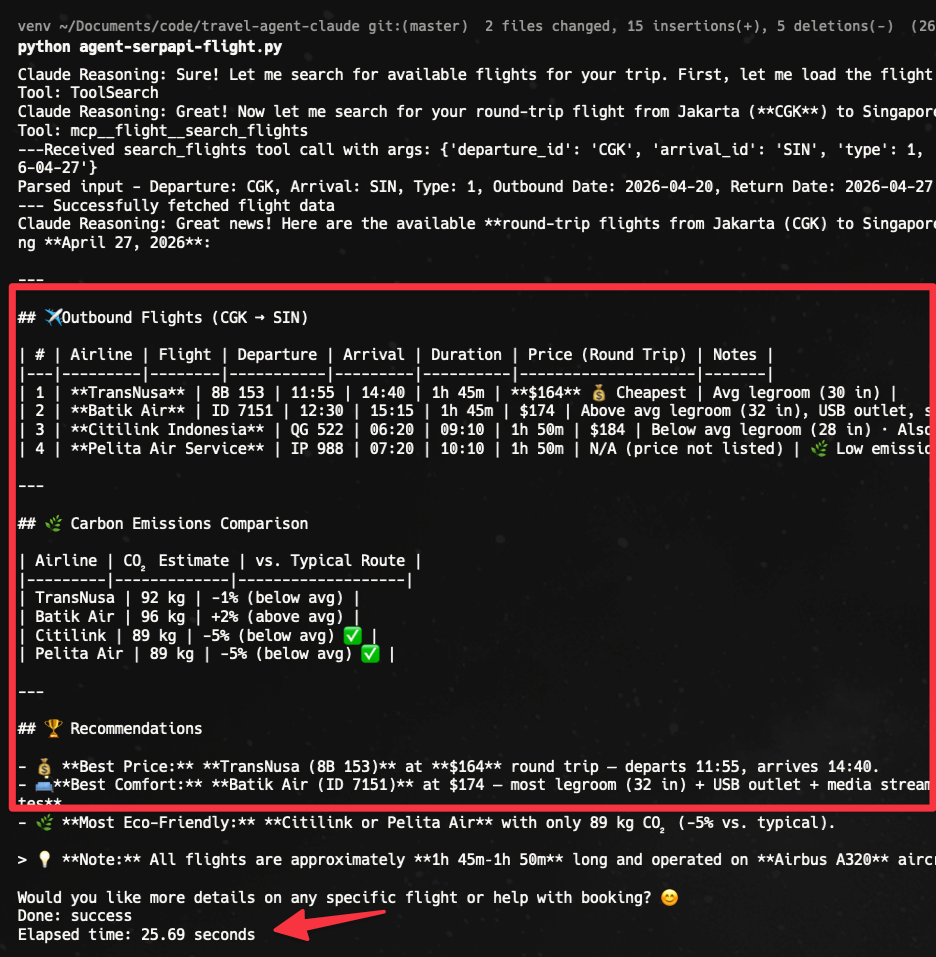
It shows much better results with much faster speed (25.69s). Compared to the built-in function that takes ~80s. That's almost three times faster.
Here is the full result:
We can compare the result with the actual Google Flights website:
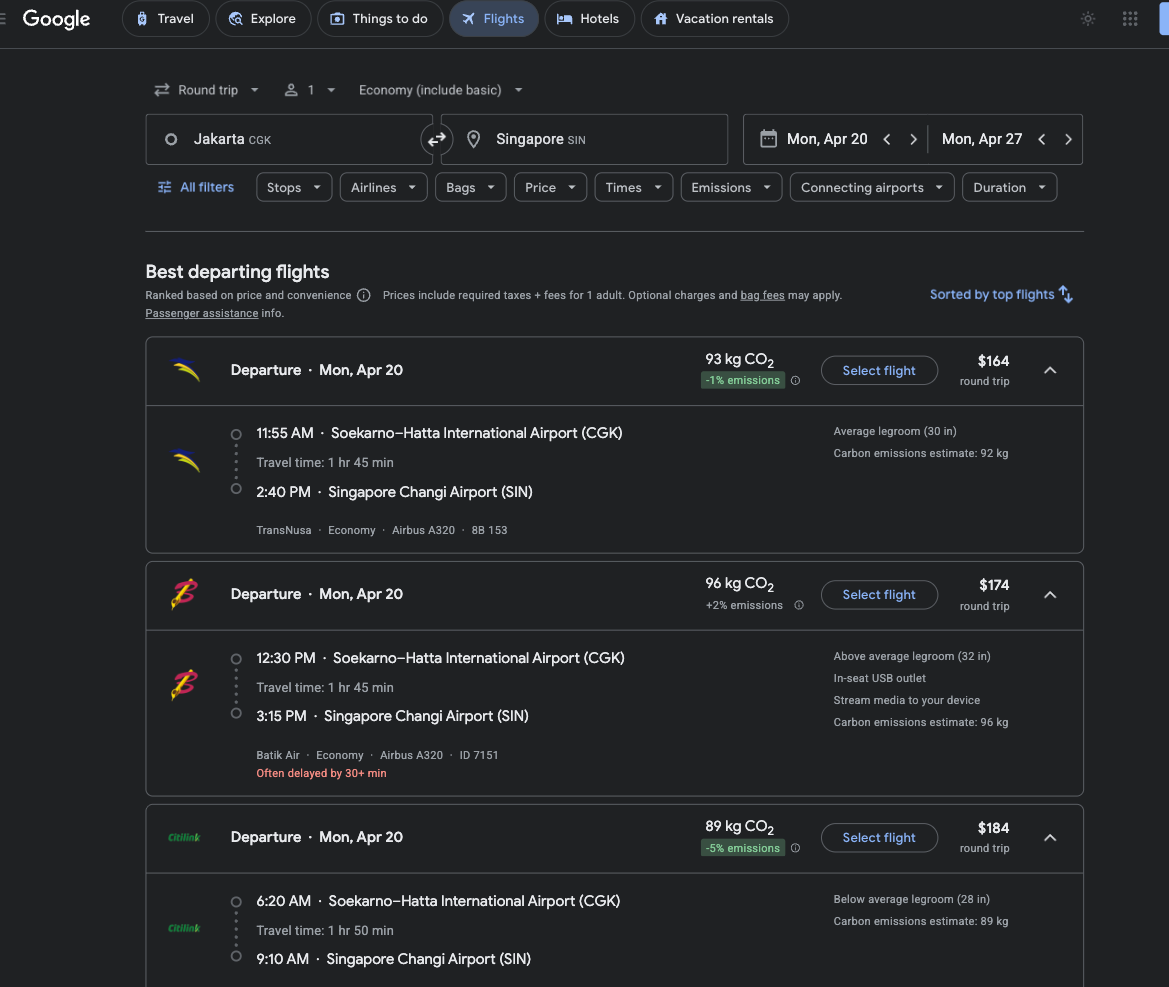
As you can see, the AI agent is getting the answer from a real-time data source.
Use multiple tools in the Claude Agent SDK
If the steps are clear, we may not need an AI Agent. Instead, we can just build a program with a linear workflow, which is much faster and simpler.
An important reminder from the Anthropic blog:
When to use agents: Agents can be used for open-ended problems where it’s difficult or impossible to predict the required number of steps, and where you can’t hardcode a fixed path. The LLM will potentially operate for many turns, and you must have some level of trust in its decision-making. Agents' autonomy makes them ideal for scaling tasks in trusted environments.
By the way, we have tutorials on how to connect SerpApi with your LLMs.
Now, assuming the user is asking more complicated questions that require several tools to solve. Let's see how to add multiple tools to the agent.
The idea is the same, we need to declare the tool with @tool, connect it with the create_sdk_mcp_server and let the agent know about it.
I'll continue from our previous Flight API example. Let's say we want to build a travel agent. I'm now introducing a Google Hotels API to retrieve hotel information.
@tool(
    name="search_hotels",
    description="Search for hotels using SerpApi. Input should be a JSON string with 'q', 'check_in_date', and 'check_out_date' fields.",
    input_schema={
        "type": "object",
        "properties": {
            "q": {"type": "string", "description": "Search query, e.g., 'hotels in Singapore'"},
            "check_in_date": {"type": "string", "description": "Check-in date in YYYY-MM-DD format"},
            "check_out_date": {"type": "string", "description": "Check-out date in YYYY-MM-DD format"},
            "min_price": {"type": "number", "description": "Minimum price filter (optional)"},
            "max_price": {"type": "number", "description": "Maximum price filter (optional)"},
        },
        "required": ["q", "check_in_date", "check_out_date"],
    },
)
async def search_hotels(args: dict[str, Any]) -> dict[str, Any]:
    print("---Received search_hotels tool call with args:", args)  # Debugging statement
    try:
        q = args["q"]
        check_in_date = args["check_in_date"]
        check_out_date = args["check_out_date"]
        min_price = args.get("min_price")
        max_price = args.get("max_price")

        print(f"Parsed input - Query: {q}, Check-in: {check_in_date}, Check-out: {check_out_date}, Min Price: {min_price}, Max Price: {max_price}")  # Debugging statement

    except (json.JSONDecodeError, KeyError) as e:
        return f"Invalid input: {e}"

    # Call SerpApi Google Hotels Search
    params = {
        "engine": "google_hotels",
        "api_key": SERPAPI_API_KEY,
        "q": q,
        "check_in_date": check_in_date,
        "check_out_date": check_out_date,
    }

    if min_price is not None:
        params["min_price"] = min_price
    if max_price is not None:
        params["max_price"] = max_price

    response = requests.get("https://serpapi.com/search", params=params)

    if response.status_code == 200:
        results = response.json()
        hotels = results.get("properties", [])
        hotels = hotels[:2] # limit to top 2 hotels for save tokens; You can adjust this as needed
        if not hotels:
            return "No hotels found."

        print("--- Successfully fetched hotel data")  # Debugging statement

        return {
            "content": [
                {
                    "type": "text",
                    "text": json.dumps(hotels, indent=2)
                }
            ]
        }
    else:
        print("--- Error fetching hotel data:", response.status_code, response.text)  # Debugging statement
        return f"Error fetching hotel data: {response.status_code}"
Next, we connect both tools like this:
travel_search_server = create_sdk_mcp_server(
    name="travel",
    version="1.0",
    tools=[search_flights, search_hotels],  # You can register multiple tools under the same server
)
Here is how to use it on the Agent:
async def main():
     async for message in query(
        prompt=USER_PROMPT,
        options=ClaudeAgentOptions(
            system_prompt=SYSTEM_PROMPT,
            include_partial_messages=True,
            mcp_servers={"travel": travel_search_server},  # Register the MCP servers with the custom tools
            allowed_tools=["mcp__travel__search_flights", "mcp__travel__search_hotels"],  # Base: mcp__{server_name}__{tool_name}
            disallowed_tools=["Read"]
        ),
    ):
        # Print human-readable output
        if isinstance(message, AssistantMessage):
            for block in message.content:
                if hasattr(block, "text"):
                    print("\nClaude Reasoning:", end=" ")
                    print(block.text)  # Claude's reasoning
                elif hasattr(block, "name"):
                    print(f"\nTool: {block.name}")  # Tool being called
        elif isinstance(message, ResultMessage):
            print(f"\nDone: {message.subtype}")  # Final result
Here is our prompt for testing. I'm also adding some instructions to ensure the agent uses the tools.
SYSTEM_PROMPT = """You're a helpful travel assistant. Help user for their trip.
- Search flights using the `search_flights` tool
- Search hotels using the `search_hotels` tool
- Combine the results to find the best options for the user based on their preferences and constraints.
- If you encounter any issues with the tools, explain the problem in detail."""

# Simple sample
USER_PROMPT = """  I have a developer conference in Singapore on April 30, 2026. I'm at Malaysia at the moment. I can spend 5 days there.
                Can you help me with that?"""
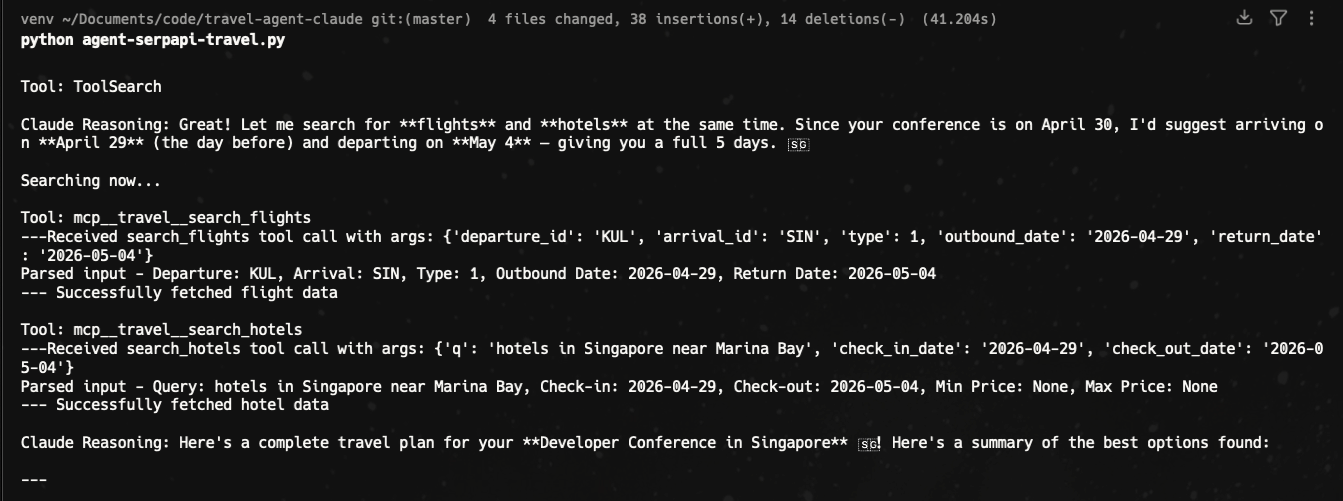
Here is the output of the thinking process:
And here is the final response:
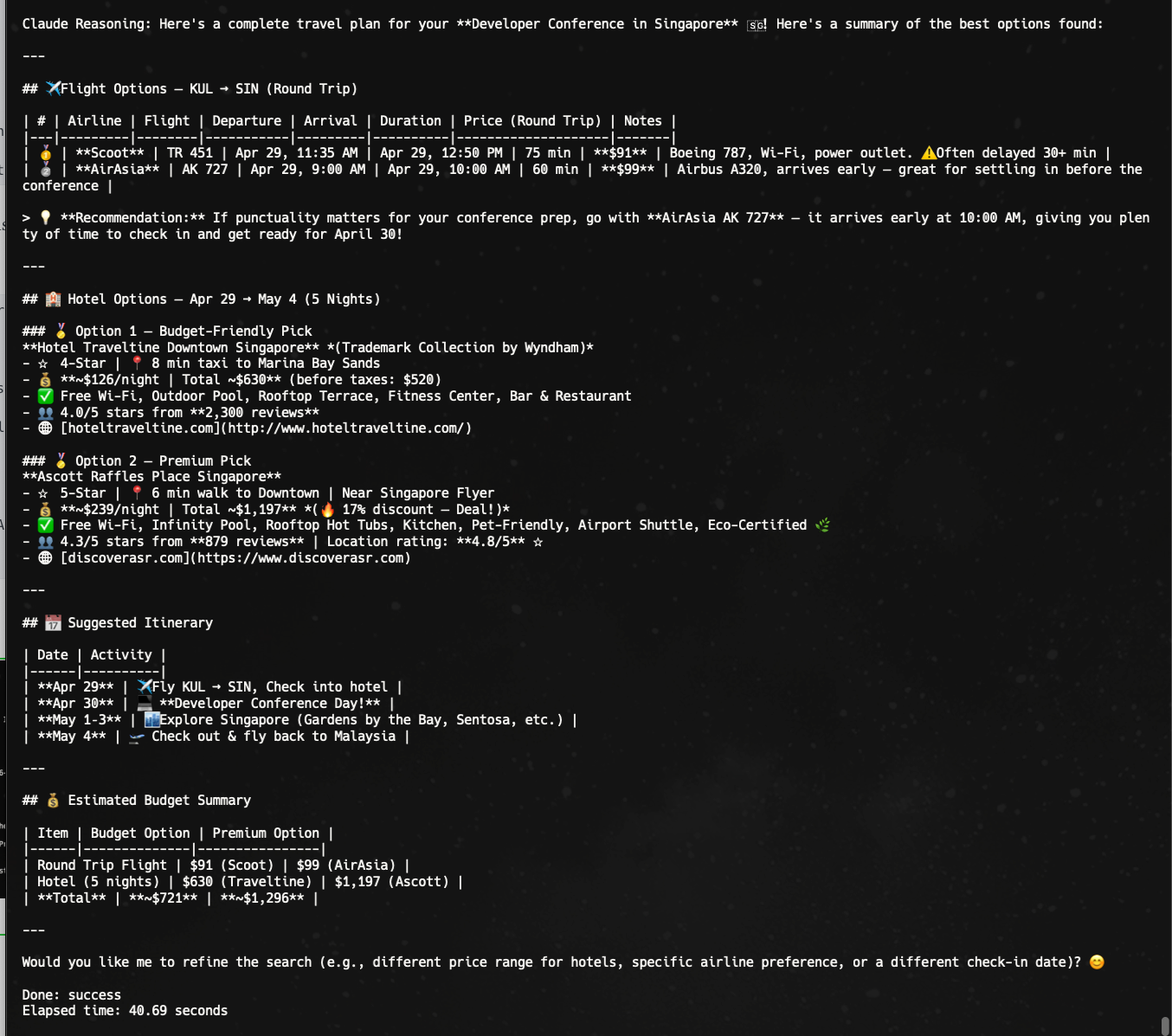
It's succesfully running two APIs and know what to search on each, which makes it perfect for running an AI agent that can think for themself.
Use the Claude Skill in the Claude Agent SDK
Have you heard about Claude Skill? It's another way to add a tool to the AI by providing the skill information in a Markdown file. Yes! It's also possible to use the Claude skill in the SDK.
Assuming we already have the skill directory locally. Here is how to connect it:
async def main():
    options = ClaudeAgentOptions(
        cwd=".claude/skills/serpapi-basic-skill",  # Project with .claude/skills/
        setting_sources=["user", "project"],  # Load Skills from filesystem
        allowed_tools=["Skill", "Read", "Write", "Bash"],  # Enable Skill tool
    )

    # USER_PROMPT = "What is your serpapi skill?
    USER_PROMPT = "Use the SerpApi skill. What is the trending topic in healthcare now? Share link for reference."
    async for message in query(
        prompt=USER_PROMPT, options=options
    ):
    ....
In this example, I'm just creating a new SKILL.md file inside this directory .claude/skills/serpapi-basic-skill .
You can try adding a new skill by adding a simple custom instruction on a SKILL.md file.
Summary
McKinsey reported in the state of AI in 2025 that more companies are experimenting with AI agents. If you're looking to build your first AI agent, consider using this SDK
The Claude Agent SDK is a very powerful tool with a nice developer experience. We can easily use the built-in tools, call a custom tool, either through the MCP server or Claude-skill, or declare the function manually.
You can use SerpApi APIs to extend the Agent capability with real-time information from various search engines.