 Google Local Services API
 Google Travel Explore API
 Baidu Search API
 Bing Search API
 DuckDuckGo Search API
 eBay Search API
 Naver Search API
 OpenTable Reviews API
 The Home Depot Search API
 Tripadvisor Search API
 Walmart Search API
 Ruby
Ruby
 Golang
 .Net
.Net
 MCP
MCP
 C++
C++

Searching for something like "coffee shops near me" sounds simple, but behind the scenes, it requires defining both a location and the area around it. Without that context, a search isn't complete.
If you've worked with location-based queries before, you know that getting this right matters.
Let's look at how this just became easier.
How Location Worked Before
In the Google Maps API, location has traditionally been handled using the ll parameter:
- ll: latitude and longitude (the center point of the search)
This allowed you to define where the search should happen.
At the same time, parameters like:
- z (zoom level), or
- m (distance in meters)
were used to define how large the search area should be.
What's New: A More User-Friendly Way to Set Location
The main improvement is the introduction of a more user-friendly way to provide location. Instead of relying only on latitude and longitude (ll), you can now use:
location (a place name or address)
This makes requests easier to read, write, and understand.
Example mindset:
- Before: You needed coordinates like 40.7128,-74.0060
- Now: You can simply use something like "New York, NY."
Location + Scope: How It Works Together
No matter how you define the location (ll or location), you still need to define the search scope. That's where z and m come in:
- z : controls the map zoom level
- m : defines the distance in meters from the center
Important note:
When using location, you must include either z or m. This ensures the API knows how wide the search area should be.
Understanding z vs m
z: Zoom Level
- Minimum: 3 (very zoomed out)
- Typical range: up to 18–23, depending on location
- Max allowed: 30
z controls how "zoomed in" the map is. Think in terms of map view
m: Distance in Meters
- Minimum: 1 meter
- Maximum: 15028132 meters
m defines a real-world distance from the center point. Think in terms of radius
Which One Should You Use?
It depends on how you think about your search.
- Use z if you want to control the map zoom level
- Use m if you want to control the distance from a location
Both are valid - they just represent different ways of defining the same idea: how much of the map to include
Let's explore an actual example using Python
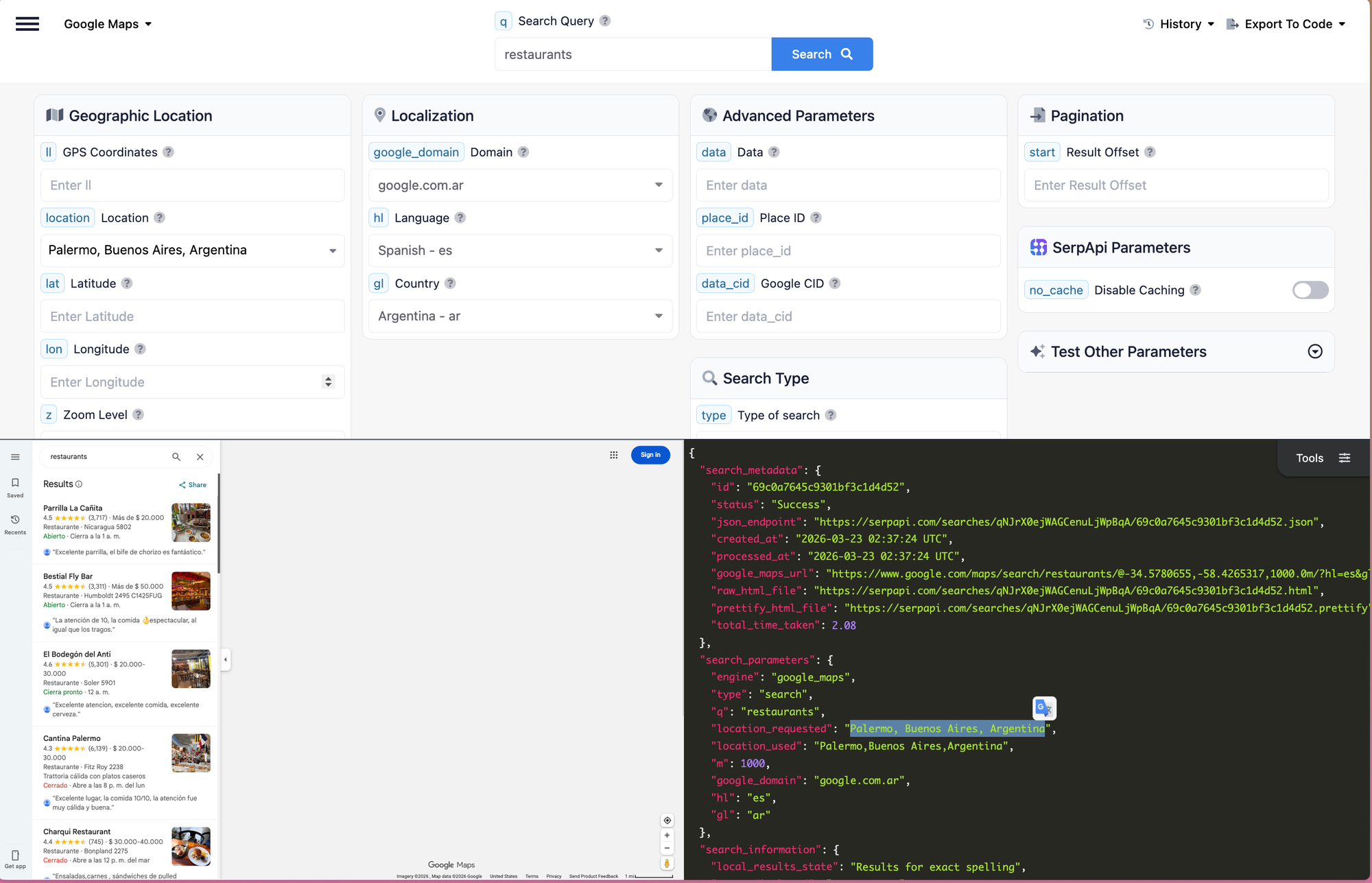
Imagine you want to find restaurants within 1 km of Palermo, Buenos Aires.
Here's an example:
import requests

SERPAPI_API_KEY = "YOUR_SERPAPI_API_KEY"

params = {
    "api_key": SERPAPI_API_KEY,
    "engine": "google_maps",
    "q": "restaurants",
    "location": "Palermo, Buenos Aires, Argentina",
    "m": 1000
}

search = requests.get("https://serpapi.com/search", params=params)
response = search.json()

for place in response.get("local_results", []):
    print(place.get("title"), "-", place.get("address"))
You can explore the full documentation here:
https://serpapi.com/google-maps-api
You can also explore this search in our Plaground here
If you don't have an API KEY yet, register at serpapi.com to get one.
Related Posts
If you found this guide useful, you might also enjoy:
 Hilman Ramadhan
 Autumrose Stubbs
 Hilman Ramadhan